How to Use IMPORTCSV and IMPORTTEXT to Import Data in Excel


Microsoft Excel now includes two new functions for importing external data directly into your spreadsheet: IMPORTCSV and IMPORTTEXT. Instead of using the Data tab's import wizard or Power Query, you can pull CSV and text file data into cells with a simple formula that updates like any other function.
Getting Your File Path
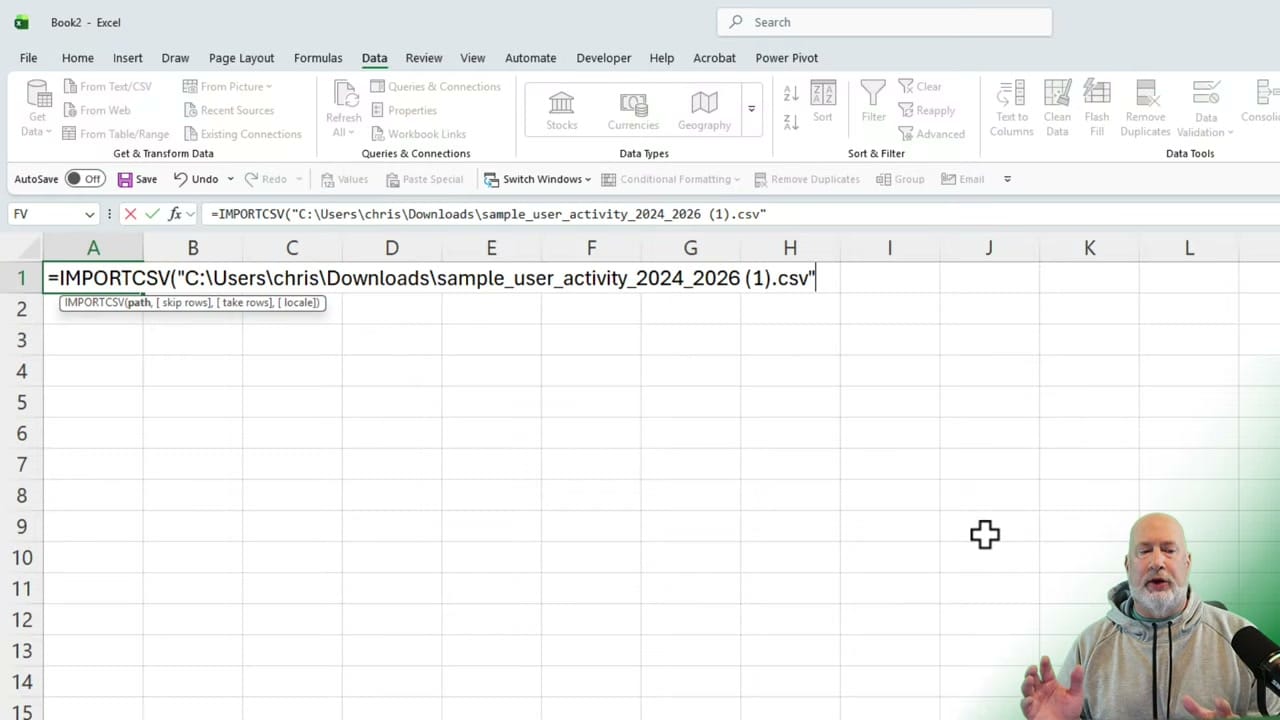
Both functions need a file path as their first argument. The easiest way to get it: open File Explorer, navigate to your file, right-click it, and select Copy as path. This copies the full path with quotes included — Excel handles the formatting when you paste it into the formula.
Using IMPORTCSV
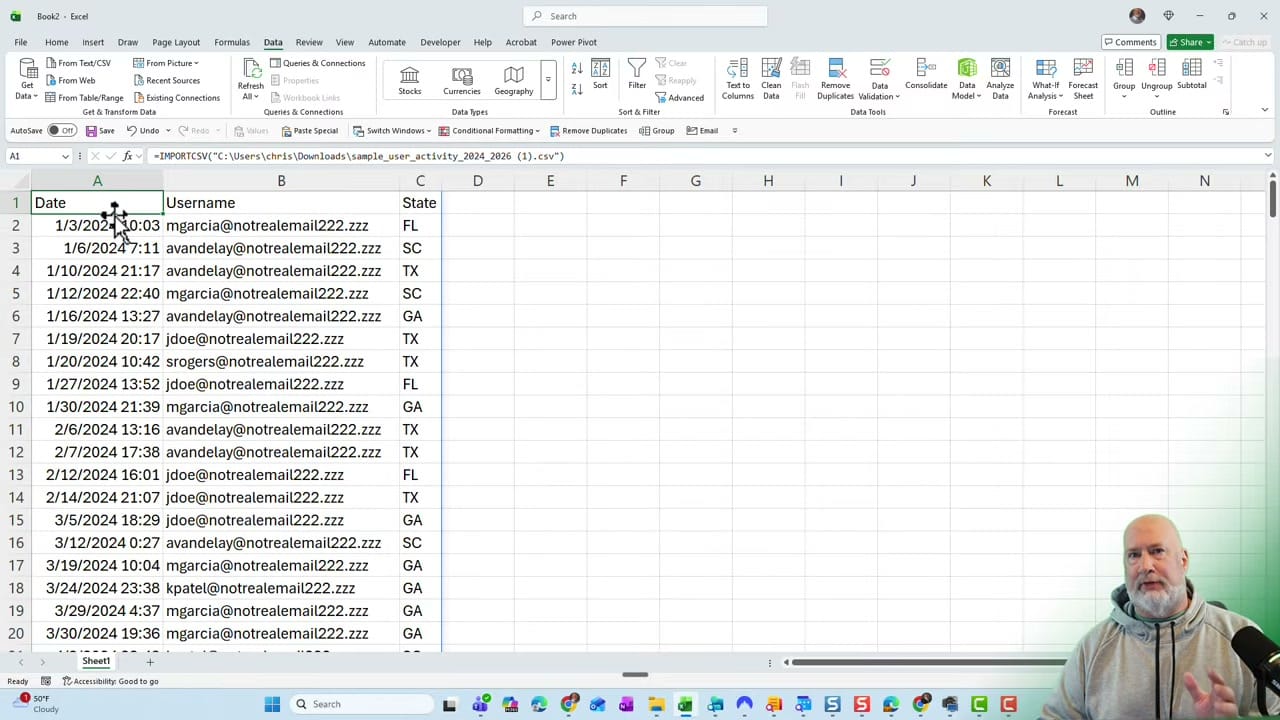
IMPORTCSV is the simpler of the two functions. The syntax is =IMPORTCSV(path, [skip_rows], [take_rows], [locale]), but only the path is required. Paste the file path and press Enter — the data spills across rows and columns as a dynamic array.
The imported data populates immediately with headers in row 1 and data flowing below. The function handles comma-separated formatting automatically, so you don't need to specify a delimiter.
Using IMPORTTEXT
IMPORTTEXT is more flexible. Its syntax is =IMPORTTEXT(path, delimiter, [skip_rows], [take_rows], [locale]). The key difference is the delimiter parameter — you specify what character separates the values. This means IMPORTTEXT can handle files that use semicolons, pipes, tabs, or any other separator.
For a CSV file, you'd use a comma as the delimiter: =IMPORTTEXT("path","," ). For a tab-separated file, you'd pass a tab character instead.
When to Use Each Function
- IMPORTCSV — Quick import of standard CSV files. Minimal arguments, handles comma separation automatically
- IMPORTTEXT — Use when your file has a non-standard delimiter (semicolons, pipes, tabs) or when you need more control over the import
- Both functions return dynamic arrays that spill automatically
- Both support optional
skip_rowsandtake_rowsparameters for importing specific portions of a file
These functions offer a faster alternative to Power Query and Copilot-based imports when you just need to pull in a file quickly.
Related guides
Want to learn more? Visit courses.chrismenardtraining.com for online training courses.