How to Tell If You Have a Microsoft 365 Copilot License (paid) or Microsoft 365 Copilot Chat (free)
The UI "Premium" and "Basic" are showing up now!


If your organization uses Microsoft 365 Enterprise, you likely have a mix of users — some with a paid Copilot license and others using the free Copilot Chat.
The official names are Microsoft 365 Copilot Chat (free for all Enterprise users) and Microsoft 365 Copilot (paid license).
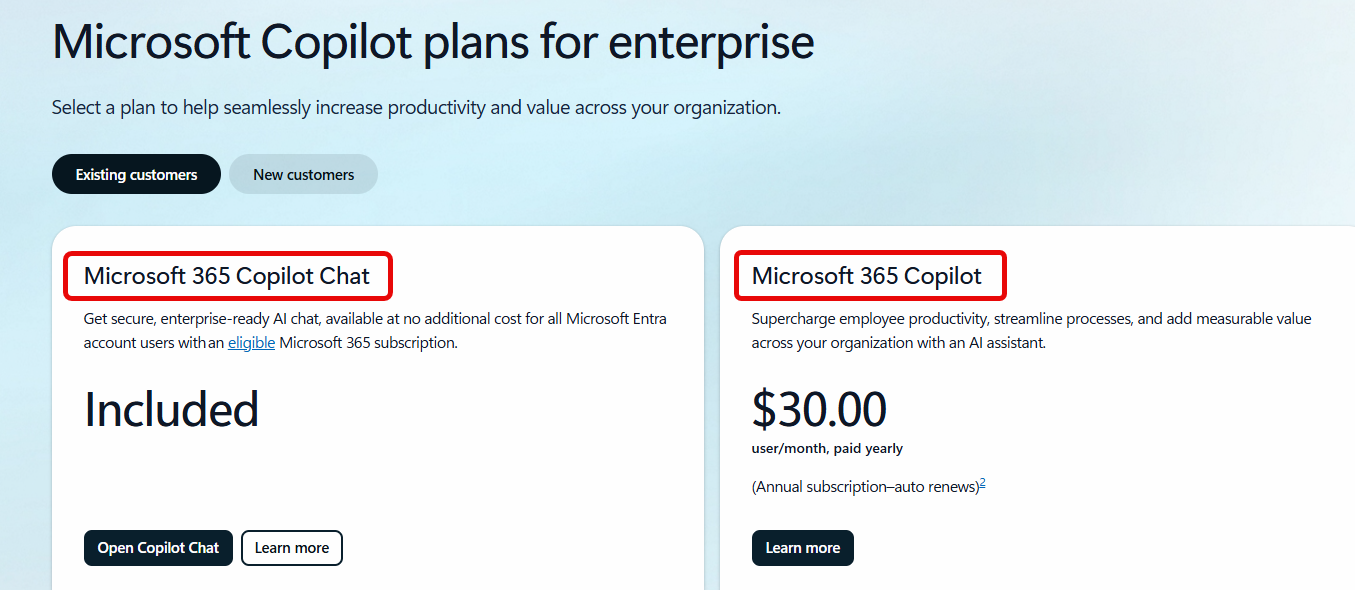
Until recently, figuring out who had which version was surprisingly difficult. Microsoft has now added the UI labels Premium and Basic throughout the interface, making it much easier to identify your license tier at a glance.
Why It Was Confusing Before
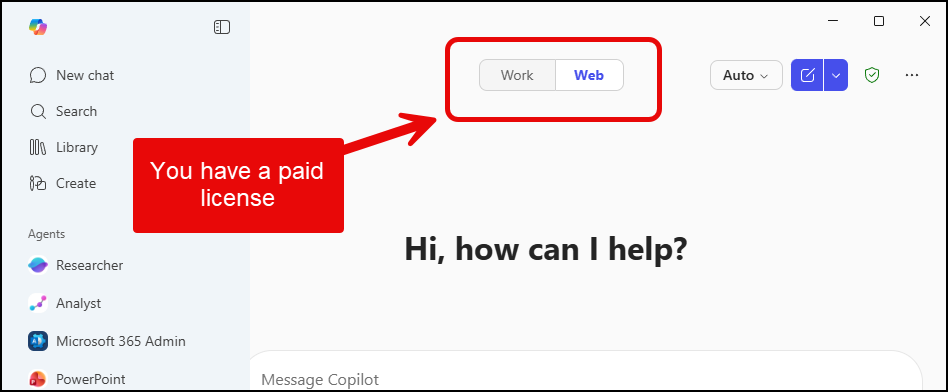
Every M365 Enterprise user gets Microsoft 365 Copilot Chat for free. The paid upgrade — Microsoft 365 Copilot — adds the ability to reason over your Microsoft Graph data (emails, files, channels, meetings, and more). The old way to tell the difference was to look for Work and Web tabs at the top of the Copilot app: licensed users saw both tabs, while free users did not. This method still exist.
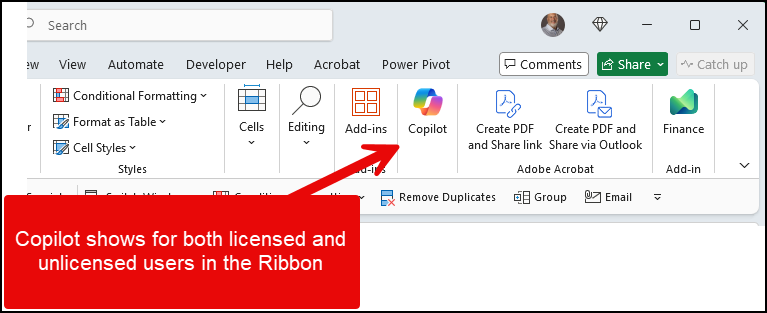
Then Microsoft rolled Copilot into the ribbon of Word, Excel, and PowerPoint for everyone — licensed or not. That removed the last easy visual distinction, making it even harder to tell which version you were running.
Find the Premium Label in the Copilot App
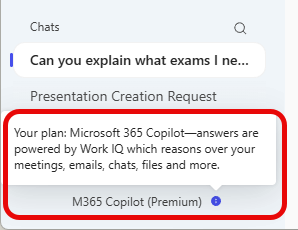
Now, when you open the Microsoft 365 Copilot app from your desktop or the web. Look in the bottom-left corner of the window. Below your name, you will now see M365 Copilot (Premium) if you have a paid license. This is not a name change; it is just a label letting you know you have Microsoft 365 Copilot (a paid license).

Click on that label to see exactly what your Premium license includes, such as Work IQ — the ability to reason over all your Microsoft Graph items like emails, documents, and calendar events.
What the Basic Label Looks Like
For users on the free tier, the same bottom-left corner tells a different story. Instead of "M365 Copilot," it reads Copilot Chat (Basic). There is also an Upgrade button, and the Work and Web tabs are still missing from the top of the interface.

Check Your License in Word
Now, let's go see how the apps - Word, Excel, and PowerPoint- appear. Another great change. The same labels appear inside Office apps. Open Word and click Copilot in the ribbon to open the Copilot task pane. At the bottom-right of that pane, you will see either M365 Copilot (Premium) or Copilot Chat (Basic).

This works in Excel and PowerPoint as well — any Office app with the Copilot pane will display the label.
Confirm Your Enterprise Account Type
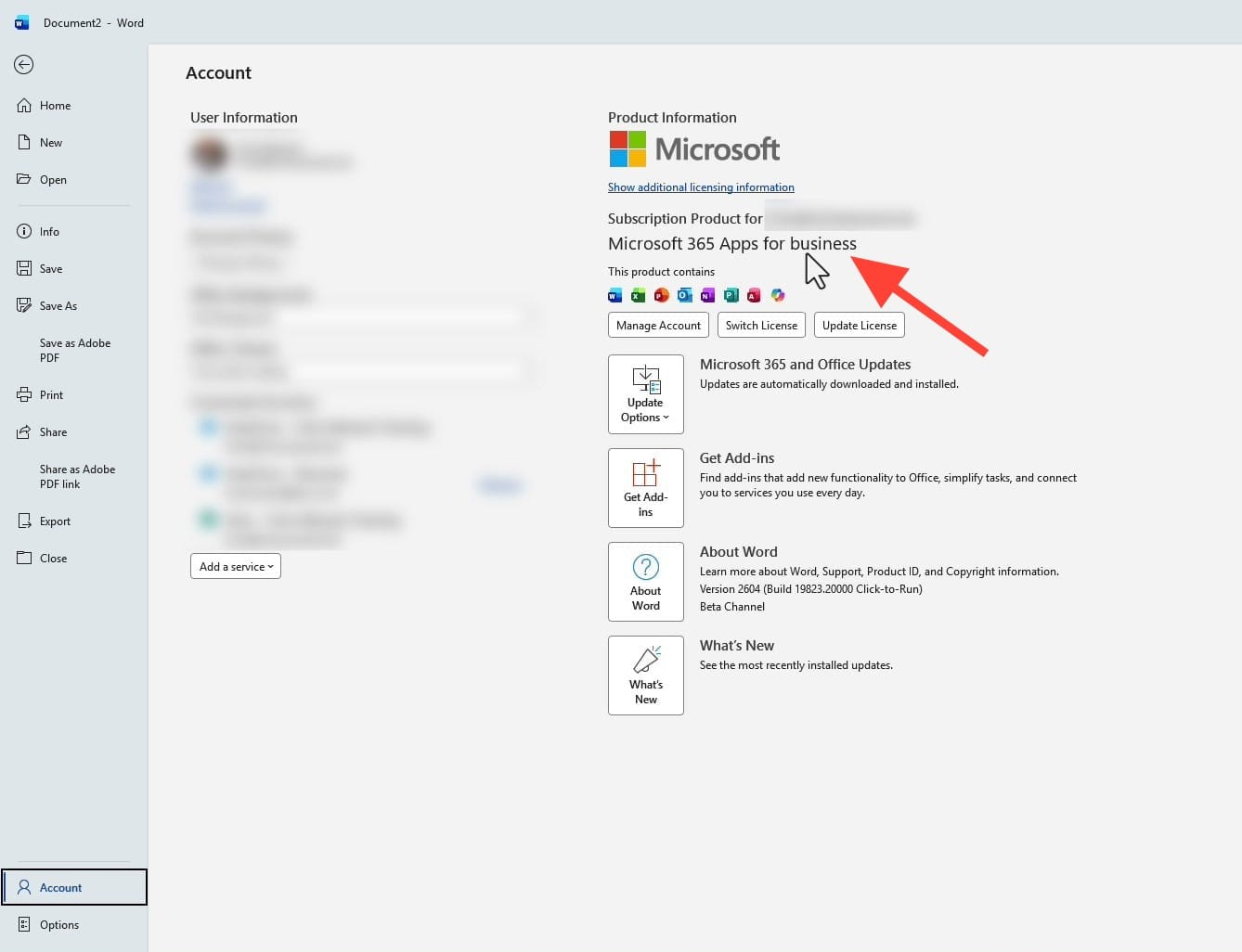
If you are not sure whether your organization is on an Enterprise plan, open any Office app (Word, Excel, or PowerPoint), click File, then click Account. Under Product Information, you will see your subscription type — look for the word Enterprise next to "Microsoft 365." You will see the word "enterprise" in the image below, where the word business is displayed for me.
Bonus tip: in the image below, all my apps are listed, including a Copilot icon above "Switch License". That indicates I also have a paid Copilot license.
Related Copilot Tutorials
 Chris Menard
 Chris Menard
 Chris Menard
 Chris Menard
- LinkedIn Post
- Microsoft 365 Copilot (Premium) = paid license with full capabilities, including Work IQ
- Copilot Chat (Basic) = free version included with M365 Enterprise
- Check the bottom-left of the Copilot app or the bottom-right of the Copilot pane in Word, Excel, or PowerPoint
- Go to File > Account in any Office app to verify your Enterprise subscription