
How to Share Copilot Prompts in Microsoft Teams

Microsoft 365 Copilot now lets you share prompts and AI-generated responses directly into a Microsoft Teams group chat. Instead of copying and pasting results, you can send them to your team with a single click and start a conversation around the output.
This feature requires a paid Microsoft 365 Copilot license.
Watch the full tutorial:
Open Copilot and Use the Work Tab
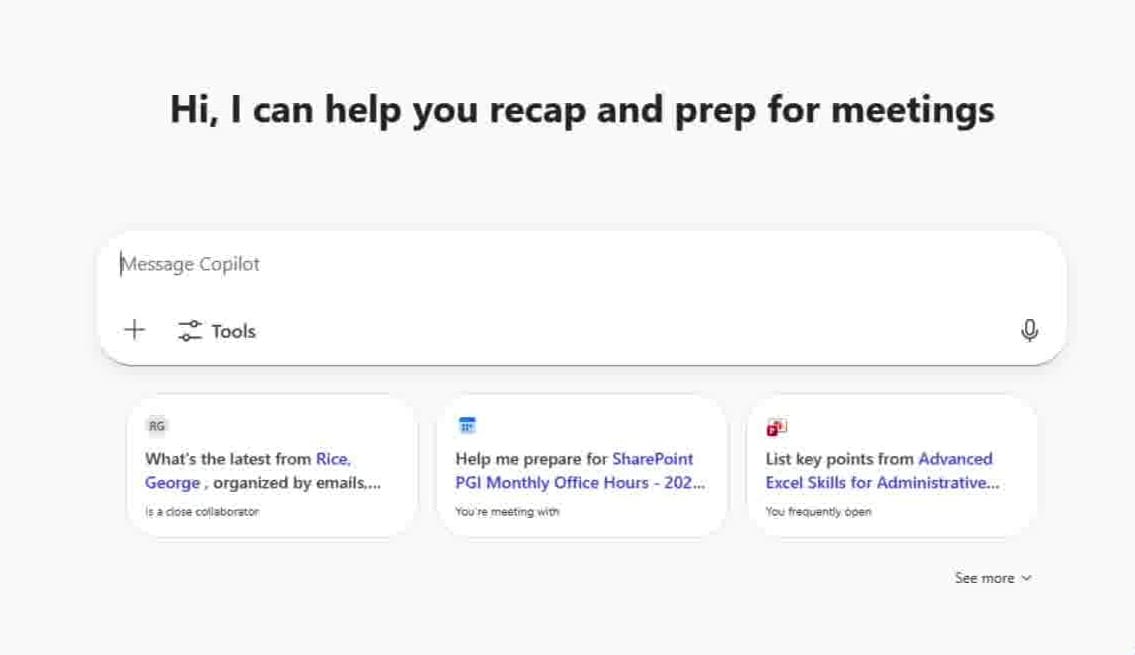
Open Microsoft 365 Copilot and select the Work tab. This tab grounds Copilot in your organizational data, meaning it can pull information from your files, emails, and documents stored in Microsoft 365.
You will see a set of suggested prompts based on files you have been working with recently. You can select one of these or type your own prompt.
Generate a Response from a File
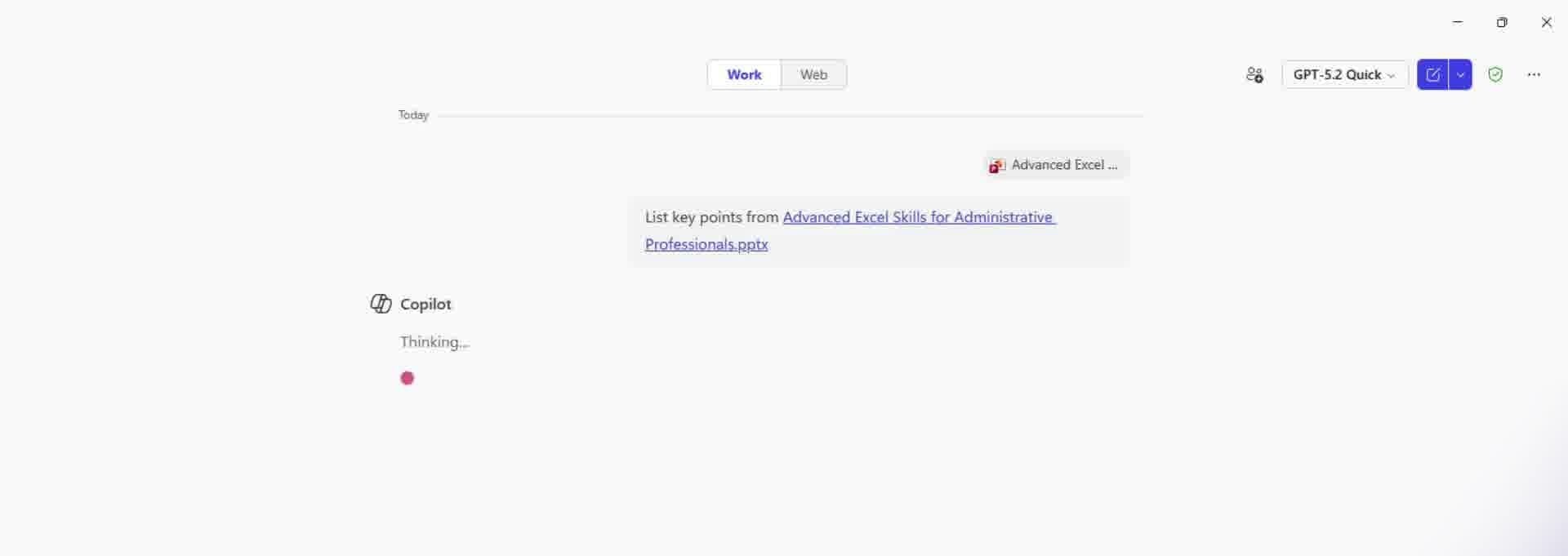
Select a prompt or enter one that references a specific document. Copilot processes the request and returns a response grounded in the contents of that file.
In this example, Copilot generates a summary from a PowerPoint presentation. The response includes key points pulled directly from the slides.
Start a Group Chat in Teams
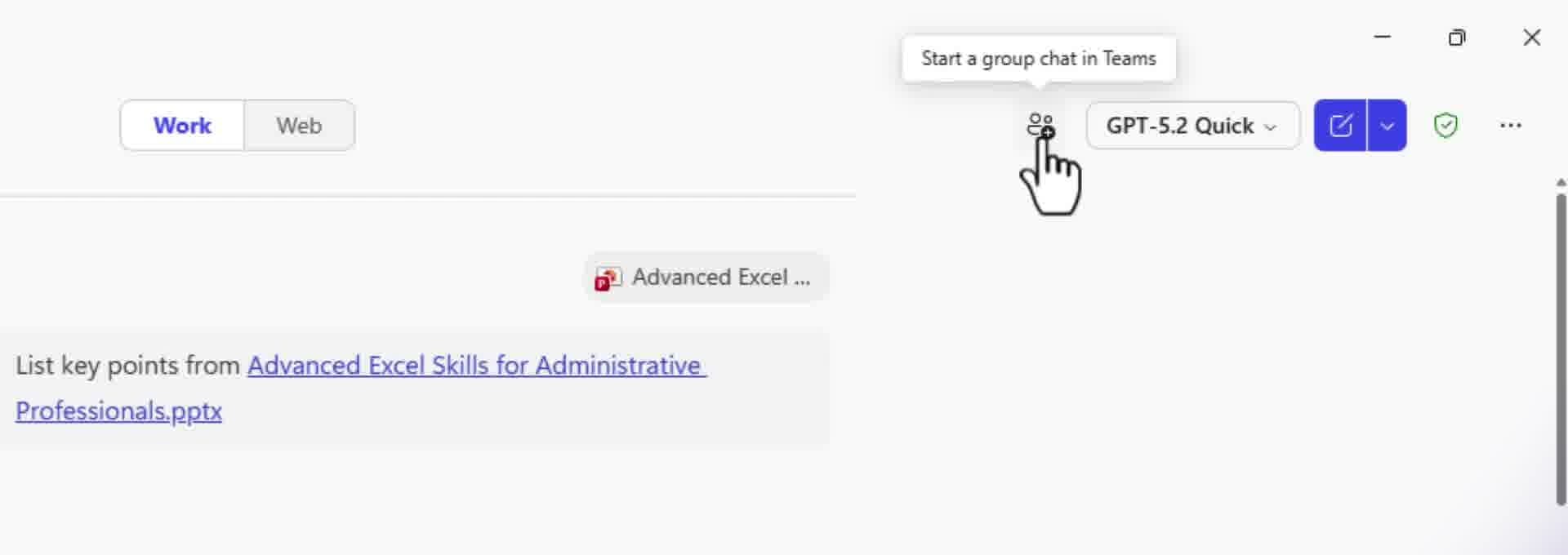
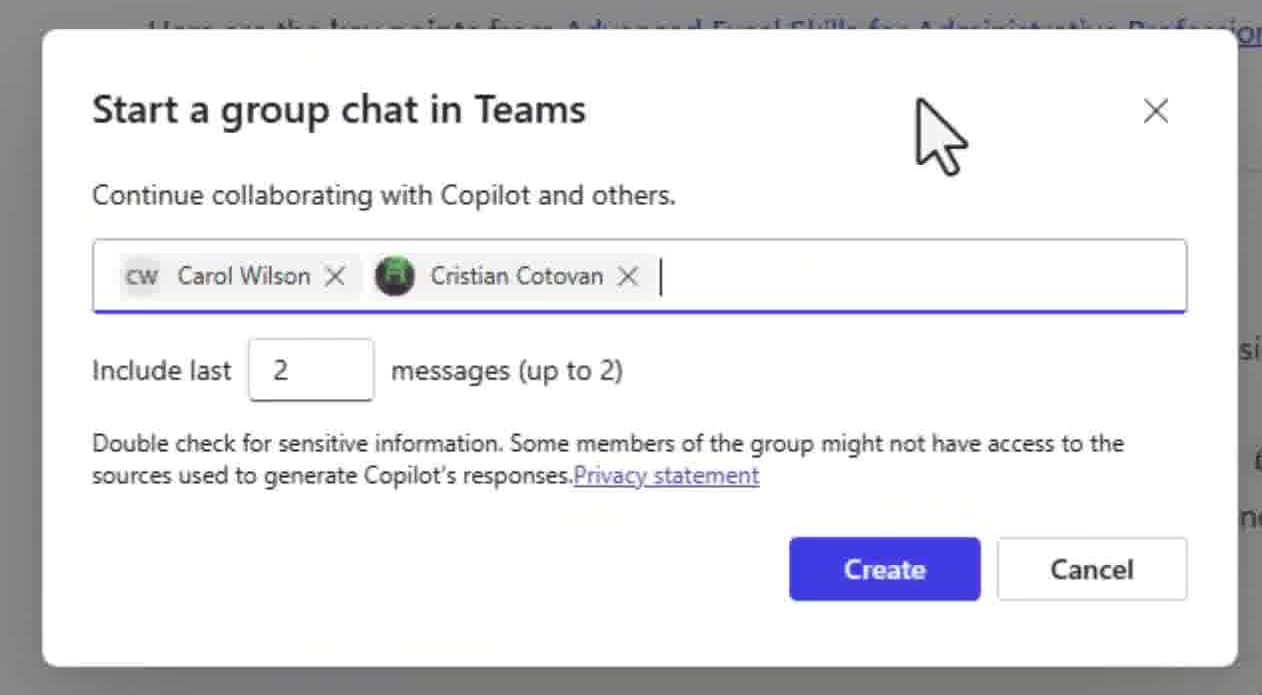
Once Copilot has generated a response, look for the Start a group chat in Teams button in the top-right corner. Clicking this button opens a dialog where you can select the team members you want to share the results with.
Select Team Members
In the dialog, type the names of the coworkers you want to add to the group chat. You can add multiple people. Once you have selected everyone, click Start chat to send the prompt and its response into Teams.
Collaborate in Teams
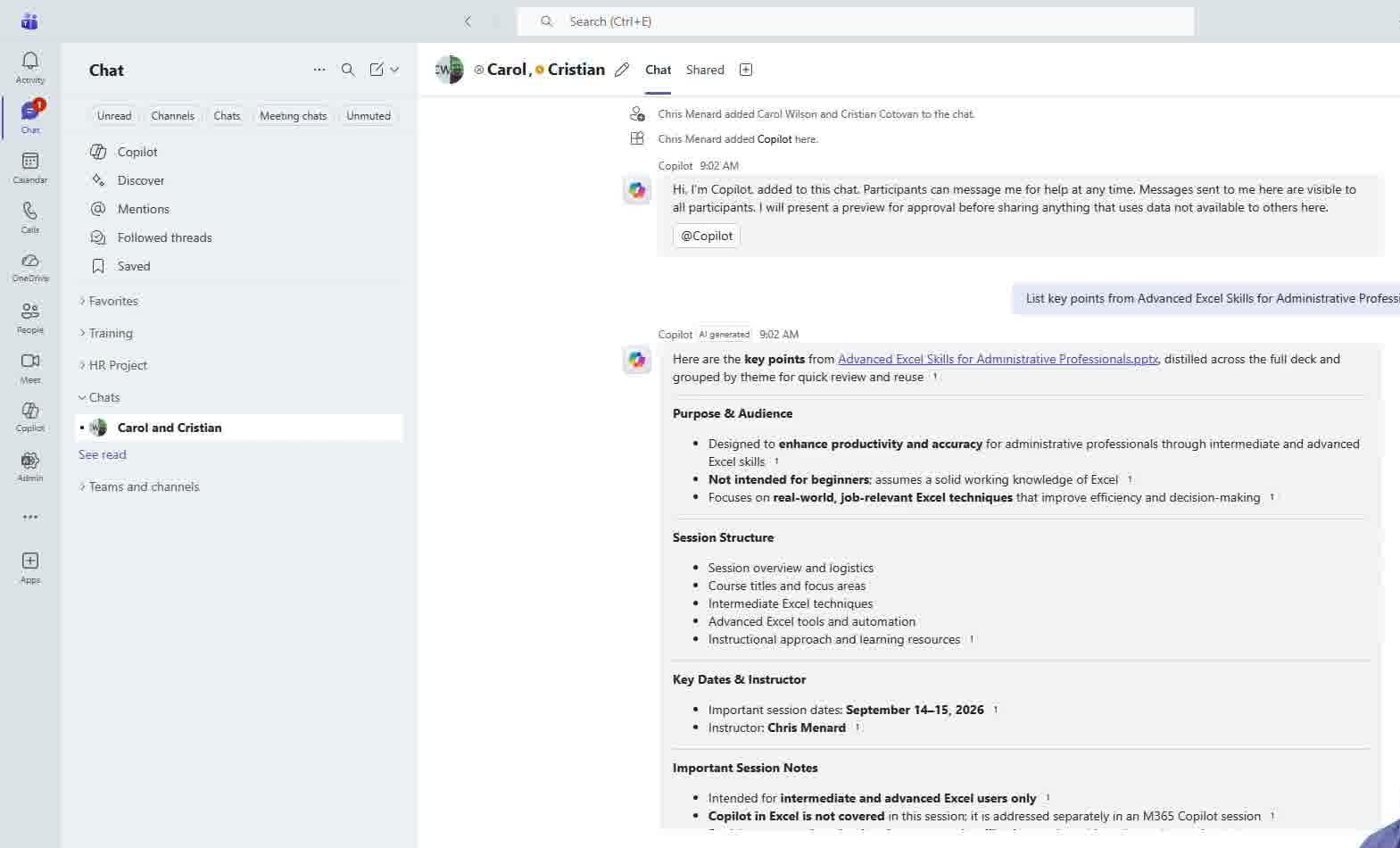
The group chat opens in Microsoft Teams with the original Copilot prompt and the AI-generated response already posted. Your team members can see the full context, including which prompt was used and what data it was grounded in.
From here, the team can discuss the results, provide feedback, or take action — all without having to recreate the prompt or leave Teams.
When to Use This Feature
This is especially useful when you need to:
- Get feedback on AI-generated summaries or reports
- Brainstorm with your team based on data from shared documents
- Keep discussions tied to the original AI prompt and source content
The feature is rolling out now to users with a paid Microsoft 365 Copilot license.
For more training on Microsoft 365 tools, including Copilot, visit my courses at courses.chrismenardtraining.com.



