
How To Create An Outlook Contact Group (Distribution List) From Excel Data?


You can easily make a contact group, formerly known as a distribution list, in Outlook by copying and pasting Excel data into Outlook. A Contact Group is handy if you email the same group of people frequently. The group can be your team, a project team, a committee, or even just a group of friends.
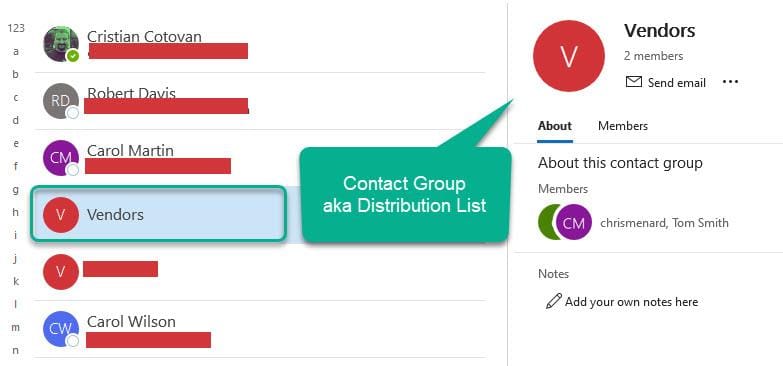
**Contact Group -** formerly called Distribution List in Outlook
By creating a contact group in Outlook, you can email the contact group instead of individual emails. If you need to email 50 vendors, you don't have to type in 50 email addresses after creating a contact group. Just type in the contact group name. A contract group was previously known as a distribution list.
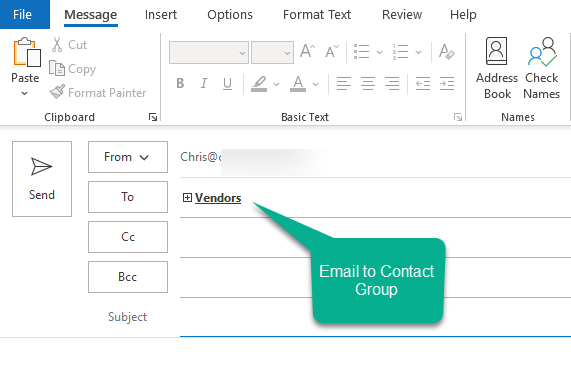
Sending an email to a **Contact Group** in Outlook
How do I create a contact group from an Excel list?
1. In Excel, copy the names and email addresses from your Exccel data. 2. Create a contact folder in Outlook and name it. Click **Contacts** in the navigation bar, and select **New Contact Group**.
Examples of names are vendors, customers, clients, coworkers, etc. 3. Click **Add Members** – **From Address Book**. 4. Click in the **Members** area and paste the Excel data you copied in step 1. 5. Click **OK** 6. Click **Save & Close**
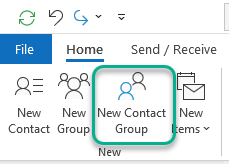
Add a New Contact Group in Outlook
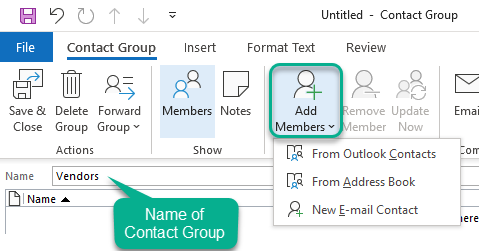
Name your Contact Group and Add Members
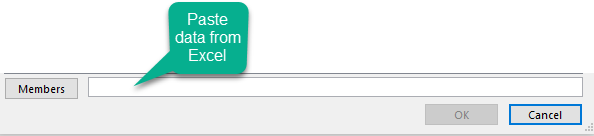
Paste data from Excel in the Members field
Emailing the Contact Group
Three methods to send an email to a contact group:
- Click the Contact Group and then click **Send Email**. See the screenshot below. - You can also in the email message click TO and find the Contact Group. - You can drag and drop the Contact Group to the email icon.
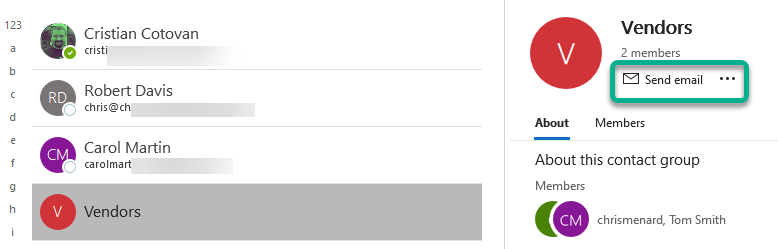
Email a Contact Group in Outlook
When to use BCC in Outlook?
BCC stands for Blind Carbon Copy. Use the BCC field when you want to email a group of people and them not know who all received the email. For example, if you email 50 vendors or clients, you probably don't want them to know about each other. Put the Contact Group on the BCC line. Another great advantage of BCC is no one can use Reply to All. Reply to All when only to the sender of the email.
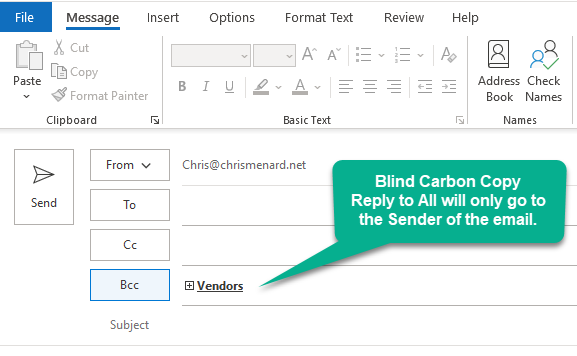
Email going to Vendor in the **Blind Carbon Copy** field
How to turn on BCC in Outlook?
1. Start a new email message 2. Click **Options** Tab 3. Click **BCC**
_BCC is now on for all emails._
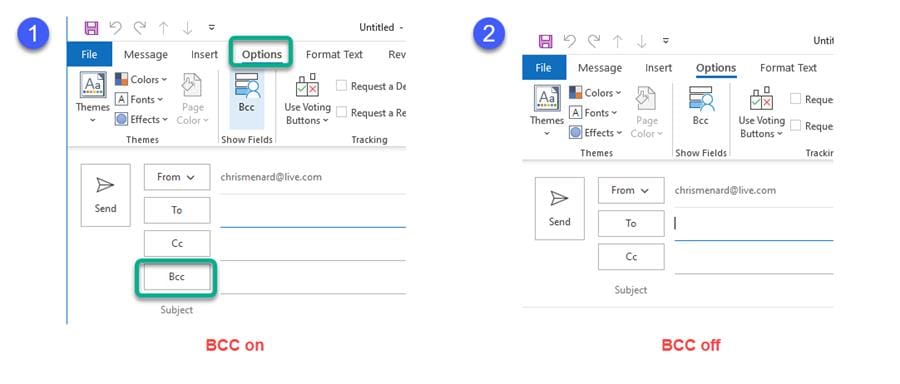
BCC in Outlook - **Options** click **BCC**
**1) BCC on 2) BCC off**



