
Excel TRANSLATE Function: Translate Text Directly in Your Spreadsheet


Microsoft has added a built-in TRANSLATE function to Excel that lets you translate text between languages directly in your spreadsheet — no copy-pasting into Google Translate or third-party tools. In this tutorial, Chris Menard demonstrates how to use this powerful new function.
YouTube Video
How the TRANSLATE Function Works
The syntax is straightforward:
=TRANSLATE(text, source_language, target_language)- text — The cell reference or text string to translate
- source_language — The language code of the original text (e.g., "en" for English)
- target_language — The language code you want to translate to (e.g., "es" for Spanish)
For example, =TRANSLATE(B2, "en", "es") translates the content of cell B2 from English to Spanish.
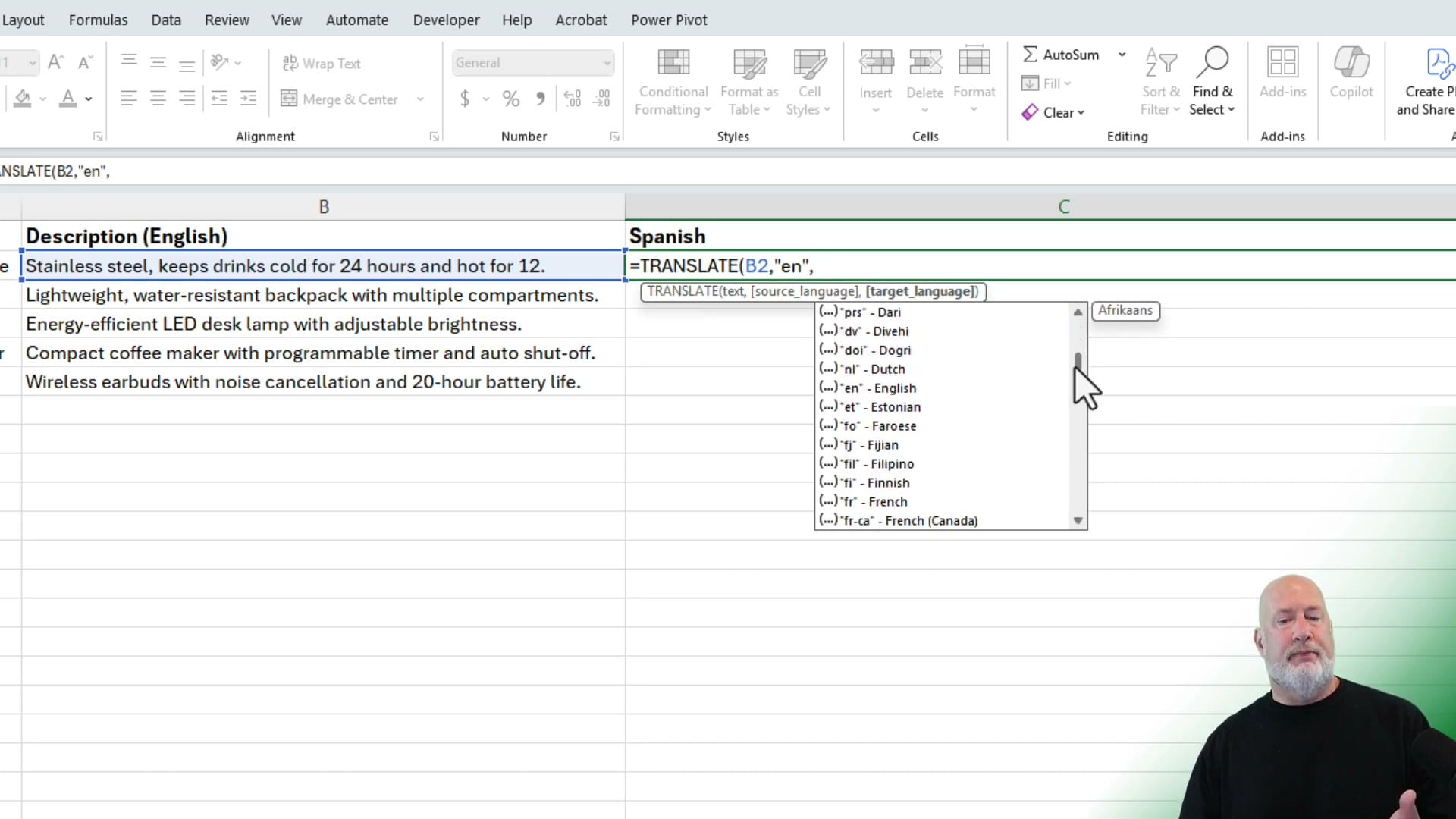
Supported Languages
Excel supports a wide range of language codes. As you type the language parameter, an autocomplete dropdown appears showing all available options — from Afrikaans to Vietnamese. Common codes include:
- en — English
- es — Spanish
- fr — French
- de — German
- pt — Portuguese
- ja — Japanese
- zh — Chinese
Practical Example
Chris demonstrates translating a list of product descriptions from English to Spanish. With the formula in the first row, you can use Autofill to drag it down and translate every row in seconds. The translations update live — change the source text and the translation refreshes automatically.
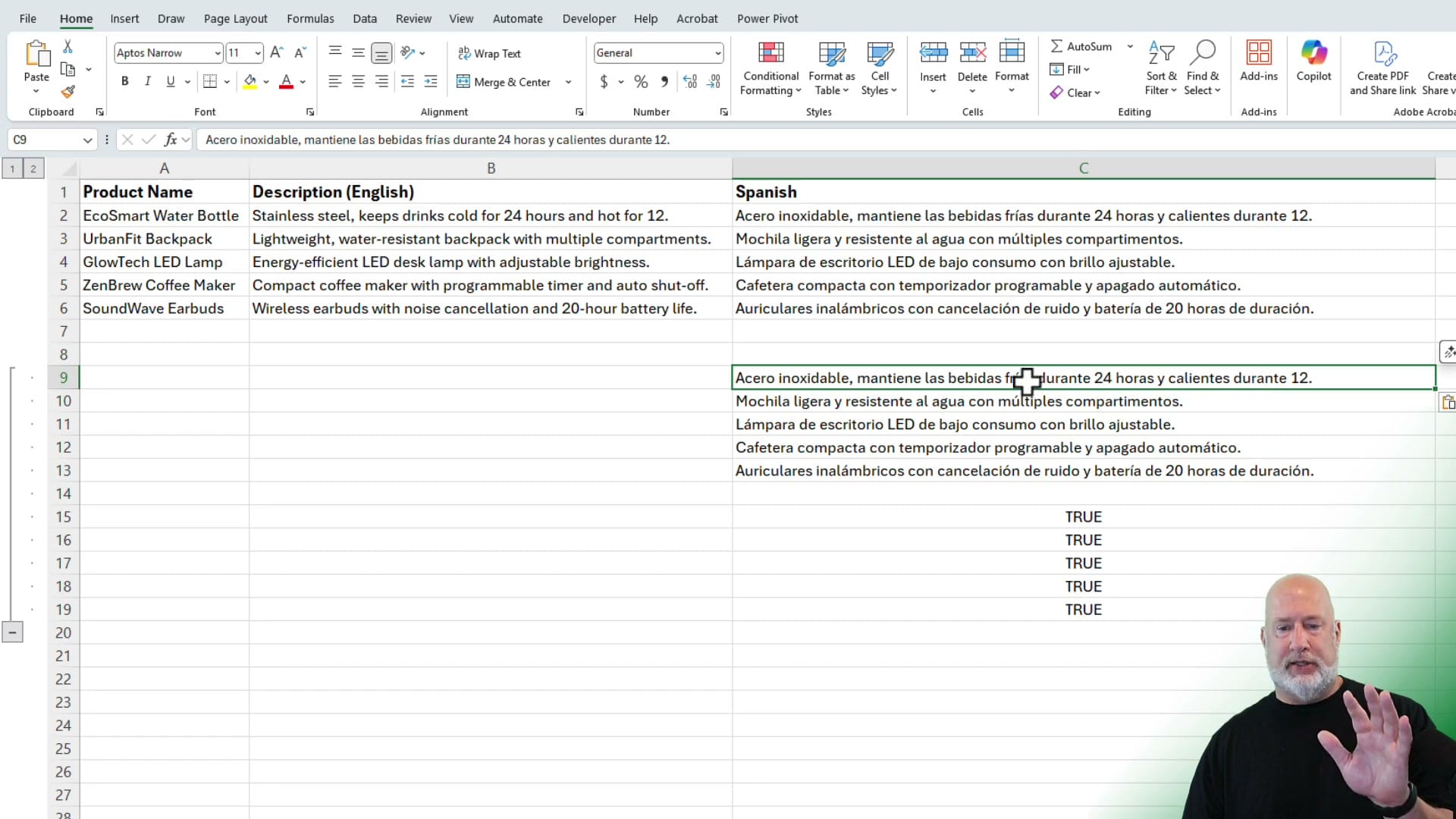
Key Details
- The function requires an internet connection since it uses Microsoft's translation service
- It works with cell references, so you can dynamically change source or target languages
- If you've used GOOGLETRANSLATE in Google Sheets, this is Excel's equivalent
- You can also use Copilot to translate entire PowerPoint presentations
- LinkedIn Post
Popular guides
 Chris Menard
 Chris Menard
 Chris Menard
 Chris Menard
Want to learn more? Visit courses.chrismenardtraining.com for online training courses.



