
Excel Image Function


The new Excel IMAGE function enables you to insert images into cells with a formula. This great function allows you to sort, filter, and rearrange images.
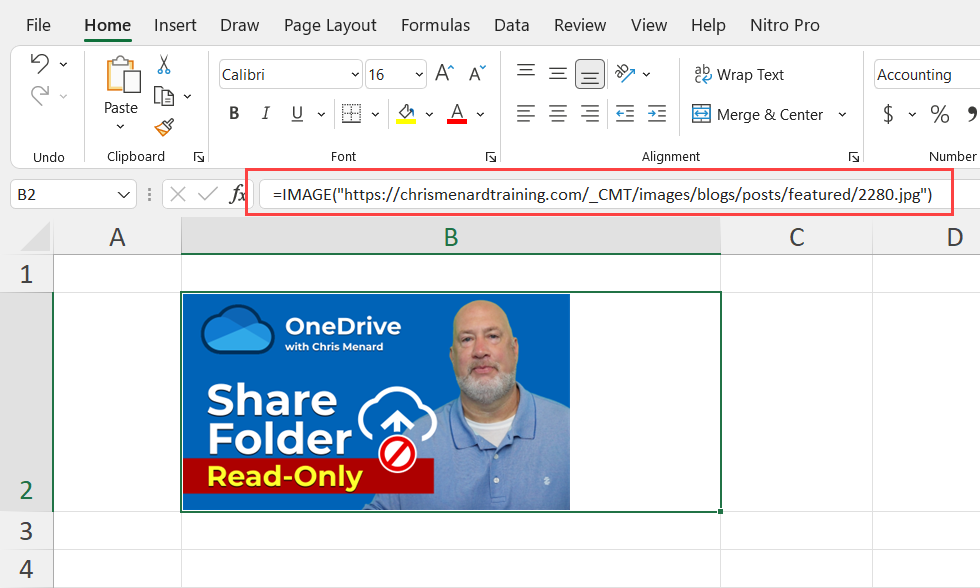
Excel IMAGE function
IMAGE Function syntax
=IMAGE(source, [alt_text], [sizing], [height], [width])
IMAGE Function Arguments
- [Required] source is the URL path of the image file, using an “https” protocol. (NOTE: Supported file formats include BMP, JPG/JPEG, GIF, TIFF, PNG, ICO, and WEBP.)
- [Optional] alt_text is the alternative text that describes the image (for accessibility).
- [Optional] sizing specifies the image dimensions. There are several possible values:
- 0: Fit the image in the cell and maintain its aspect ratio.
- 1: Fill the cell with the image and ignore its aspect ratio.
- 2: Maintain the original image size, which may exceed the cell boundary.
- 3: Customize the image size by using the height and width
- [Optional] height and width define the height and width of the image only when using sizing 3 option.



