
Excel Formula Completion: How to Extract Zip Codes from Text with REGEXEXTRACT


Excel's Formula Completion feature can write formulas for you. Just press the equal sign, and Excel suggests the formula based on your data and column headers. In this tutorial, I demonstrate how it works by tackling a common challenge: extracting zip codes from messy address data where the zip code appears in different positions within each cell.
The Challenge: Zip Codes in Different Positions
The dataset contains customer addresses in column C, with zip codes embedded at various positions — some at the beginning, some in the middle, some at the end. The goal is to extract just the five-digit zip code into column D.
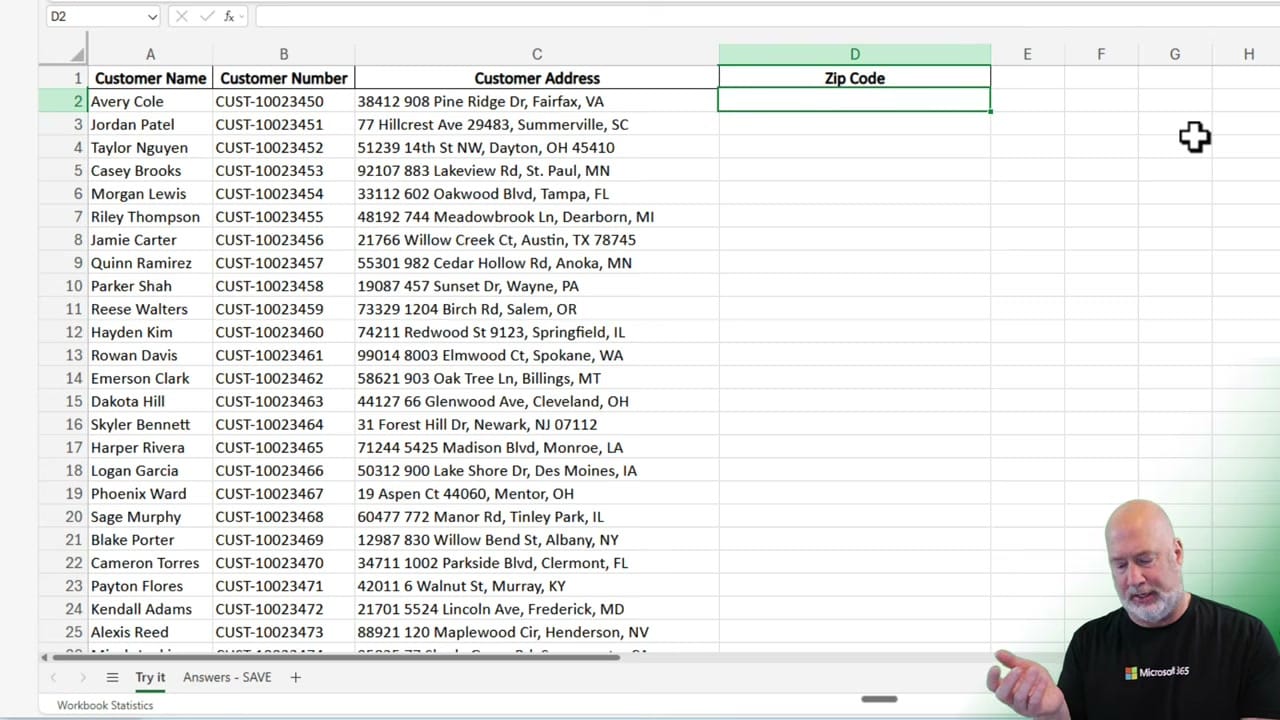
Step 1: Add a Column Header
Before triggering Formula Completion, add a descriptive column header. I typed "Zip Code" in cell D1. This is important because Excel uses column headers to understand what you want to extract — the header guides the AI suggestion.
Step 2: Trigger Formula Completion
Click on cell D2 (the first data row) and press the equal sign (=). Excel's Formula Completion immediately suggests a REGEXEXTRACT formula:
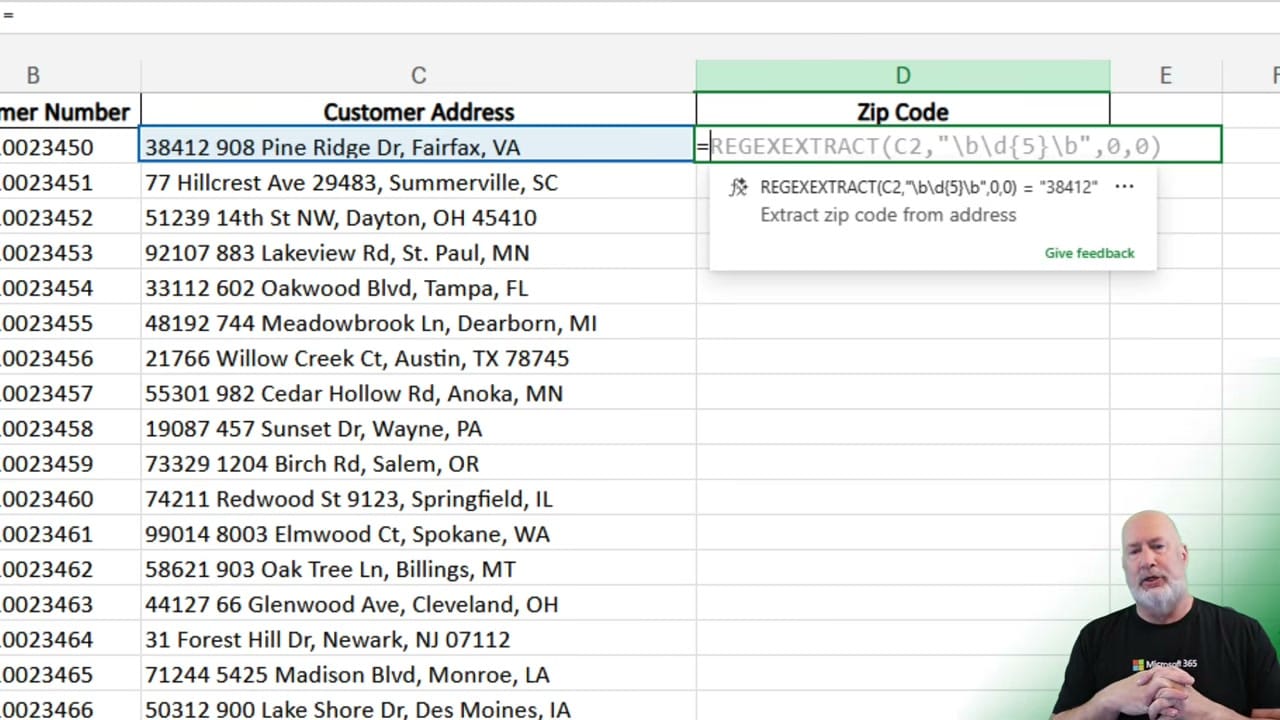
The suggested formula is =REGEXEXTRACT(C2,"\b\d{5}\b",0,0). Here is what the regex pattern means:
\b— word boundary (ensures we match a standalone number, not part of a longer number)\d{5}— exactly five digits\b— closing word boundary
Press Tab to accept the suggestion.
Step 3: Fill Down and Verify
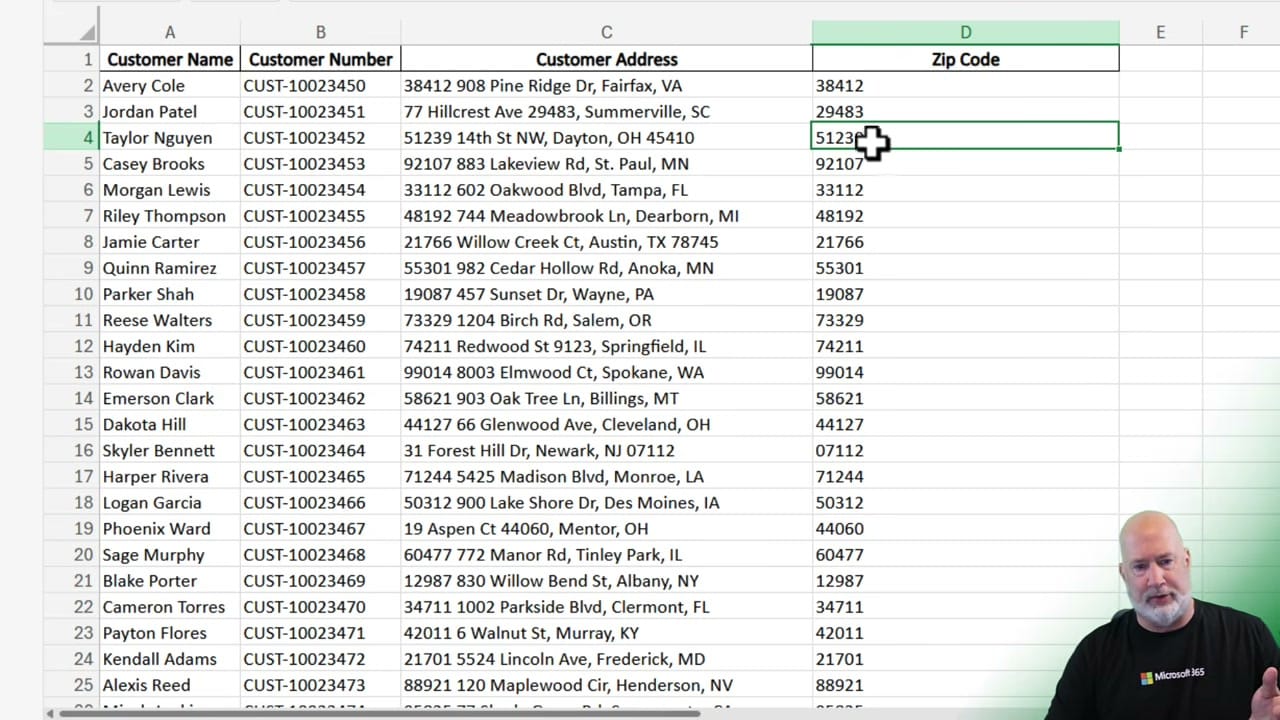
After accepting the formula for the first row, fill it down to all remaining rows. The formula correctly extracts the five-digit zip code from every address, regardless of where it appears in the cell.
Requirements
Formula Completion requires a Microsoft 365 Copilot license, Excel for the web, and Beta channel access. It is not yet available in the desktop version of Excel.
Related guides



Want to learn more? Visit courses.chrismenardtraining.com for online training courses.



