
Excel DateDif function - difference between two dates


In Excel, if you need to calculate the difference between two dates in years, month, or days, the **DATEDIF** function will handle it. **DATEDIF** is "Date & Dif".
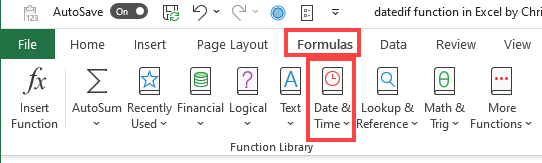
It is an exciting function since it does not show up in Excel's Date & Time function. So if you go to **Formulas**, there's over 450 Excel functions, and if you go to **Date & Time**, you will not see **DATEDIF**.
**Reasons to use DATEDIF**
1. Get days, months, or years between two dates
2. The HR department could use this to see how long employees have worked. We could track how long customers have been in the system.
DATEDIF has three arguments - start date, end date, and date unit (year/month/ or date).
**Syntax**
=DATEDIF (start_date, end_date, unit)
In this article, I will use some examples and situations to show you how the DateDif function works. At the end of the post the download link is available with the file I used.
1. **Datedif** to calculate **years**.
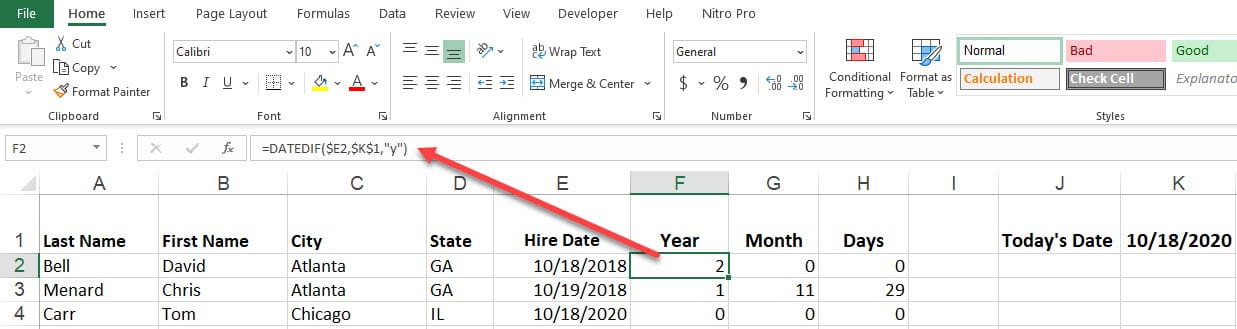
So you have a spreadsheet with your employees, and you want to calculate the time (years) that one person spent in the company. Knowing the three arguments and the time notations that make the syntax for this operation (start\_date, end\_date and unit). Here's an example of how your formula looks like inside the "year" cell for that specific person.
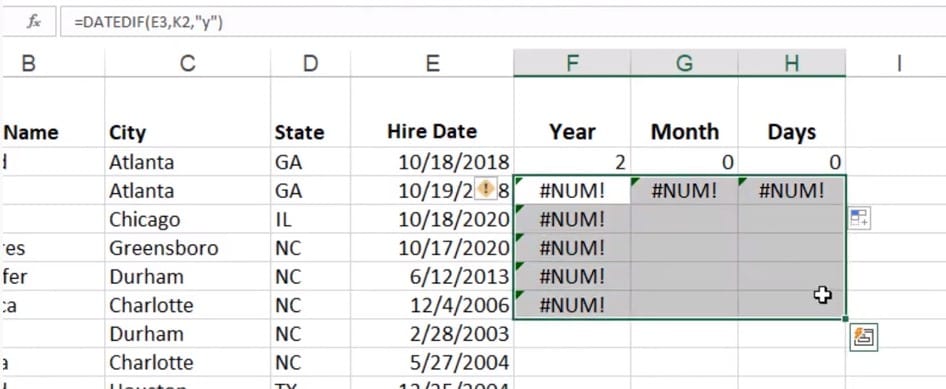
Cell **F2** has the formula **=DATEDIF($E2,$K$1,"y")**. Cell E2 is using mixed reference. The dollar sign in front of the letter E froze column E. Freezing column E allows you to autofill to the right to cell H2 and still reference E2 and then autofill down to reference column E still, but the rows change accordingly.
2. **Datedif** to calculate **months.**
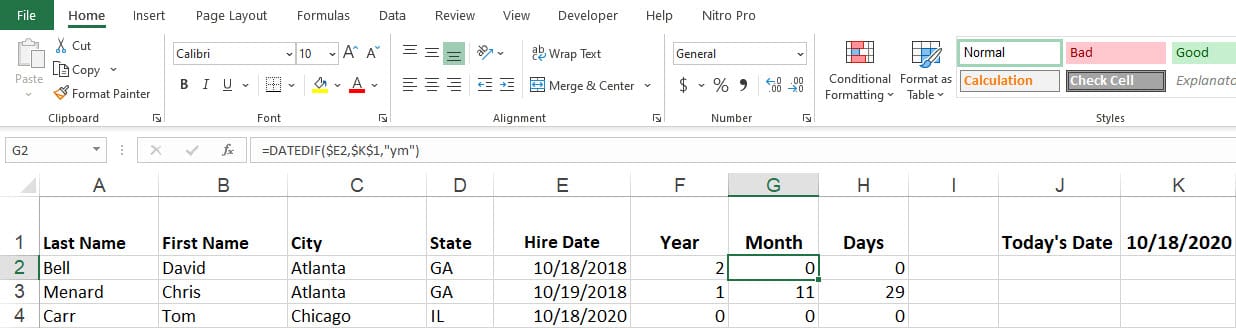
For the month's situation, you use the notation " **m**". As a cool trick, if you want to see the number of months after the years, the third argument will be " **ym**". The result will add the number of months in the **Month** column where you apply it if there is a "hire date" older than one year for that person.
Cell **G2** has the formula **=DATEDIF($E2,$K$1,"ym")**. If I used **m** instead of **ym** for the third argument, I would have got 24 instead of 0.
3. **Datedif** to calculate **days.**
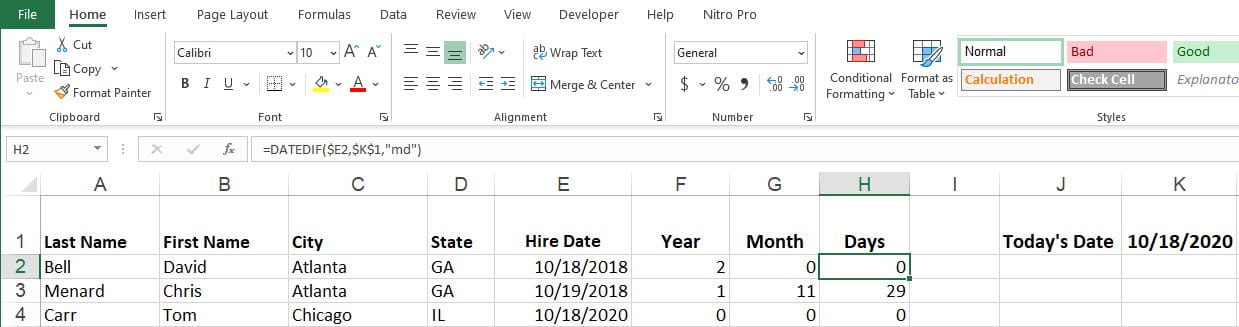
Using the same procedure as the previous examples and the same syntax structure, but this time using " **d**" as the argument for **days**, you will obtain the total number of days for that person. If you use " **md**" instead of just " **d**" it will show you the number of days since the last month, in case the data in the previous columns is exceeding one year.
Cell **H2** has the formula **=DATEDIF($E2,$K$1,"md")**. If I used **d** instead of **md** for the third argument, I would have got 734 instead of 0.
**Important:** if you are done with the syntaxes for the first person, and you want to autofill down, it will not work without the cell references. In this case, you have to change the formulas for the original cells and cycle through **relative references** and **absolute references**. The F4 function key will cycle through cell references - Absolute, Mixed row, Mixed column, and Relative.
4. The **Today** function
The Today function will always show you the current date wherever you use it, and all the other relations to it will calculate accordingly. The TODAY function reads the clock in your computer. **=TODAY()** will return today's date. **=TODAY()+3** will return three days from today.

**The Units references**
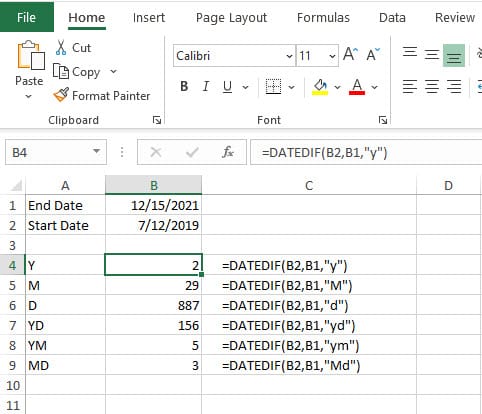
\- "y" Difference in complete years
\- "m" Difference in complete months
\- "d" Difference in days
\- "md" Difference in days, ignoring months and years
\- "ym" Difference in months, ignoring years
\- "yd" Difference in days, ignoring years
**Examples:**
**Download here the Excel file for this example:** [https://chrismenardtraining.com/Files/DownloadFile.aspx?FUID=535cea01-9b52-42b4-928b-45d471855e9c](https://chrismenardtraining.com/Files/DownloadFile.aspx?FUID=535cea01-9b52-42b4-928b-45d471855e9c "https://chrismenardtraining.com/files/downloadfile.aspx?fuid=535cea01-9b52-42b4-928b-45d471855e9c")
And you can watch the Youtube video of this example here:
Excel DateDif function - difference between two dates



