
Excel - Data from Picture - Microsoft 365 New Feature


Have you ever had a printed page of data, and needed to put the data in Excel? Typing the data is a real pain. Excel now allows you to put the data in Excel using **Data from Picture**.
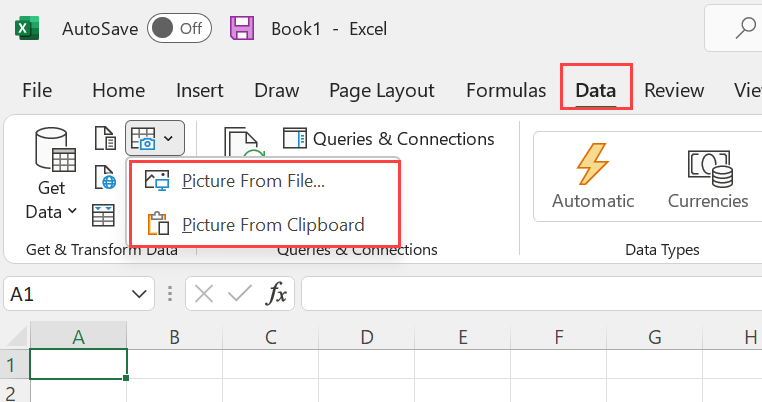
Data from Picture
Data from Picture is a great feature and is extremely accurate. Data from Picture can be used with webpages, pictures on your clipboard from a screenshot, or take a picture of printed data.
You have two options when using Data from Picture
- Picture from File - Picture from Clipboard
YouTube video - Extract Data from Picture
Excel - Data from Picture - Microsoft 365 New Feature
Chapters:
- 0:00 Intro - 0:32 Live in-person events with Chris - 0:57 Why use Data from Picture? - 1:37 Insert Picture - 2:05 Data from Picture - 3:44 Data from Picture accuracy - 4:30 Conditional Formatting - 5:45 Closing comments
Examples of when to use Data from Picture
Screen capture data from a website.
Copying and pasting from a website doesn't give you the best results. Usually there are a lot of errors. With Data from Picture, you can do a screenshot using Snagit or another screen capture program. The Windows keyboard shortcut to do a screenshot is **Windows key + Shift + S**. You can also use the Windows Snipping tool to do a screenshot.
1. Take a screenshot 2. Click **Data**, then select **From Picture**, and click **Picture from Clipboard**. 3. Follow the onscreen instructions.
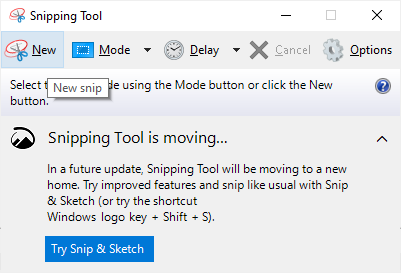
Windows Snipping Tool
Take a picture of printed data
Do you have printed data you need to get into Excel? No problem.
1. Grab your camera and take a picutre of printed data. 2. Save the image to your computer. 3. Click **Data**, then select **From Picture**, and click **Picture from File**. 4. Follow the onscreen instructions.
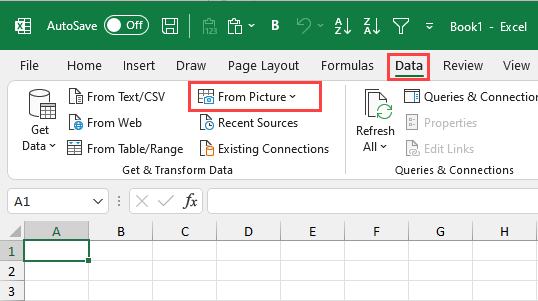
Data tab - From Picture in Excel



