
Excel Copilot: Create Worksheets from Prompts with Ease


Starting in May 2025, Microsoft Excel's Copilot will have a new game-changing feature: It will allow users to create worksheets from prompts. This innovative tool simplifies data management by generating tables and workbooks through intuitive prompts. This article will explore how to use Excel Copilot to maximize efficiency and streamline your workflow.
Introduction to Copilot in Excel
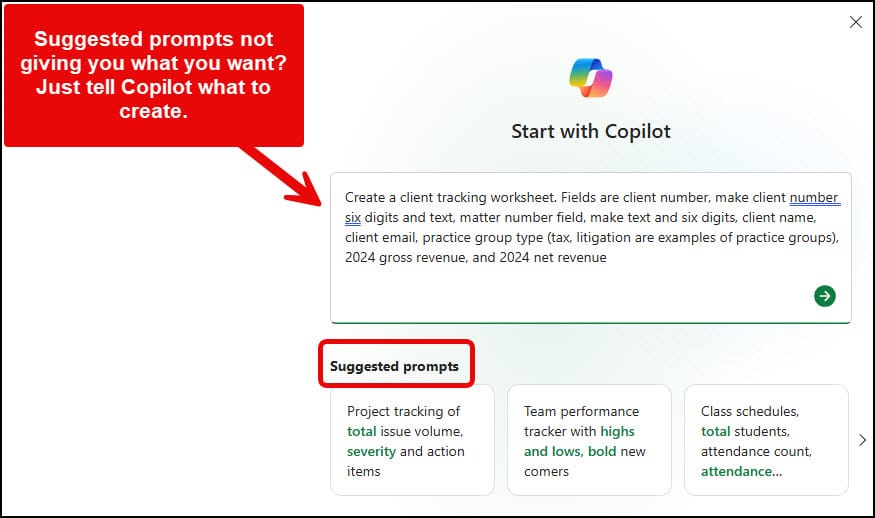
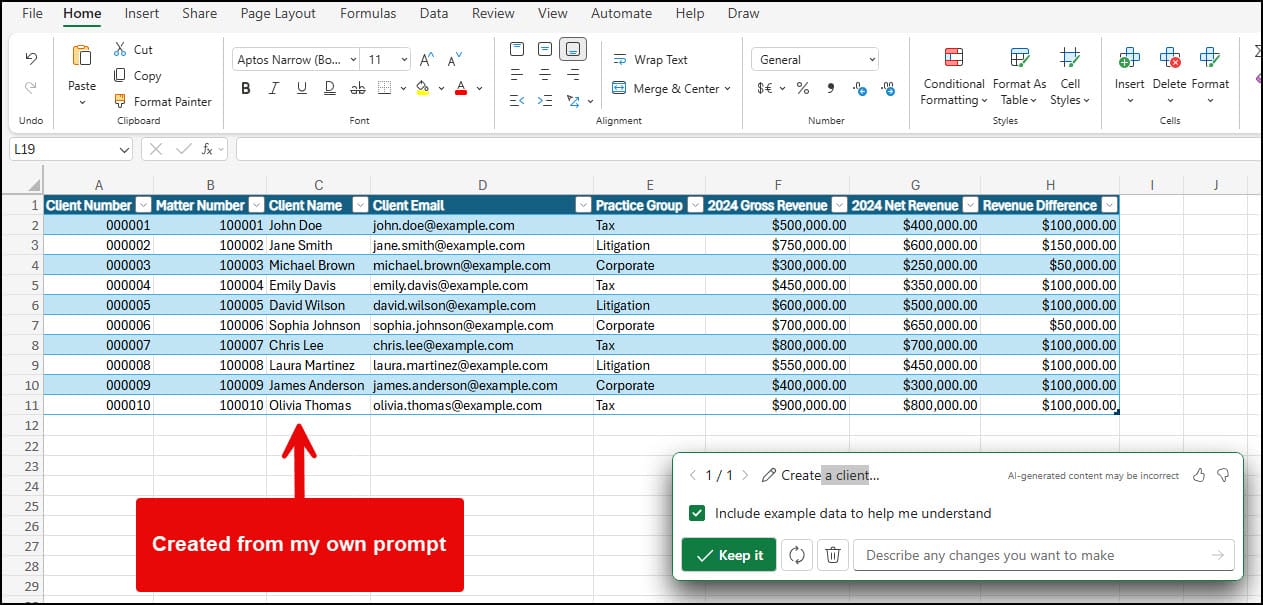
Imagine having a virtual assistant that not only helps you with tasks but also creates files for you in Excel. That's exactly what the Excel Copilot offers. This feature, available in Excel on the web, allows users to generate spreadsheets and tables with ease, making it an invaluable tool for professionals and beginners alike.
Getting Started with Excel Copilot
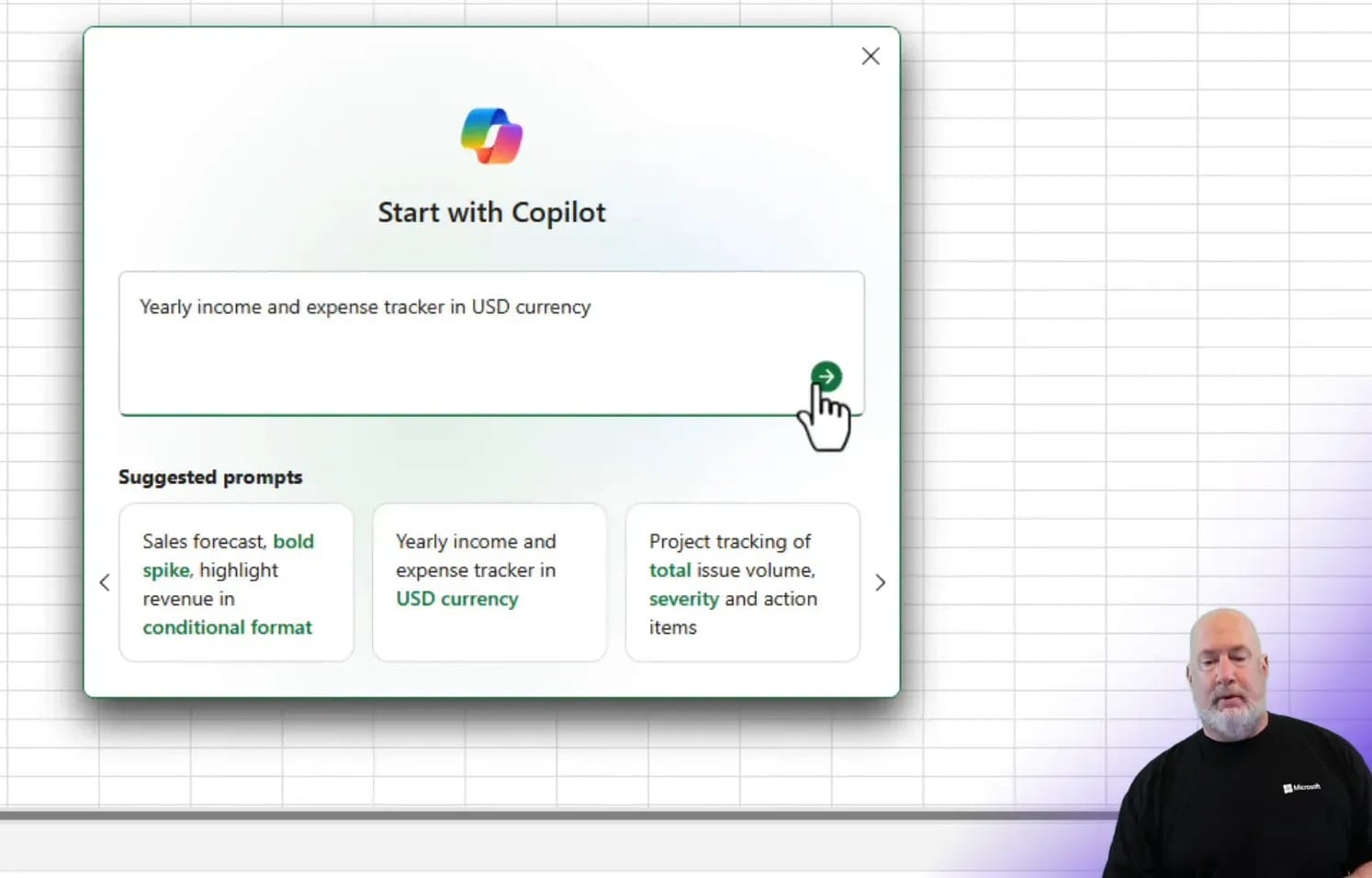
Using Excel Copilot is straightforward. To begin, open a new blank workbook. As soon as you do, the Copilot dialog box appears, prompting you to describe the task you'd like help with. If you're unsure where to start, there are suggested prompts available, or you can type your custom prompt.
Creating a Yearly Income and Expense Tracker
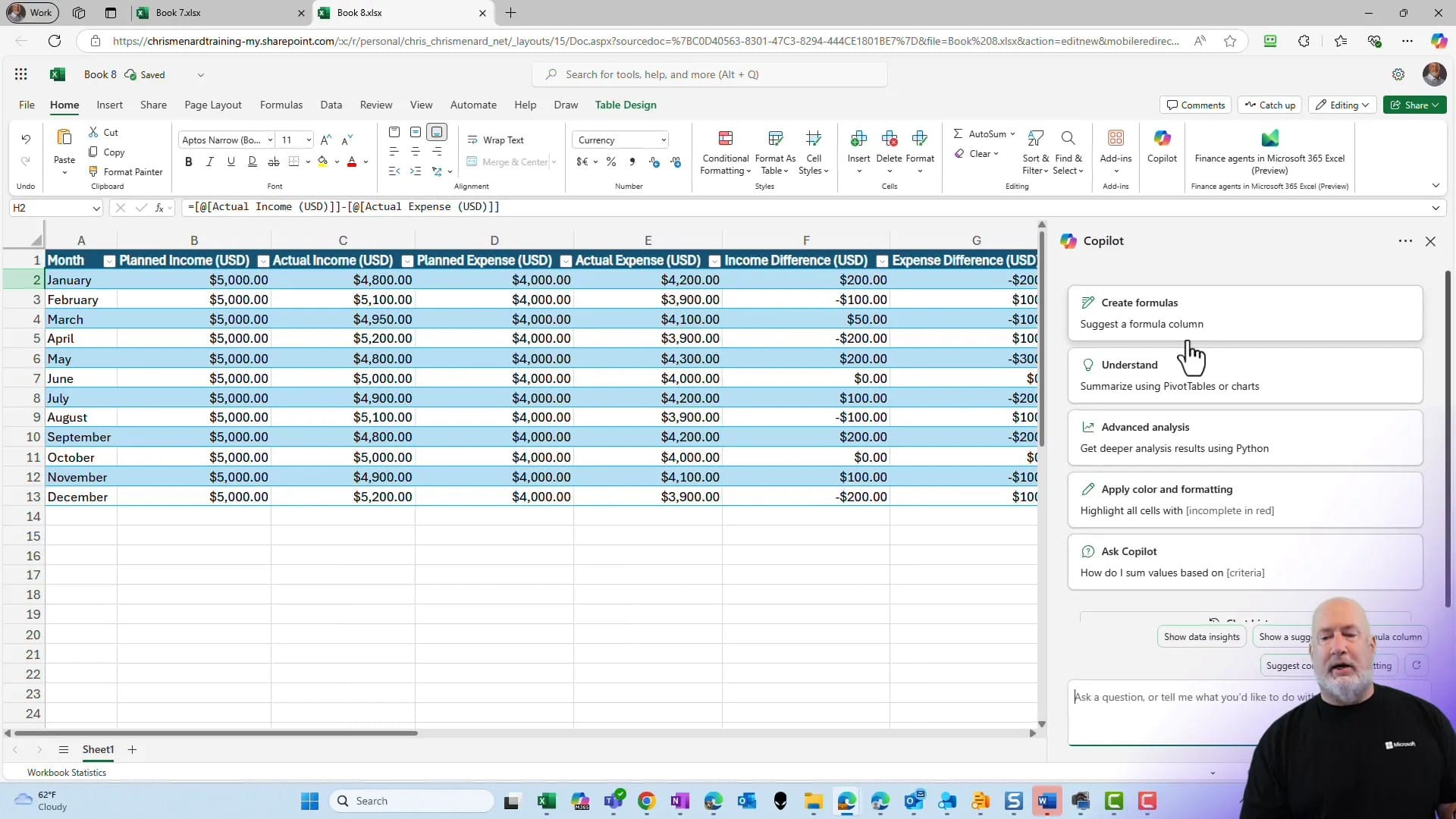
Let's dive into an example. Suppose you want to create a yearly income and expense tracker in USD. Simply enter this prompt, and the Copilot will generate a table with sample data, including months from January to December, planned and actual income, and expenses. The table also calculates differences and net savings automatically.
Working with Tables in Excel Copilot
Tables are at the heart of Excel Copilot's functionality. While Copilot can work with data ranges, tables offer enhanced usability. You can convert a range to a table using the keyboard shortcut Control + T or by selecting Insert Table from the Insert menu.
Customizing Your Tables
Excel Copilot makes table customization a breeze. For instance, you can add or remove columns based on your needs. In the example of the yearly tracker, you might want to add a column for notes or additional calculations. This flexibility ensures that the tables meet your specific requirements.
Creating an Employee Directory
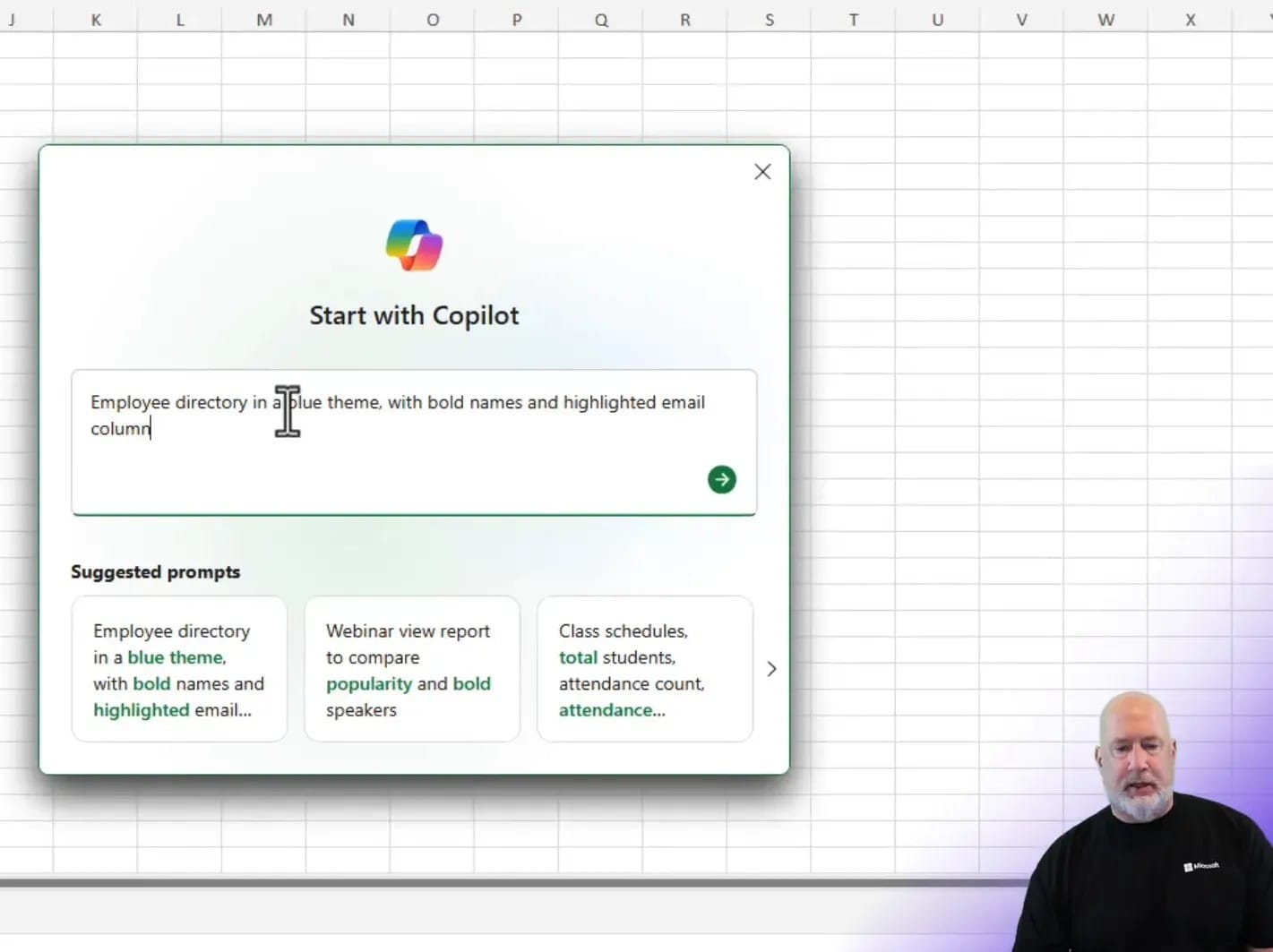
Another powerful use case for Excel Copilot is creating an employee directory. By entering a prompt for an employee directory with specific themes, like a green theme and highlighted columns, Copilot generates a table with the desired attributes. This table can include employee ID, names, departments, emails, and phone numbers.
Adding and Modifying Columns
Suppose you want to add an office location column between the last name and department. Simply instruct Copilot to do so, and it will recreate the table, incorporating the new column seamlessly. This adaptability makes managing data efficient and effective.



