
Excel - 5 easy ways to identify numbers stored as text


In Excel, numbers that are stored as text can cause unexpected results. It is important before you analyze numbers to make sure there are no numbers or values stored as text. This detailed article with a video shows 5 methods for identifying numbers stored as text.
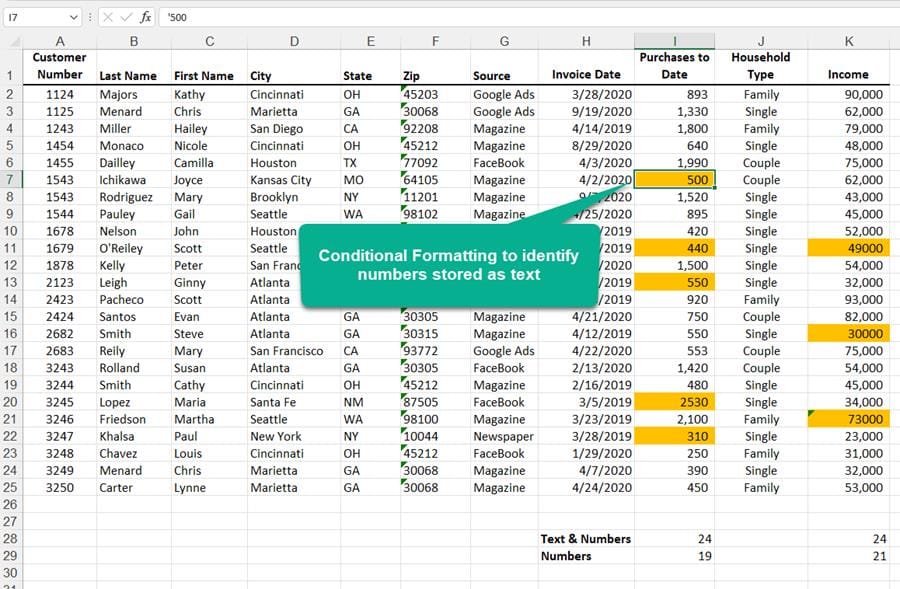
**Identify numbers stored as text**
In this article and YouTube video, I'll demonstrate five methods to quickly find numbers stored as text. Numbers as text usually happens when you pull data from another data source into Excel.
YouTube video
Excel - 5 easy ways to identify numbers stored as text
Method 1 - the Green triangle
A green triangle in the upper-left corner of a cell indicates an error in the formula in the cell. If you select the cell, the Trace Error Button image button appears. Click the arrow next to the button for a list of options.
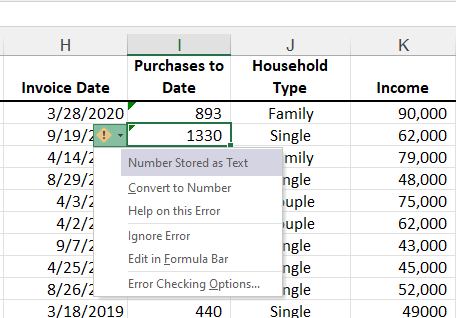
**Green triangle in Excel**
When you click the drop-down arrow, the first option is letting you now Excel identified a **Number Stored as Text**. You do not always get the green triangle when you have numbers stored as text. To convert, click the option, **Covert to Number**.
Method 2 - Use the Status Bar
The Status Bar shows at the bottom of Excel. It reads _Ready_ in the left corner and has your Zoom, for example, 120%, in the right corner. Several features turned on by default in the Status Bar - Sum, Average, and Count.
If you select two numbers, you can right-click the word Sum (or any of the words) and turn on other features. I recommend you turn on Numerical Count, Maximum, and Minimum. They will show up for this worksheet, the workbook you are working in, and all future workbooks.
Numerical count is the COUNT function - the total number of numbers you have (it is not counting text). Count is working as the COUNTA function. It is counting text and numbers. With both turned on, you know if you have text mixed with your numbers or values. See the screenshot below.
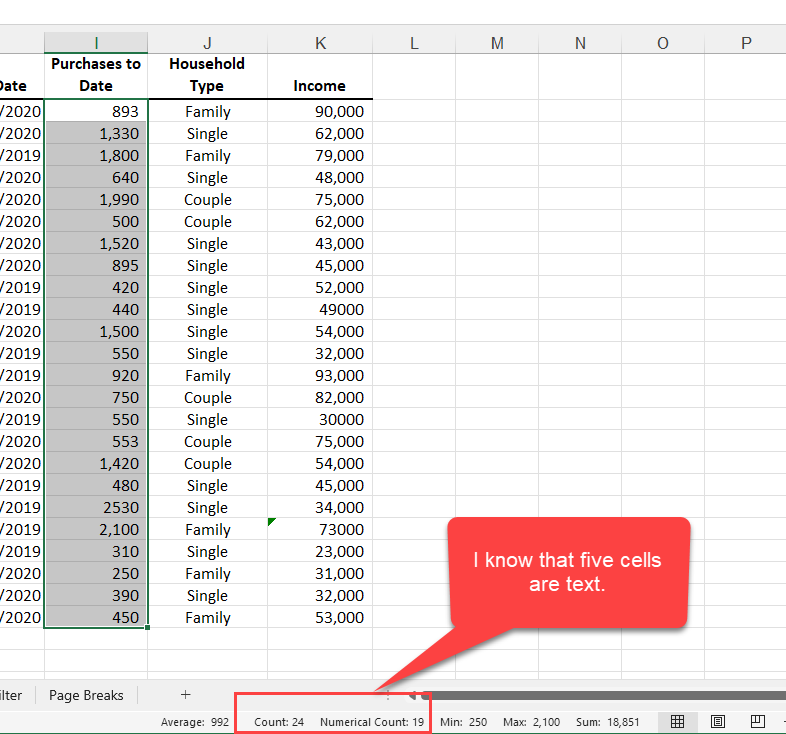
**Status Bar in Excel - Count and Numerical Count**
Method 3 - ISNUMBER Function
Use the ISNUMBER function to check if a value is a number. It returns TRUE if it is a number and FALSE if it is not a number.
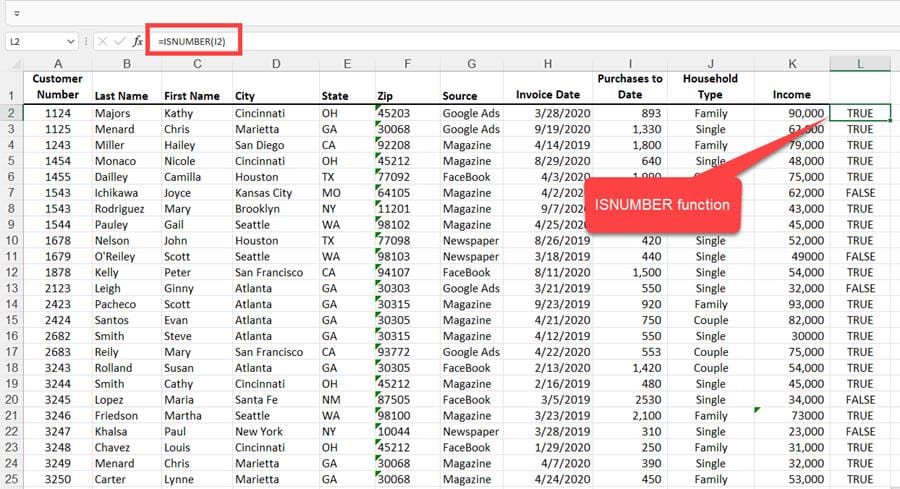
**ISNUMBER function returns True or False**
Method 4 - ISTEXT Function
Use the ISTEXT function to check for a text value. ISTEXT returns TRUE if text, and FALSE if not text.
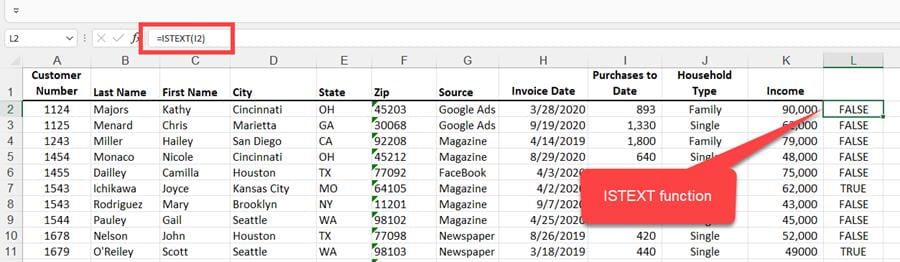
**ISTEXT Function in Excel**
Method 5 - Conditional Formatting
Conditional Formatting is the best method actually to see the text stored as numbers.
Steps to use conditional formatting to identify text:
1. Select the range of cells. Example: i2:i36 2. On the Home tab, select **Conditional Formatting**. 3. Click **New Rule**. 4. Select **Use a formula to determine which cells to format**. 5. Type the formula **=istext($i2)** 6. Click **Format** 7. Click the **Fill** tab 8. Select a color and click **OK** 9. Click **OK** again.
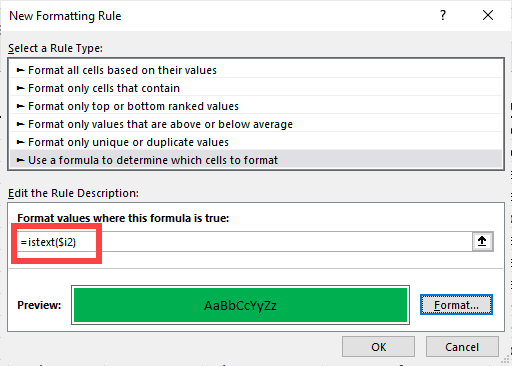
**Conditional formatting - ISTEXT function**
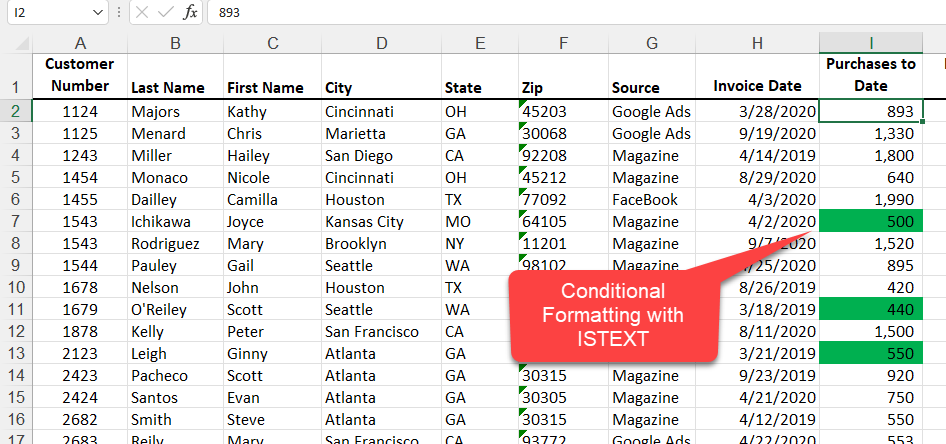
**Cell showing conditional formatting**



