
Be careful when averaging percentages

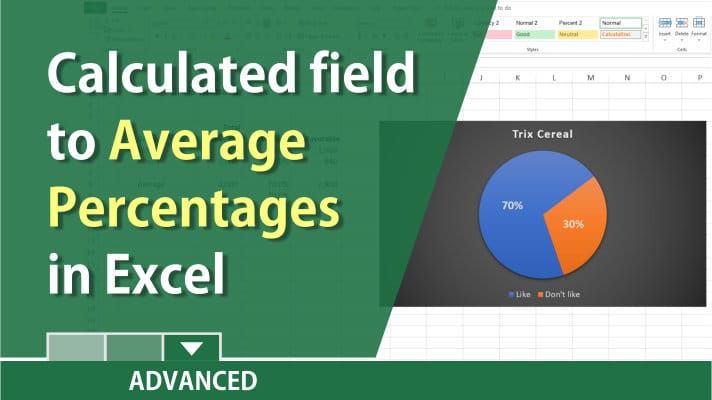
Caution should be used when averaging percentages. As an example, we asked 500 kids and 4500 adults if they like Trix cereal. The kids, 98%, liked Trix cereal. The adults, 42%. Add 98% and 42% and you get 140%. Divide by 2 and that is 70%. (98+42=140 / 2 = 70). The issue is you didn’t ask the same number of kids as you did adults. This is when a weighted average is needed.
An Excel PivotTable has a feature called calculated field. I’ll use it to get the weighted average.
YouTube video on Averaging Percentages
Average percentages in Excel with a calculated field by Chris Menard
Steps to create a calculated field in a PivotTable
1. Click inside the PivotTable. 2. Click on the **Analyze** tab, in the Calculations group, click **Fields, Items, & Sets**, and then click Calculated Field.
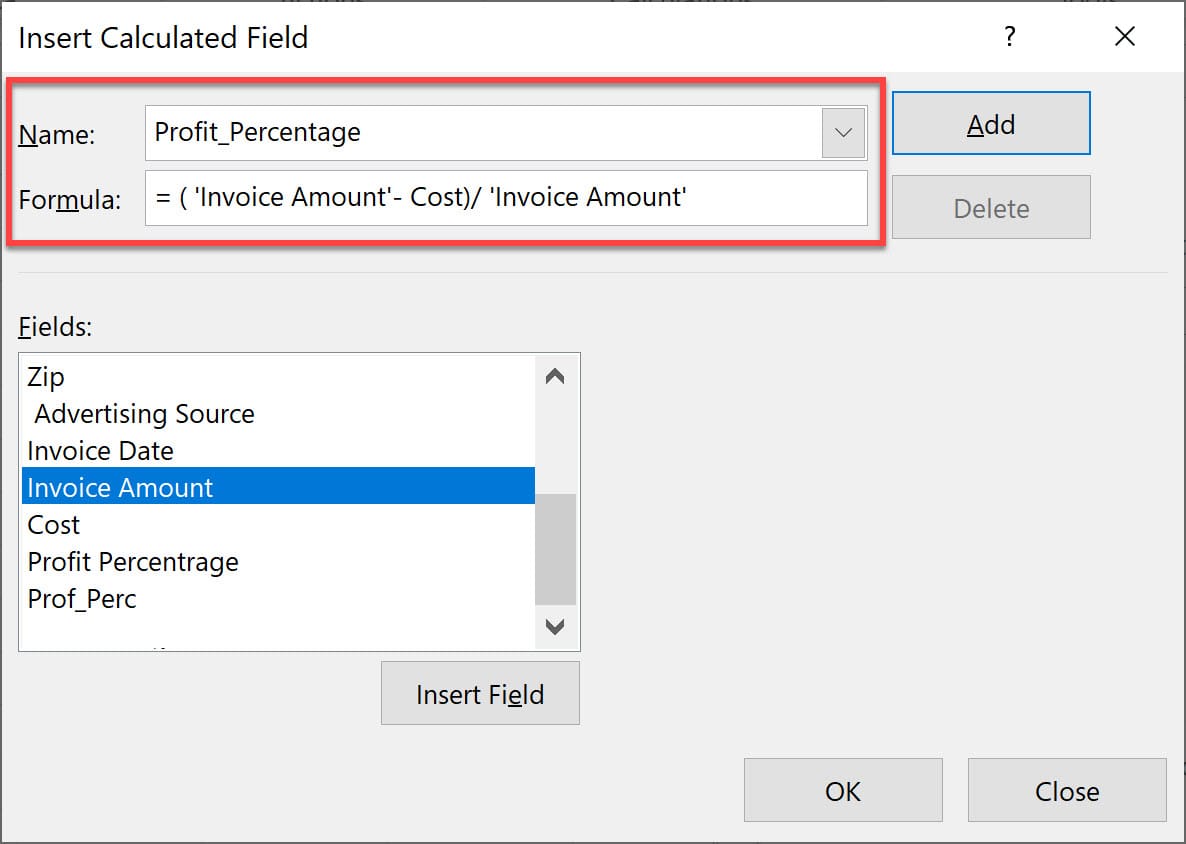
3. In the Name box, type a name for the field. 4. In the Formula box, enter the formula for the field. 5. Click Add.



