
APC 2026 Microsoft 365 Copilot Training Files

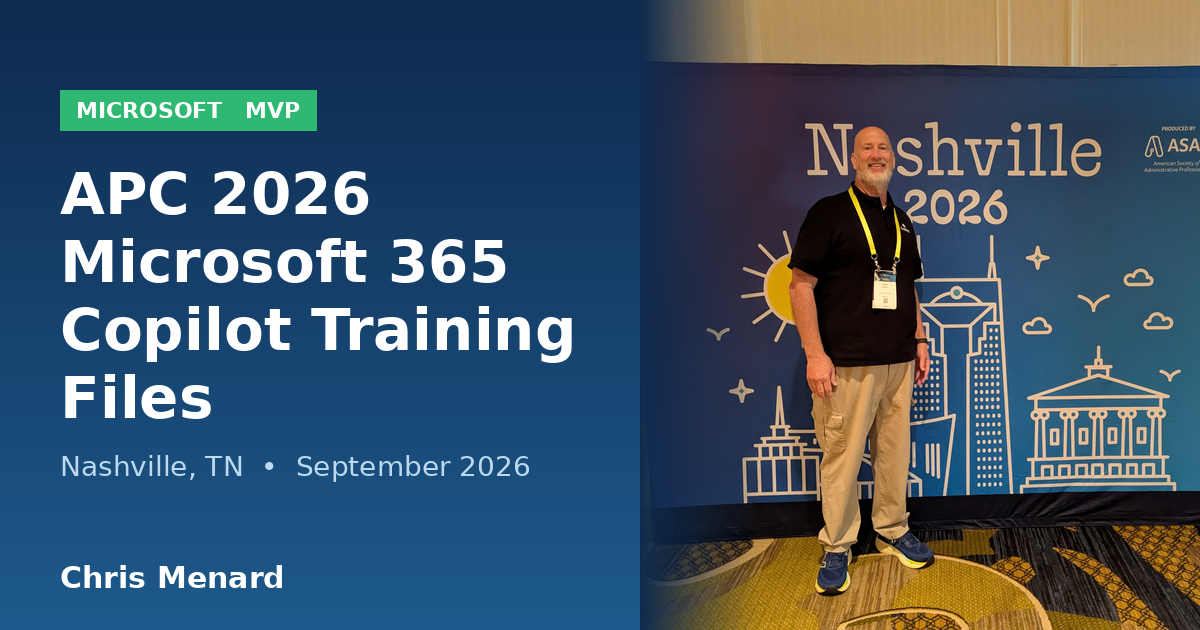
It was a pleasure presenting my Microsoft 365 Copilot training sessions at APC 2026 at Gaylord Opryland in Nashville, Tennessee. In addition to the two Copilot sessions that I ran, we also ran two advanced Excel sessions.
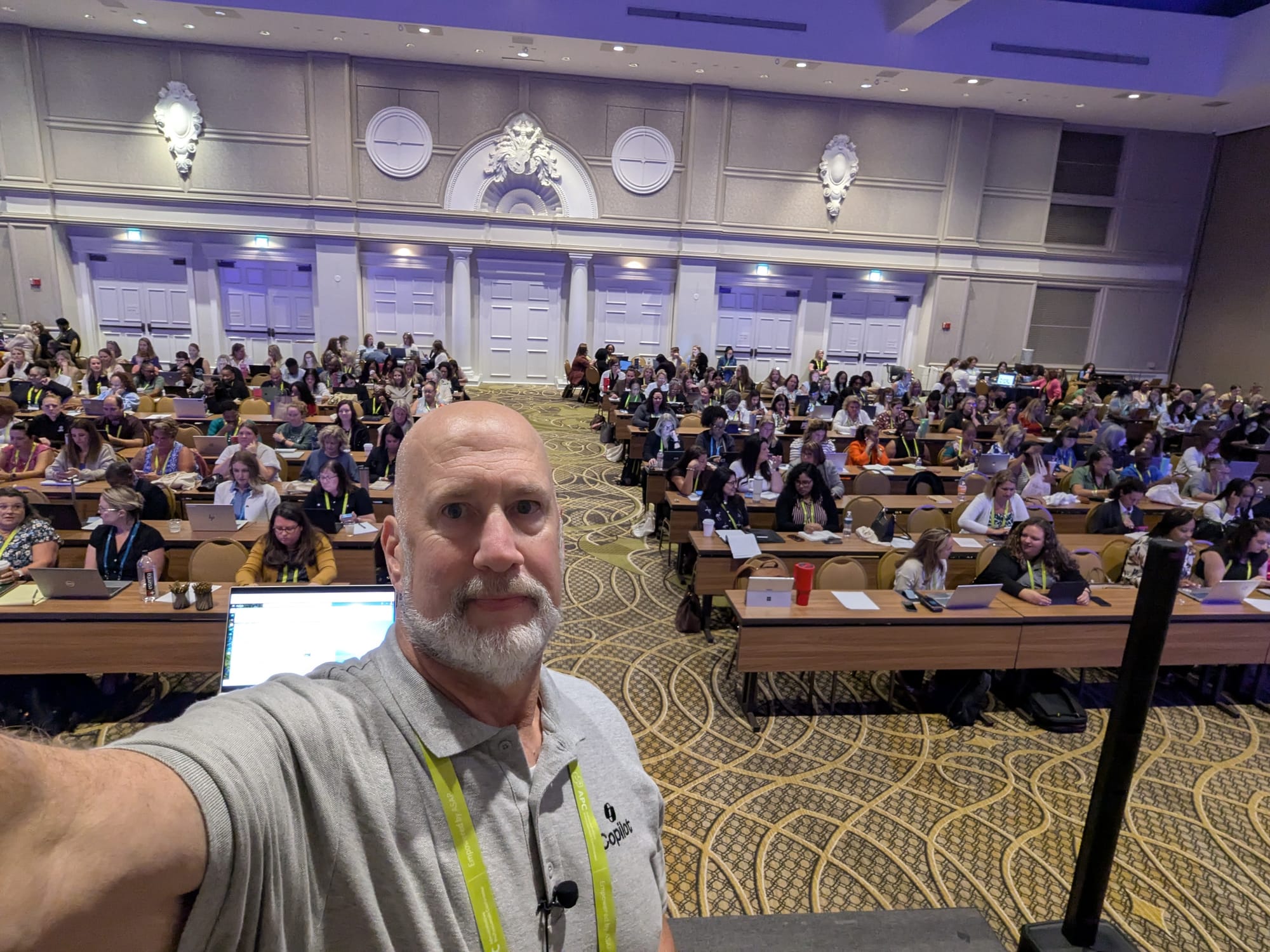
More than 300 people attended each of my two Copilot sessions on September 14 and September 15, 2026. Thank you to everyone who attended, participated in the demonstrations, and asked such excellent questions.
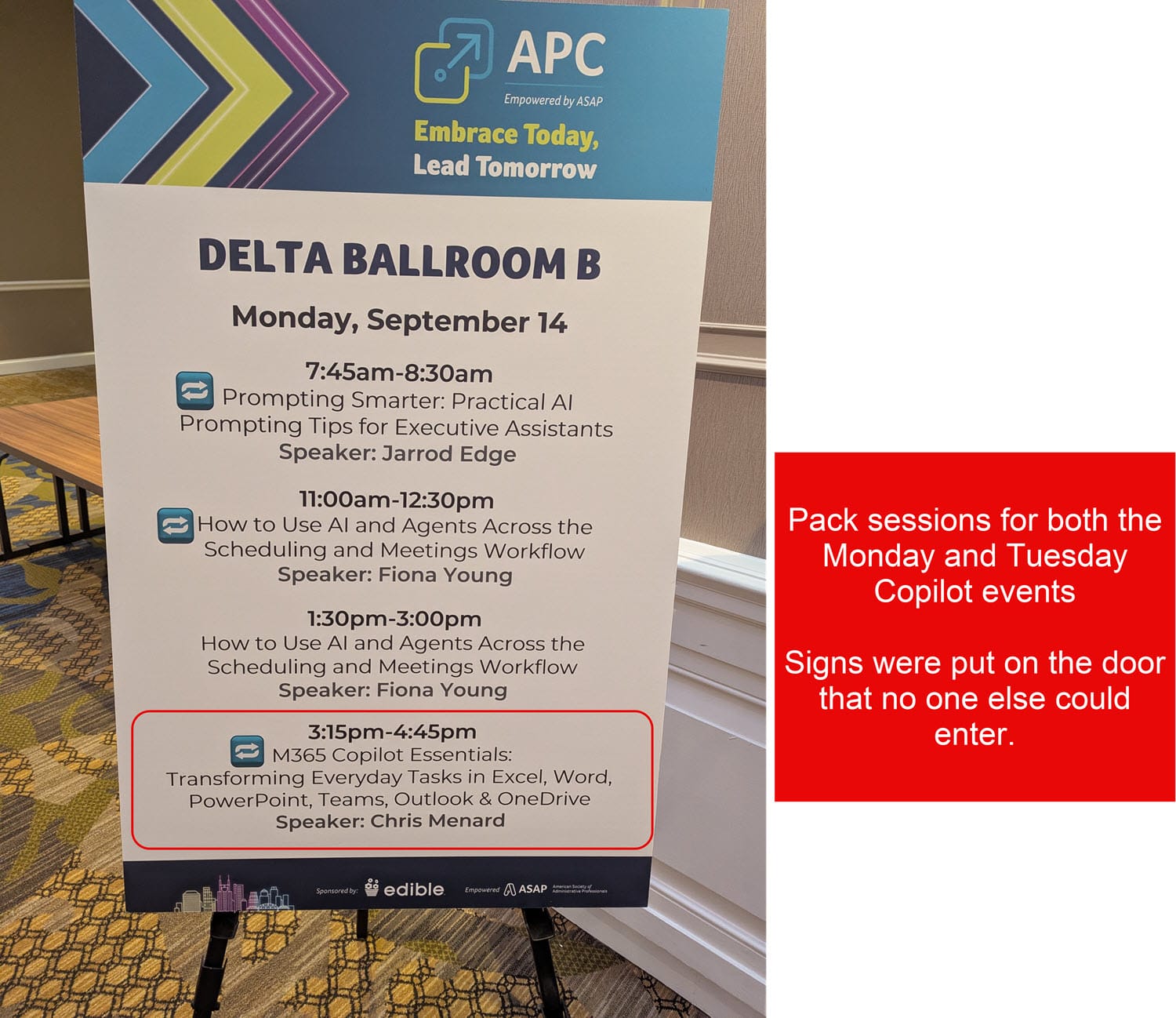
The course, M365 Copilot Essentials: Transforming Everyday Tasks in Excel, Word, PowerPoint, Teams, Outlook & OneDrive, focused on practical ways to use Microsoft 365 Copilot to work more efficiently in the applications many of us use every day.
Video on the Delta Room B at The Gaylord Opryland Resort & Convention Center
Download the APC 2026 Training Files
You can download the files used during the training sessions below.
PowerPoint Presentation
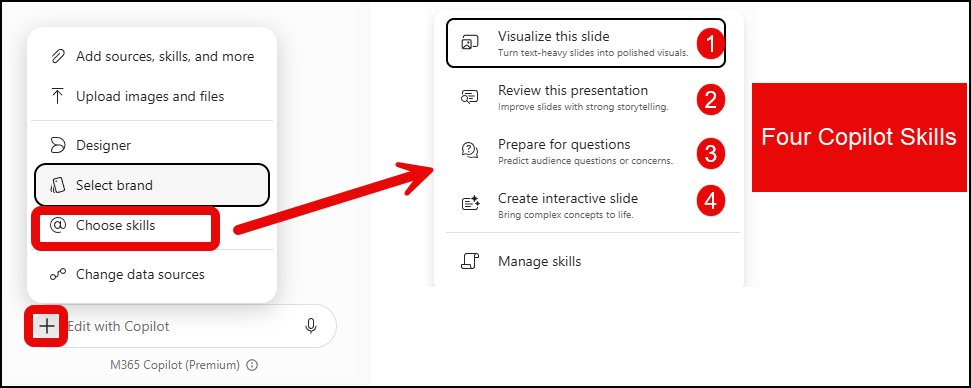
No downloads, but Chris has training participants verify that the Copilot skills were showing up in PowerPoint.
Steps to get to skills
- Open Microsoft PowerPoint desktop.
- Click the Copilot icon in the bottom right, unless you moved it back to the Home Tab.
- Click the plus sign.
- Click Choose Skills.
- Click the skill you want to use. Users at the conference verified that they had three of the four skills shown. A few people had Create Interactive Slide, but that skill is slowly rolling out as of September 15, 2026.
Excel Practice Files
The Excel files contain the sample data and hands-on exercises used during the Copilot demonstrations.


To use the file above, I suggest you download it and upload it to Microsoft OneDrive.There's a worksheet called "Prompts."Copy the prompt you want to use. Review it, go to the referenced worksheet, then open Copilot and paste the prompt there.
Summary of some of the Copilot in Excel prompts used
The workbook includes several hands-on exercises that show how Microsoft Copilot can analyze, transform, and enrich data using natural language prompts.
Names and Emails
- Split email addresses into separate First Name and Last Name columns.
Extract Text
- Extract text contained within a specific set of brackets and place the results in a separate column.
Pull Country Out of Location
- Create a new Country column based on location data.
- Determine the country from the value after the last comma.
- If the value after the last comma is a two-letter abbreviation, treat it as a U.S. state and set the country to USA.
- If no comma exists, use the entire location value as the country.
XLOOKUP and Exchange Rates
- Create a new column showing revenue converted to U.S. dollars.
- Use XLOOKUP to retrieve the correct exchange rate from a separate exchange-rate table.
- Calculate the USD value based on the retrieved rate.
Topics Covered During the Copilot Training
During the sessions, we explored practical Microsoft 365 Copilot scenarios across several applications, including:
- Using Copilot Chat to ask questions and work with business information
- Creating and explaining formulas in Excel
- Analyzing and cleaning Excel data
- Using the new "Visualize this slide" Copilot skill in PowerPoint
- Using the new "Make Slide Interactive" in PowerPoint
- Creating audio summaries using Copilot in OneDrive
- Drafting faster replies and working more efficiently in Outlook
- Using the new formula completion feature in Copilot in Excel
Outlook Replies Video - Save hours with Copilot in Outlook
Continue Practicing After APC 2026
I encourage you to download the files and repeat the exercises covered during the training. Working through the demonstrations again is one of the best ways to reinforce what you learned and identify opportunities to use Copilot in your own daily workflow.
Remember that Microsoft 365 Copilot is most useful when you clearly describe:
- What you want Copilot to do
- What information Copilot should use
- How you want the result formatted
- Who the intended audience is
Thank you again for attending my APC 2026 training sessions. I enjoyed meeting so many administrative professionals and sharing practical ways to use Microsoft 365 Copilot.
Chris Menard
Microsoft MVP
Chris Menard Training



