
Advanced Text-Splitting with Copilot in Excel


Excel's Copilot has evolved significantly with Wave 2, introducing powerful capabilities for advanced text manipulation. This blog post explores how to leverage Copilot for complex text-splitting tasks, specifically focusing on separating location data into distinct columns while handling special cases.
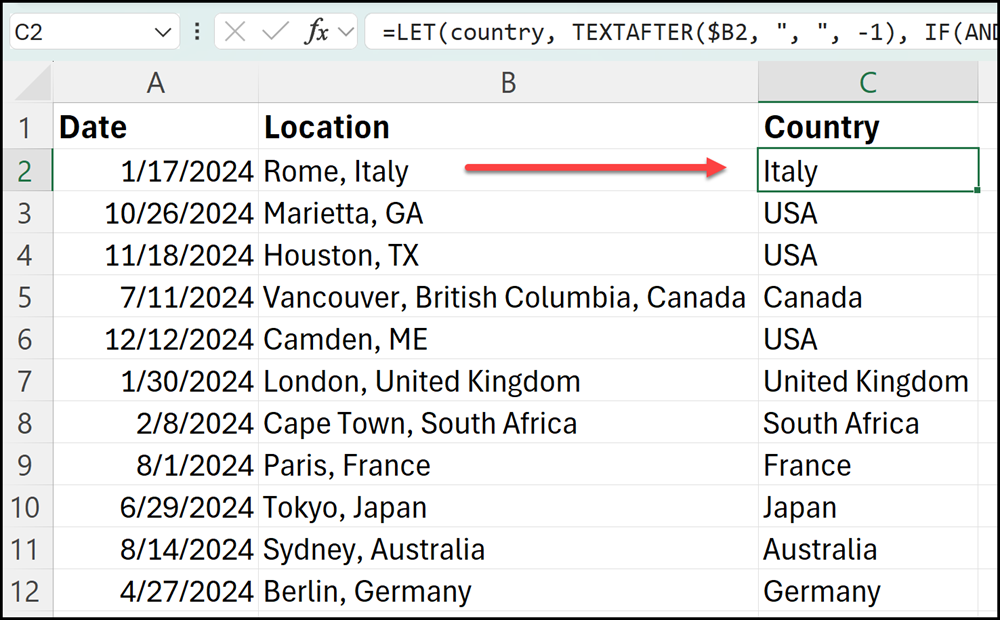
In the image below, Copilot wrote an IF function to add the county after the comma in column B to column C, but if it found two capital letters after the comma, it made the county USA.
The Challenge: Splitting Location Data
Our example dataset contains a "Location" column with a mix of countries and US states. The goal is to split this information intelligently:
- For countries, extract the country name after the comma - For US states, identify the two-letter abbreviation and output "USA"
This task requires more than simple text splitting - it demands conditional logic to handle different scenarios.
YouTube Video - Copilot in Excel: Advanced Text Splitting in Excel
Copilot in Excel: Advanced Text Splitting in Excel - YouTube
Copilot in Excel - Advanced Text Splitting
Setting Up the Exercise
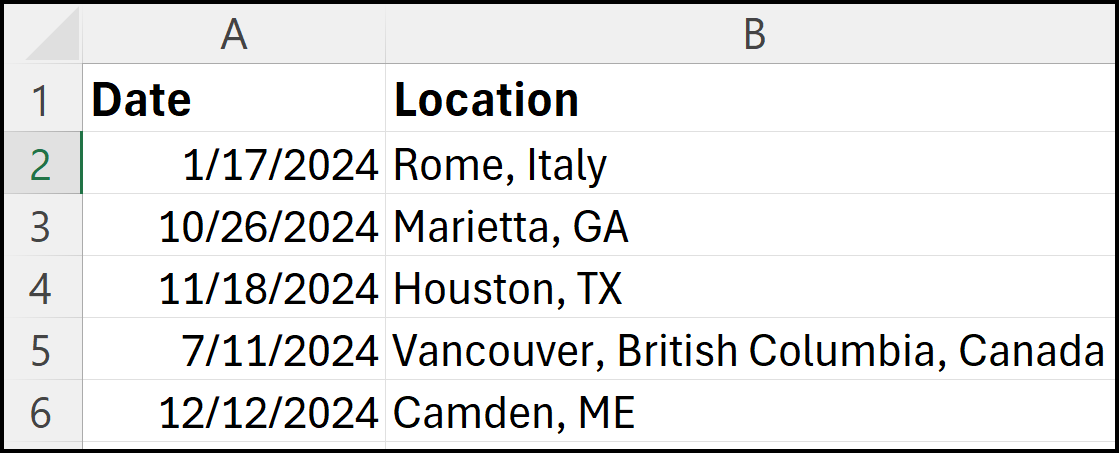
To begin, we have a dataset with the following structure:
- Column A: Dates - Column B: Location (e.g., "Rome, Italy" or "Atlanta, GA")
Our objective is to create a new Column C that will contain either the country name or "USA" for states.
Leveraging Copilot for Advanced Text Splitting
Here's how to use Copilot to accomplish this task:
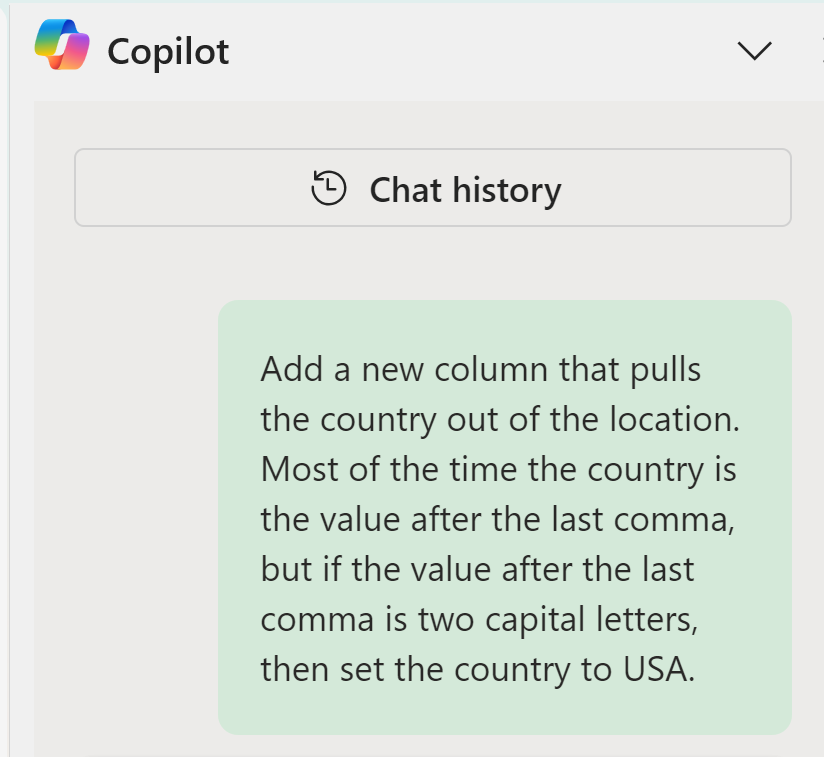
- Select your data range (no need to convert it to a table) - Open the Copilot task pane from the Home tab - In the prompt box, enter the following instruction:
**"Add a new column that extracts the country from column B. If the text after the comma is a two-letter capital abbreviation, put 'USA'. Otherwise, extract the text after the comma."**
Understanding Copilot's Solution
After processing your request, Copilot will generate a solution. Here's what to expect:
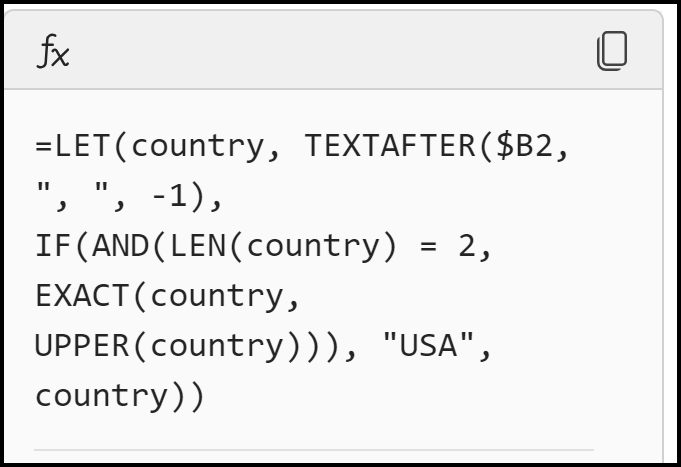
- Copilot will create a complex nested IF statement combined with the LET function - The formula will examine Column B, looking for the comma and the characters that follow - If it detects a two-letter capital abbreviation, it will output "USA" - For other entries, it will extract the text after the comma as the country name
Implementing the Copilot Split Column Excel Solution
To apply Copilot's solution:
- Review the generated formula in the Copilot pane - Click "Insert Column" to add the new column with the formula - Verify the results in your spreadsheet
The resulting Column C should now correctly display "USA" for states and the appropriate country names for other locations.
Benefits of Using Copilot for Complex Text Splitting
Utilizing Copilot for this task offers several advantages:
- Time-saving: Copilot generates complex formulas instantly
- Accuracy: The AI-powered solution handles edge cases effectively
- Learning opportunity: Examining Copilot's formula can teach you advanced Excel techniques
- Flexibility: The same approach can be adapted for similar text-splitting challenges
FAQ
Q: Can Copilot handle even more complex text-splitting scenarios?
A: Yes, Copilot is capable of handling a wide range of text splitting scenarios. You can describe more complex requirements in your prompt, and Copilot will attempt to generate an appropriate solution.
Q: Do I need to format my data as a table for Copilot to work?
A: No, Copilot can now work with table-less data. You can simply select a range of cells, and Copilot will be able to process it.
Q: What if I don't understand the formula Copilot generates?
A: Copilot provides an explanation of its solution. You can click "Show Explanation" to see a breakdown of what the formula does. This can be a great learning opportunity to understand advanced Excel functions.
Q: Can I modify the Copilot-generated formula after inserting it?
A: Absolutely! Once Copilot inserts the formula, you can edit it like any other Excel formula to fine-tune it for your specific needs.



