
Teams Three New Features December 2025: How to Pop Out Apps, Pin Teams, and Search Images


I noticed three small but powerful updates in Teams: Three New Features December 2025 that have already changed how I work across multiple monitors. These updates let me pop core apps out of the sidebar into separate windows, keep Teams visible while I work in other programs, and find images shared in chats with much less fuss. I use these features daily now, and in this post I’ll show you what they do, why they matter, and how I set them up in my workflow.
Table of Contents
- 🔳 Open core apps in separate windows from the sidebar
- 📌 Pin Teams on top of other apps
- 🖼️ Search only images in conversations
- ⚙️ How I use these features together
- 🔧 Tips and troubleshooting
- ❓ FAQ
- ✅ Final thoughts
🔳 Open core apps in separate windows from the sidebar
The most immediately useful change in Teams is the ability to open multiple core apps directly from the left sidebar (app bar) into their own windows. Instead of navigating to a chat or channel and selecting Open in a new window from within the content, you can right-click the app icon on the far left and choose Pop out.
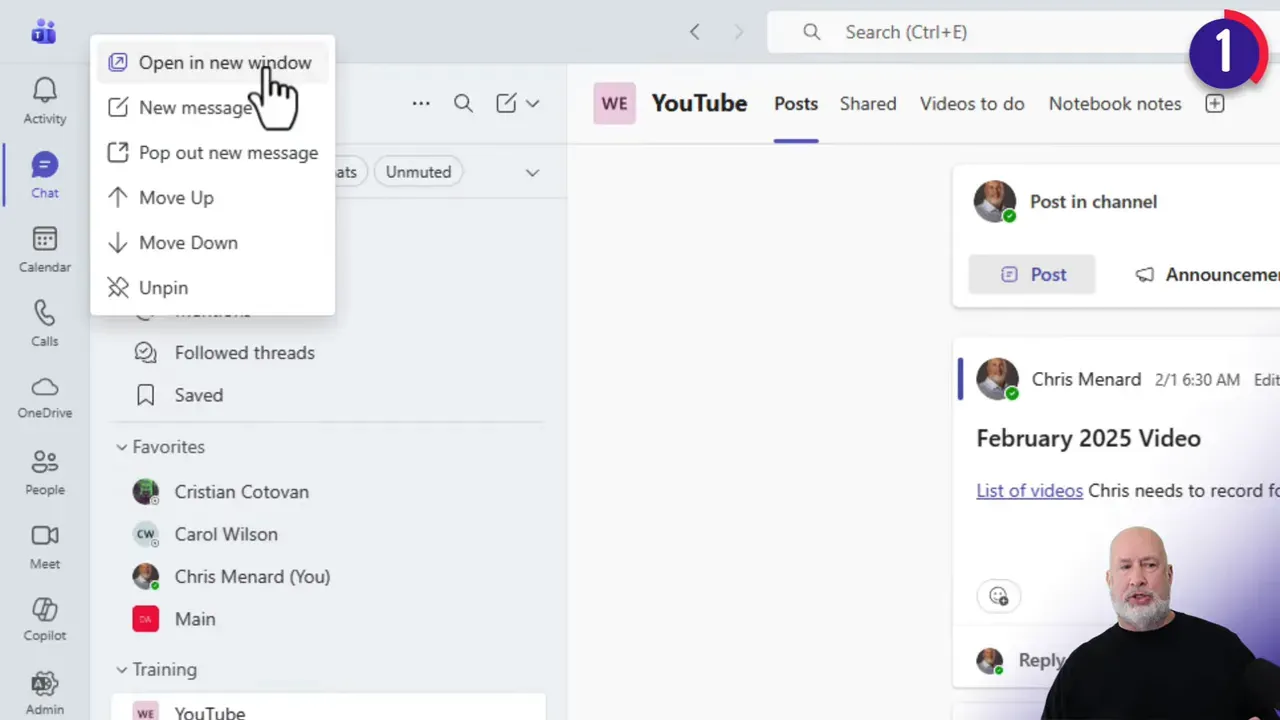
What can you pop out
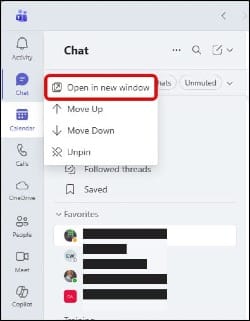
- Chat
- OneDrive
- Calendar
- Meet
- Calls
- Activity feed
One minor limitation: the People app cannot be opened in a new window yet. That is not a deal-breaker for most setups, but worth noting when you're arranging a multi-monitor workspace.
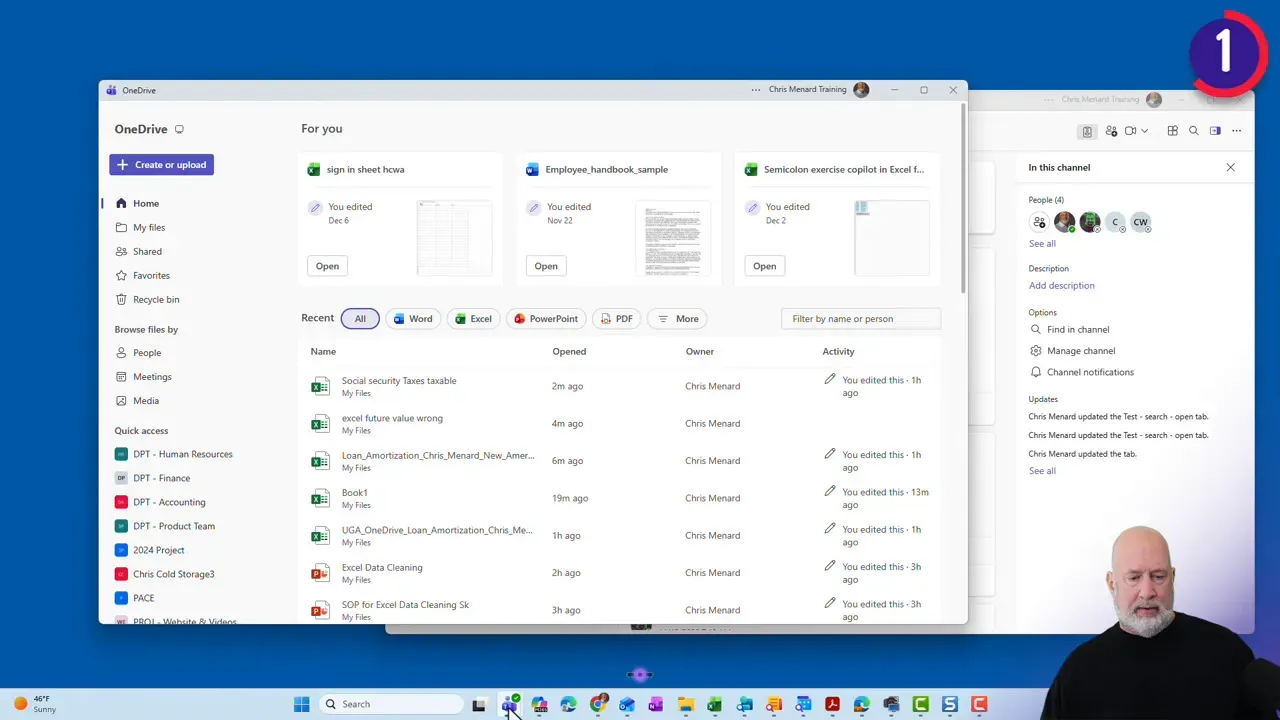
I love this because it makes it trivial to arrange a persistent set of windows across monitors. I keep my Chat and OneDrive open on a second display, while my main Teams window stays centered on the primary screen. Teams Three New Features December 2025 turns the sidebar into a workspace launcher rather than a single-window hub.
📌 Pin Teams on top of other apps
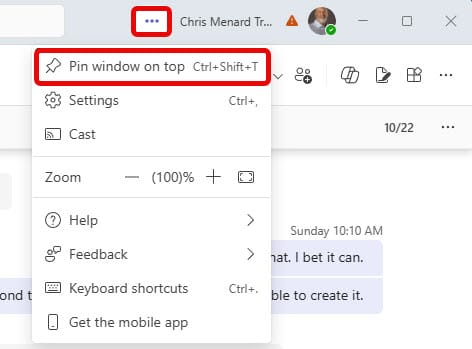
The second update I use constantly is the new Pin window-on-top toggle in Teams. Activate it, and Teams will remain visible even when you switch to other applications such as Excel or Word. That makes it easy to glance at a message or join a quick call without alt-tabbing back.
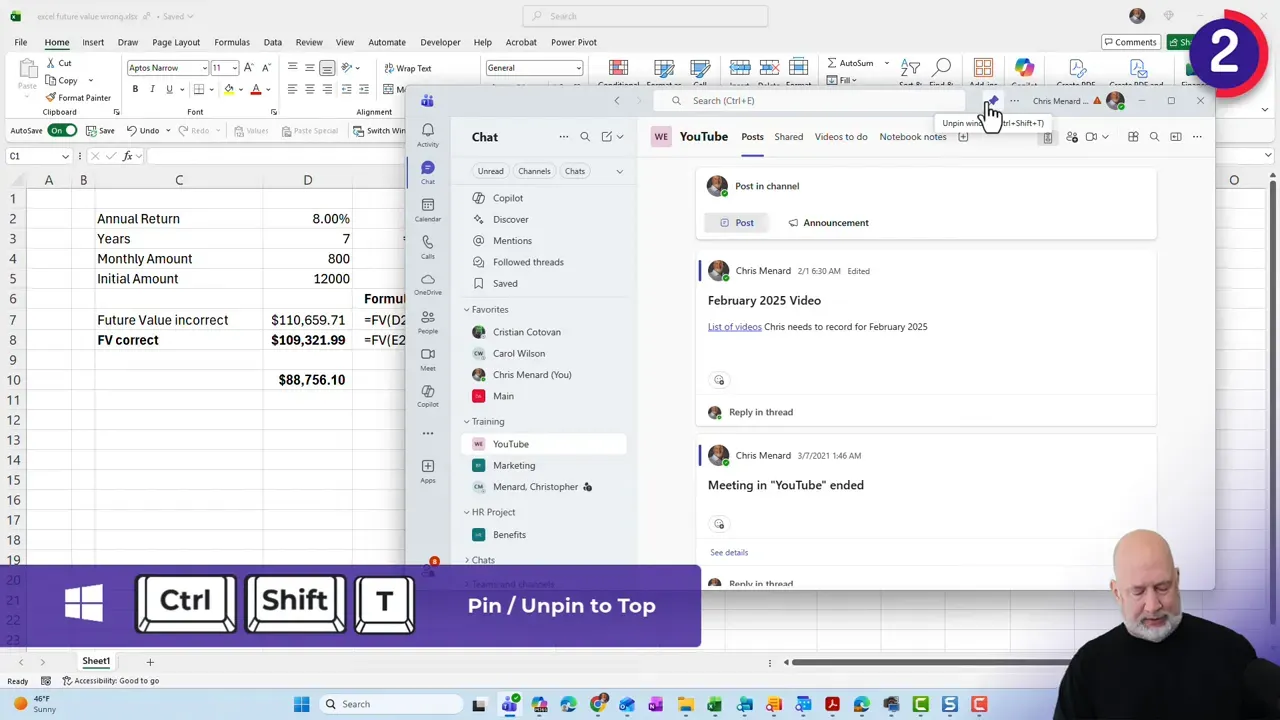
The toggle is available in the window controls, and there’s a keyboard shortcut: Control+Shift+T to toggle the pinned state. I tested it with Excel open, and it stayed on top exactly as expected. If you do a lot of multitasking between documents and chats, this is one of the most noticeable improvements in Teams.
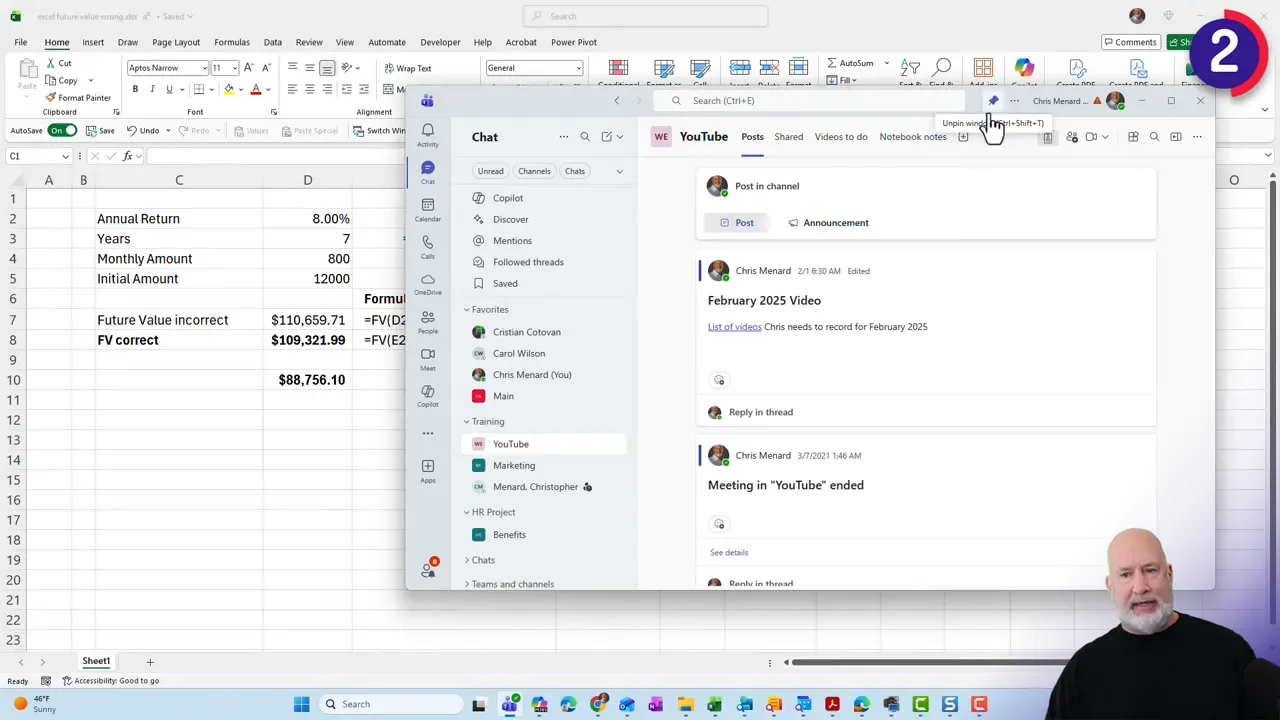
Quick tip: Use a pin on top for time-sensitive windows, such as an active chat you're monitoring or a meeting window. Toggle it off when you need full-screen focus for a document or presentation.
🖼️ Search only images in conversations

The search experience got cleaner. There's now an Images tab inside the Teams search bar that shows photos and images shared with you. You can filter results by sender and date, which is perfect when you need that one screenshot someone sent a week ago.
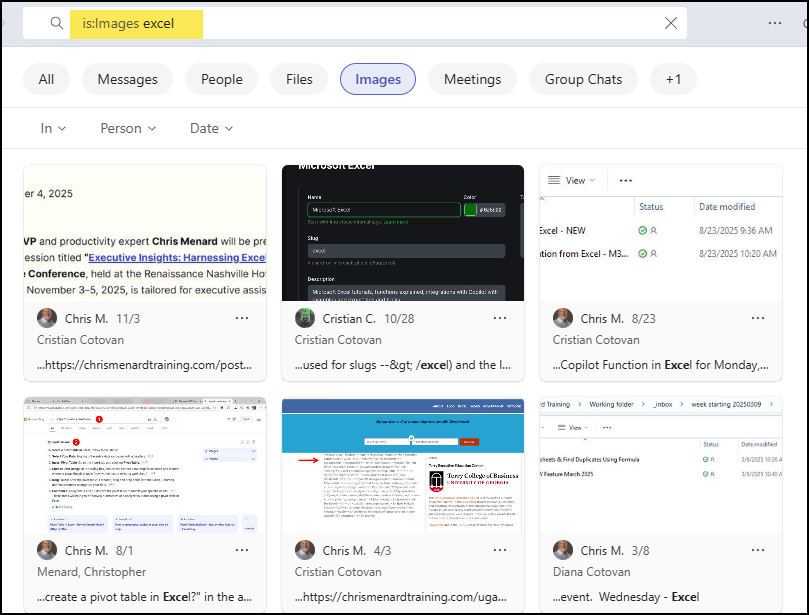
Type a name and switch to Images to see recent images from that person. I tested searching images from a colleague, and it returned exactly the images I needed, with the ability to narrow by date. This is a practical productivity win for design handoffs, receipts, and any time you need a visual item from chat history.
⚙️ How I use these features together
Putting these three updates together unlocks a simple workflow that saved me time on day one of Teams Three New Features December 2025. Here’s the layout I use:
- Right-click Chat in the sidebar and open it in a new window on my left monitor so I can respond quickly without interrupting my main workspace.
- Open OneDrive in its own window and pin it to the top when I’m dragging files into a Teams conversation or channel post.
- Keep the Calendar or Meet popped out and pinned on the right monitor during heavy collaboration windows so I never miss a meeting link.
These features reduce context switching. When an image is needed from a conversation, I use the Images search filter and quickly find the file rather than scrolling through message history. Teams: Three New Features in December 2025 make that look effortless.
🔧 Tips and troubleshooting
Tip — If a pop-out doesn’t appear on the monitor you expect, check your display arrangement in Windows and drag the window to the target monitor. The pop-outs behave like standard windows, so you can move and snap them as needed.
Tip — Use the Control+Shift+T shortcut to quickly toggle the pin to the top. If it does not seem to work, make sure Teams is focused when you press the shortcut.
Tip — If you don’t see the Images tab in search results, ensure your Teams client is up to date. The Images search is a recent addition and may require the latest desktop update.
❓ FAQ
Which sidebar apps can be opened in new windows?
You can open Chat, OneDrive, Calendar, Meet, Calls, and the Activity feed in separate windows. The People app is not currently supported for pop-out.
How do I pin Teams on top of other applications?
Click the window controls, then choose Pin window to the top. You can also press Ctrl+Shift+T to quickly toggle the pinned state.
Can I search only images shared in conversations?
Yes. Use the search bar and select the Images tab to filter results to photos and images. You can further filter by sender and date to find specific items.
Will these features work on the web or mobile versions of Teams?
These updates apply to the Teams desktop client. Web and mobile experiences may differ and may not include all of these options.
Where can I find these features in my Teams client?
Right-click an app icon on the left sidebar to open it in a new window. Use the Window menu or the Control+Shift+T shortcut to pin the Teams window to the top. Use the search bar and switch to Images to find shared photos.
✅ Final thoughts
Teams Three New Features December 2025 delivers three modest, practical improvements that together make Teams feel more flexible and easier to use in a multi-window, multi-monitor workflow. Popping apps out from the sidebar, keeping Teams visible while you work, and quickly finding images in chats all shave small chunks of friction from my day. Try rearranging your windows and see which combination of pop-outs and pinned windows speeds up your routine.



