
How to Use the COPILOT() Function in Excel: AI-Powered Formulas


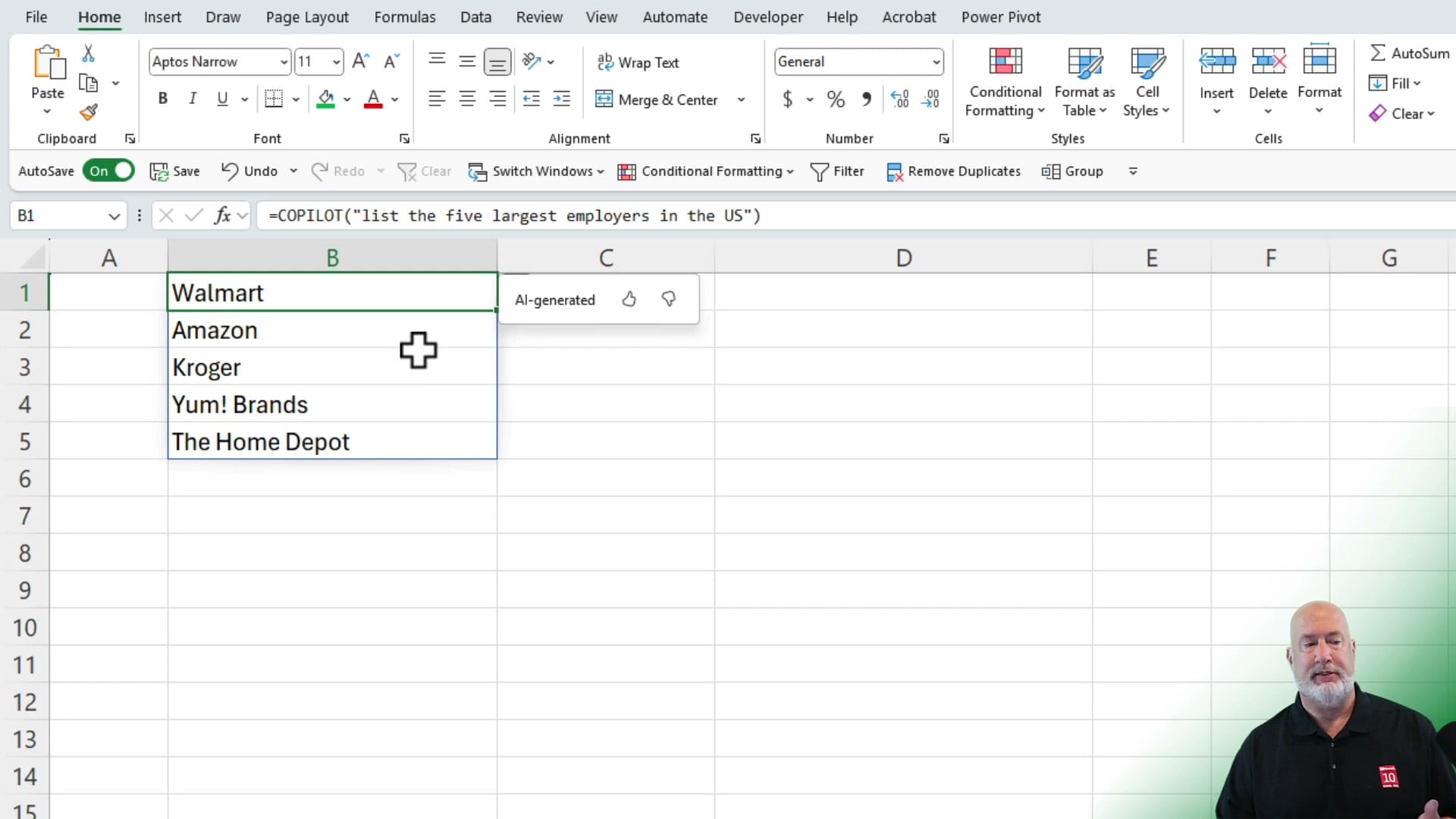
Excel now has a built-in COPILOT function that accepts natural language prompts directly in cells. Instead of writing complex formulas, you type a plain English instruction, and Copilot returns AI-generated results that spill into adjacent cells — just like SORT or UNIQUE.
This function works in Excel for Windows and Excel for Mac with a Microsoft 365 Copilot license. Here's how to use it with real examples.
Basic Syntax
The COPILOT function takes a natural language prompt as its first argument:
=COPILOT("Your natural language prompt")You can add additional arguments to reference cells or ranges that Copilot should use when generating its output.
Generating Lists with Cell References
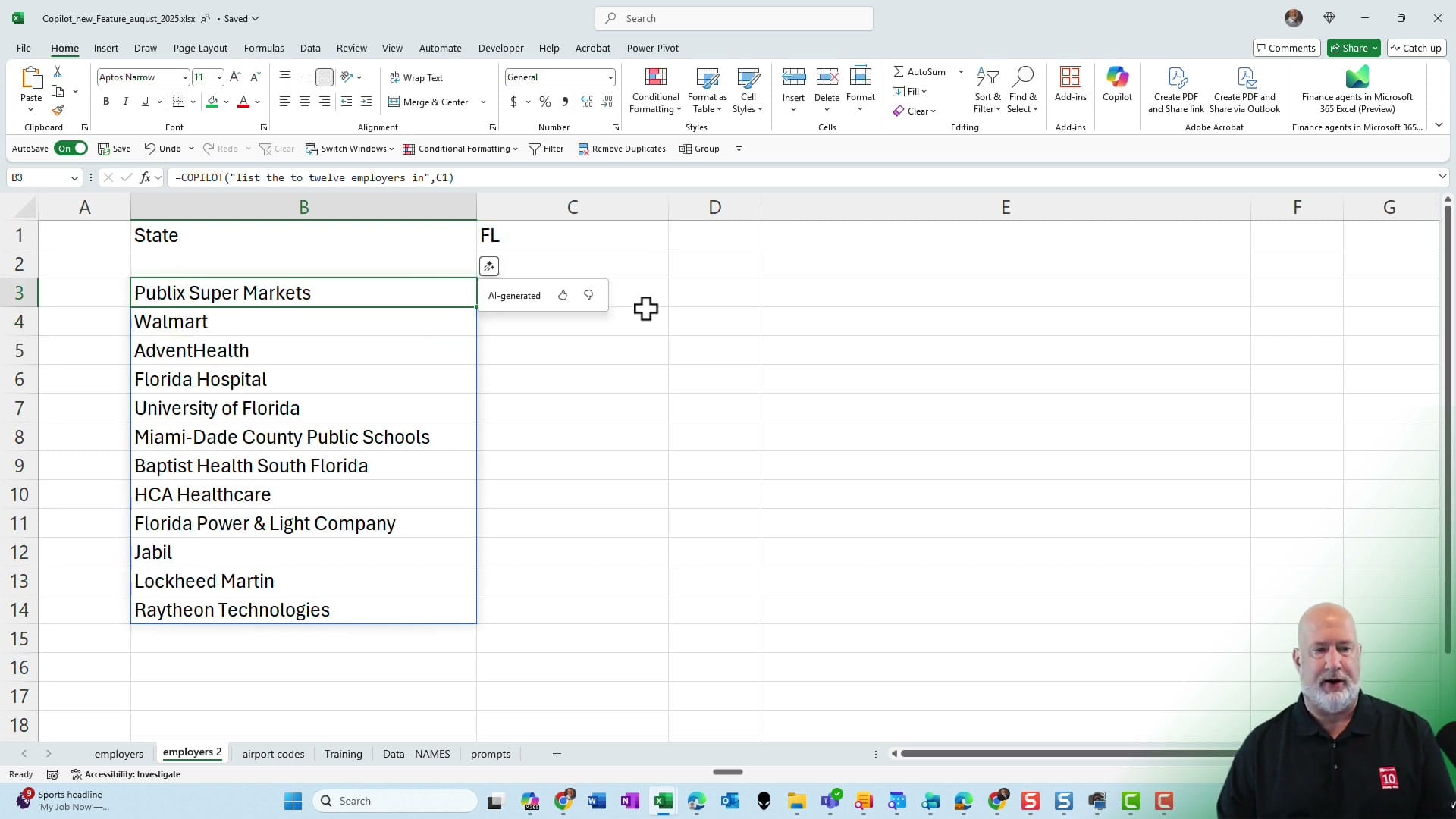
The function becomes more useful when you reference other cells. For example, to list the top employers in a specific state:
=COPILOT("list the ten to twelve employers in", C1)Where C1 contains "FL" (Florida). Copilot returns a spilled list of major Florida employers — Publix Super Markets, Walmart, AdventHealth, Florida Hospital, University of Florida, and more.
Classifying Training Feedback
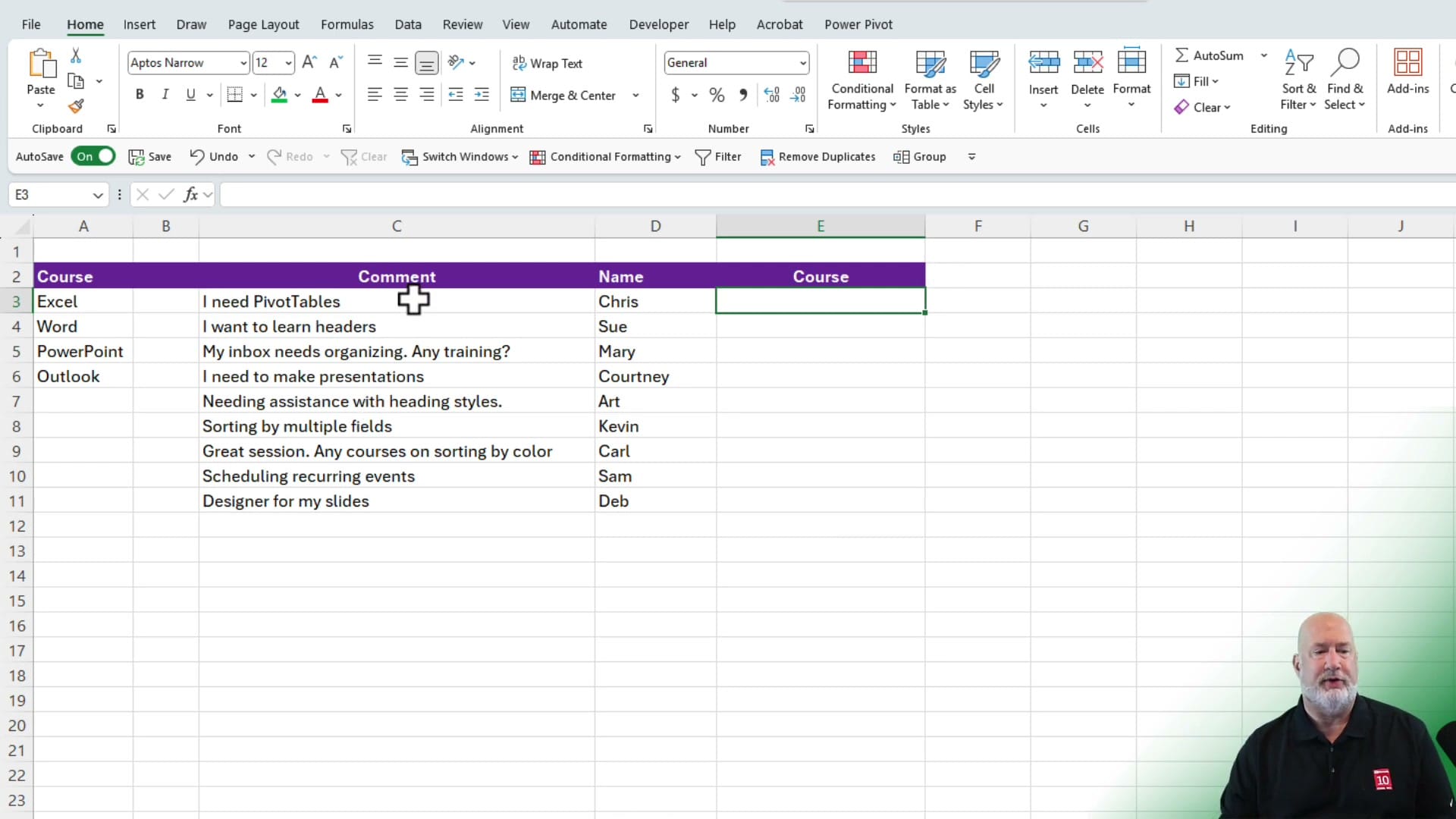
One of the most practical applications is classification. Given a sheet with training feedback comments and a list of course names, Copilot can map each comment to the correct course:
=COPILOT("list the course for each comment", C3:C11, "based on the courses listed", A3:A6)Copilot matched "I need PivotTables" to Excel, "I want to learn headers" to Word, "My inbox needs organizing" to Outlook, and "I need to make presentations" to PowerPoint.
Key Features
- Spilled results — Output automatically spills into adjacent cells, like other dynamic array functions
- AI-generated label — Results show an "AI-generated" badge with thumbs up/down feedback buttons
- Dynamic updates — Results recalculate when referenced cells change
- Multiple arguments — Pass ranges, cell references, and text strings as context for the prompt
- Hashtag references — Use spilled range references (e.g., B1#) to chain COPILOT results into other formulas
Practical Use Cases
- Generating lists (top companies, categories, locations) based on cell inputs
- Classifying open-text survey responses into categories
- Summarizing or extracting information from text in cells
- Converting airport codes, state abbreviations, or other codes to full names
- Brainstorming ideas directly in your spreadsheet
The COPILOT function is part of Excel's calculation engine, so results stay current without running scripts or refreshing add-ins. For more on using Copilot with Excel formulas, see the related guides below.
Related guides
 Chris Menard
 Chris Menard
 Chris Menard
 Chris Menard
Want to learn more? Visit courses.chrismenardtraining.com for online training courses.



