How to Use Copilot Smart Reply Suggestions in Outlook

Microsoft 365 Copilot in Outlook on the web includes a smart reply feature that goes beyond simple canned responses. When you reply to an email, Copilot reads the entire conversation thread and drafts a contextual, detailed response. These aren't generic "Thanks!" replies — they're relevant, substantive drafts you can use as-is or refine quickly.
How Smart Reply Works
When you click Reply or Reply All on an email, Copilot suggested drafts appear at the bottom of the compose window. Each suggestion is a complete reply based on the conversation context — Copilot analyzes the email thread, identifies the key points, and drafts an appropriate response.
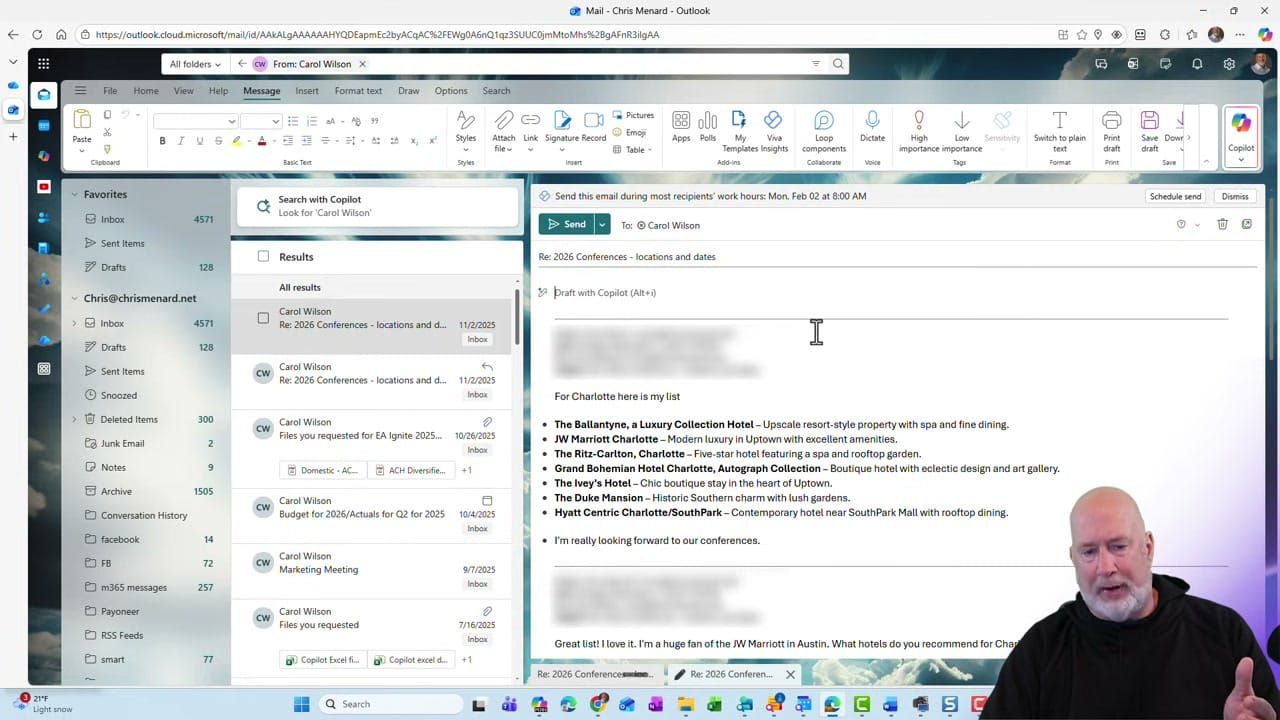
Click any suggestion to preview the full text Copilot will insert. The reply is drafted in context — referencing specific details from the email thread, not just generic pleasantries.
Editing and Refining the Draft
After selecting a suggested draft, you get several options to adjust it:
- Keep it — Accept the draft as-is and send
- Discard — Remove the draft and start fresh
- Make it shorter — Condense the reply to be more concise
- Make it longer — Expand the reply with more detail and context
- Change tone — Adjust between formal, casual, or other styles
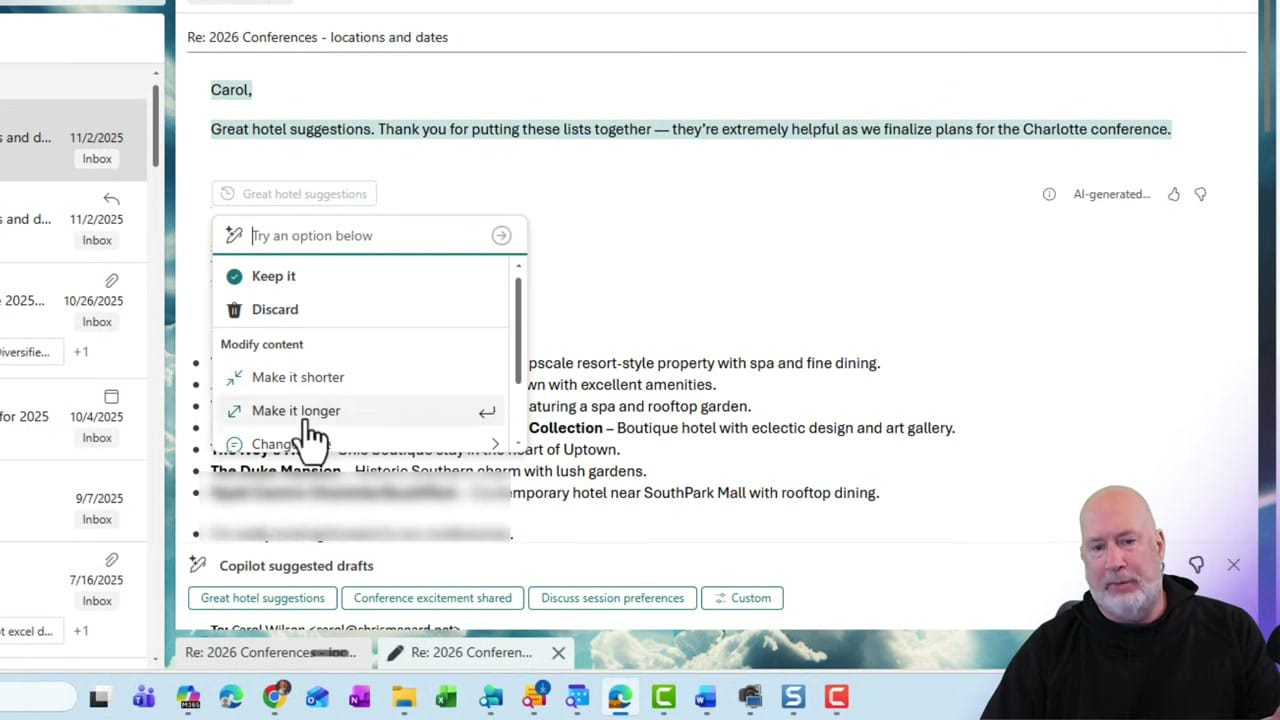
The Make it longer option is particularly useful — Copilot expands the reply to include context, next steps, and a more thorough response. After expanding, a quick read-through and minor edits take far less time than composing from scratch.
Key Points
- Suggestions are context-aware — Copilot reads the full email thread, not just the latest message
- Works with Reply and Reply All in Outlook on the web
- You can use Copilot to summarize attachments before replying
- Drafts can be edited freely after insertion — treat them as a starting point
- This feature requires a Microsoft 365 Copilot license (paid license)
Related guides
Want to learn more? Visit courses.chrismenardtraining.com for online training courses.