
How to Extract Numbers from Text in Excel with REGEXEXTRACT


Excel's REGEXEXTRACT function lets you pull numbers (or any pattern) out of a text string using regular expressions. Unlike functions like TEXTAFTER or TEXTBEFORE that depend on consistent delimiters, REGEXEXTRACT works with messy, inconsistent data — it finds the pattern wherever it appears.
In this walkthrough, you'll see two practical examples: extracting 10-digit phone numbers from a name-and-number string, and pulling numbers from completely unstructured text. You'll also learn how to handle errors when cells don't contain a match.
Watch the full tutorial:
Understanding REGEXEXTRACT's Arguments
The function signature is:
=REGEXEXTRACT(text, pattern, [return_mode], [case_sensitivity])- text — the cell or string you're searching in
- pattern — a regular expression describing what you want to extract
- return_mode (optional) — controls what gets returned:
0= return the first match (default)1= return all matches as a spilling array2= return capturing groups from the regex
- case_sensitivity (optional) — whether the match is case-sensitive
Example 1: Extract a 10-Digit Phone Number
Say you have a list of names with phone numbers in a single cell, like "Chris Menard (978) 555-4125". You need just the phone number.
The formula:
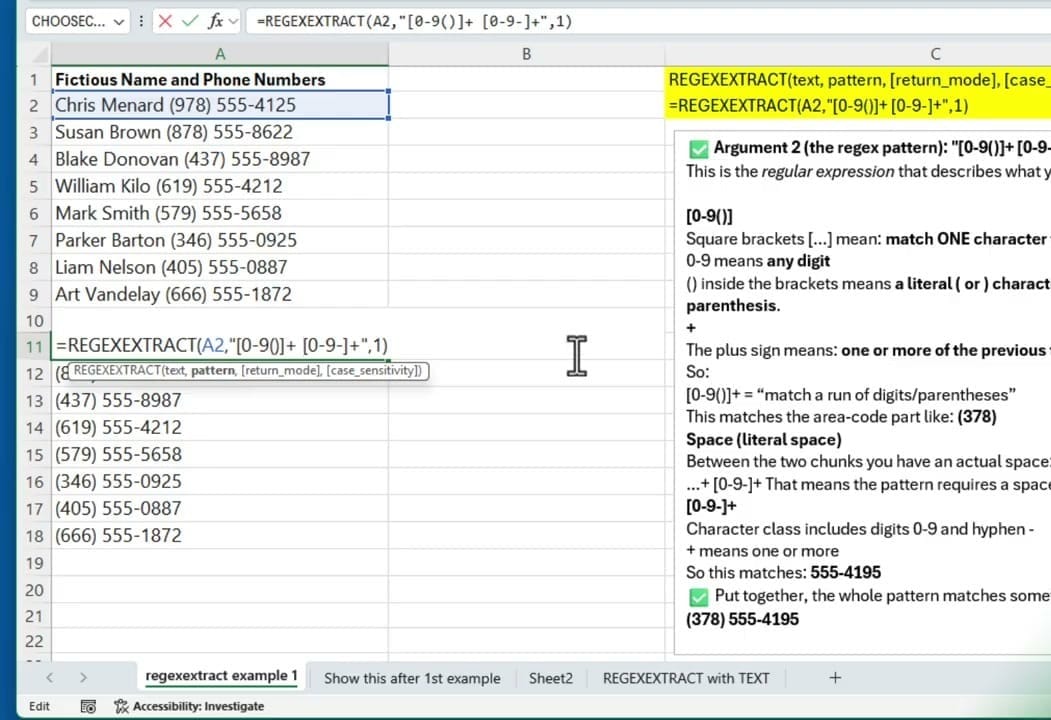
=REGEXEXTRACT(A2,"[0-9()]+ [0-9-]+",1)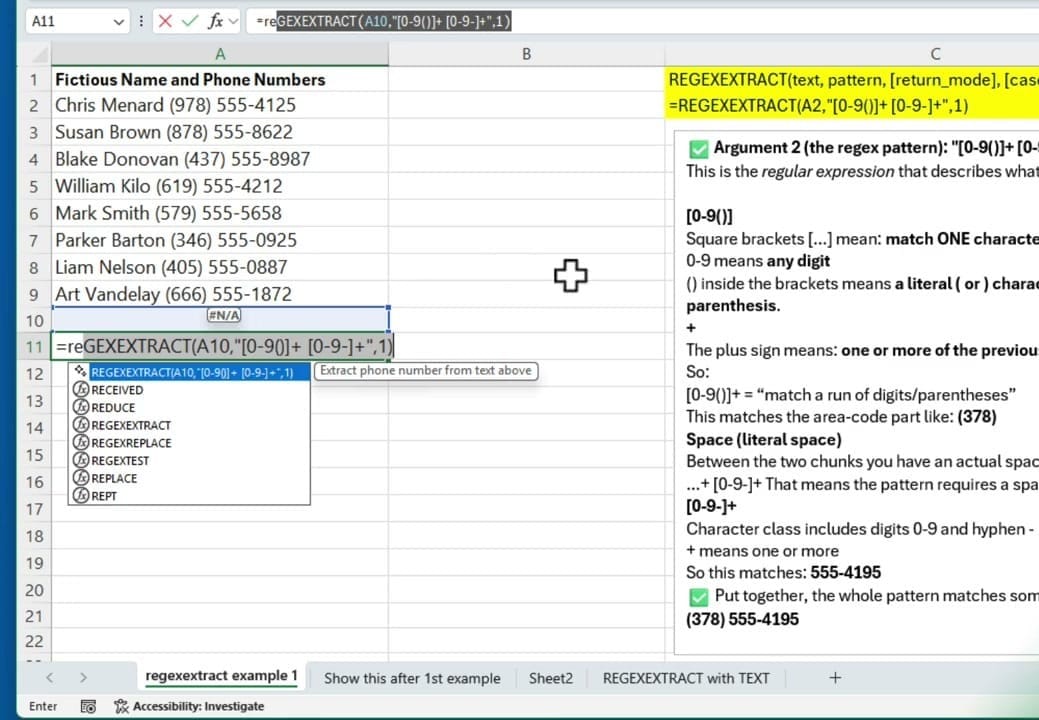
Breaking Down the Regex Pattern
The pattern "[0-9()]+ [0-9-]+" works in two parts:
[0-9()]+— matches one or more digits or parentheses (catches the area code like(978))- A literal space between the two parts
[0-9-]+— matches one or more digits or hyphens (catches555-4125)
With return mode set to 1, the formula spills all matches. In this data there's one phone number per cell, so you get a single result per row.
How REGEXEXTRACT Compares to TEXTAFTER
You might think: can't I just use =TEXTAFTER(A2," ",2) to grab everything after the second space? For this specific dataset, yes — TEXTAFTER works perfectly because the format is consistent: name, space, phone.
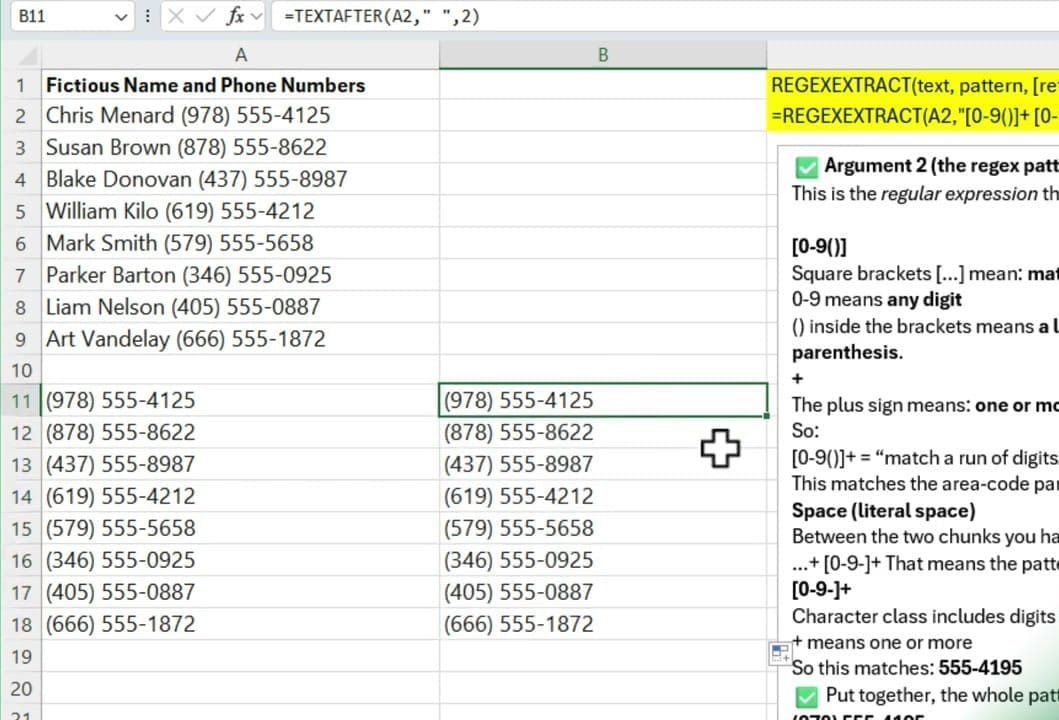
But TEXTAFTER falls apart the moment your data gets messy. If the name has an extra word, or the number appears at the start instead of the end, TEXTAFTER will return wrong results or errors. REGEXEXTRACT doesn't care about position — it finds the pattern wherever it sits in the string.
Example 2: Extract Numbers from Unstructured Text
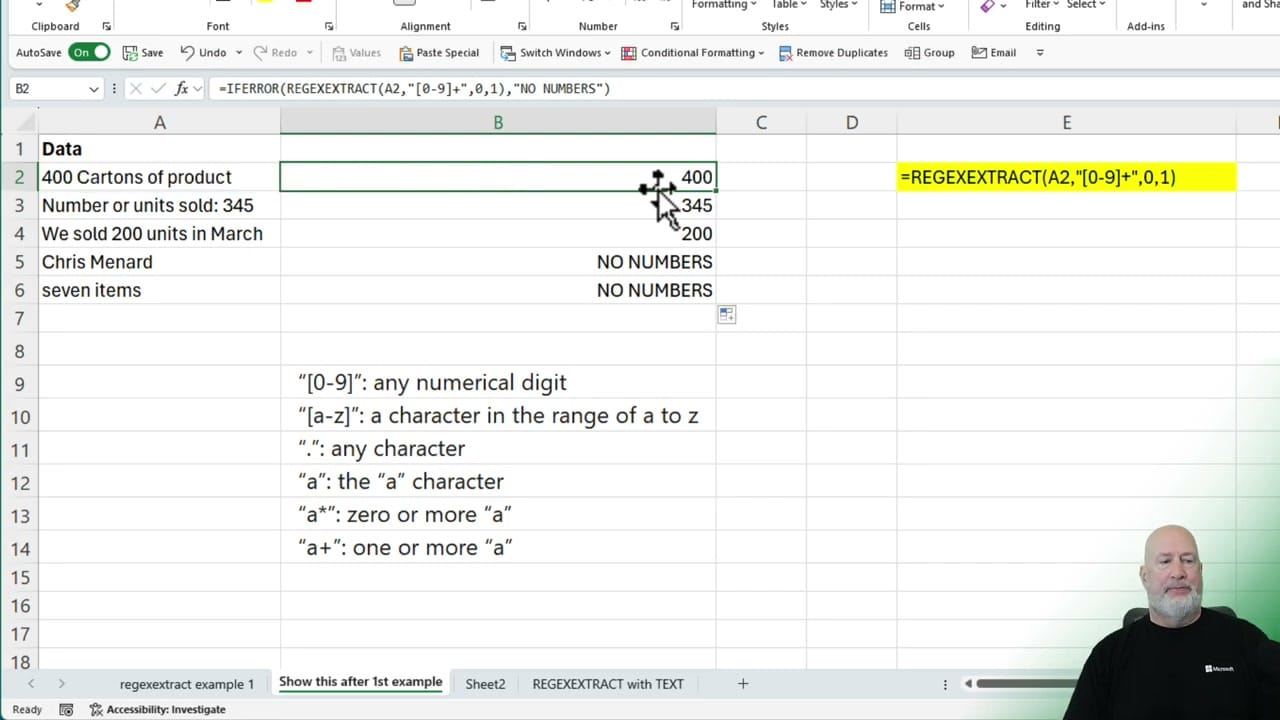
This is where REGEXEXTRACT really shines. Consider data like:
- "400 Cartons of product"
- "Number or units sold: 345"
- "We sold 200 units in March"
- "Chris Menard" (no number at all)
- "seven items" (number as a word, not digit)
The numbers are in different positions — start, middle, after a colon. A simpler formula:
=REGEXEXTRACT(A2,"[0-9]+",0,1)The pattern [0-9]+ just means "one or more digits". Return mode 0 gives the first match.
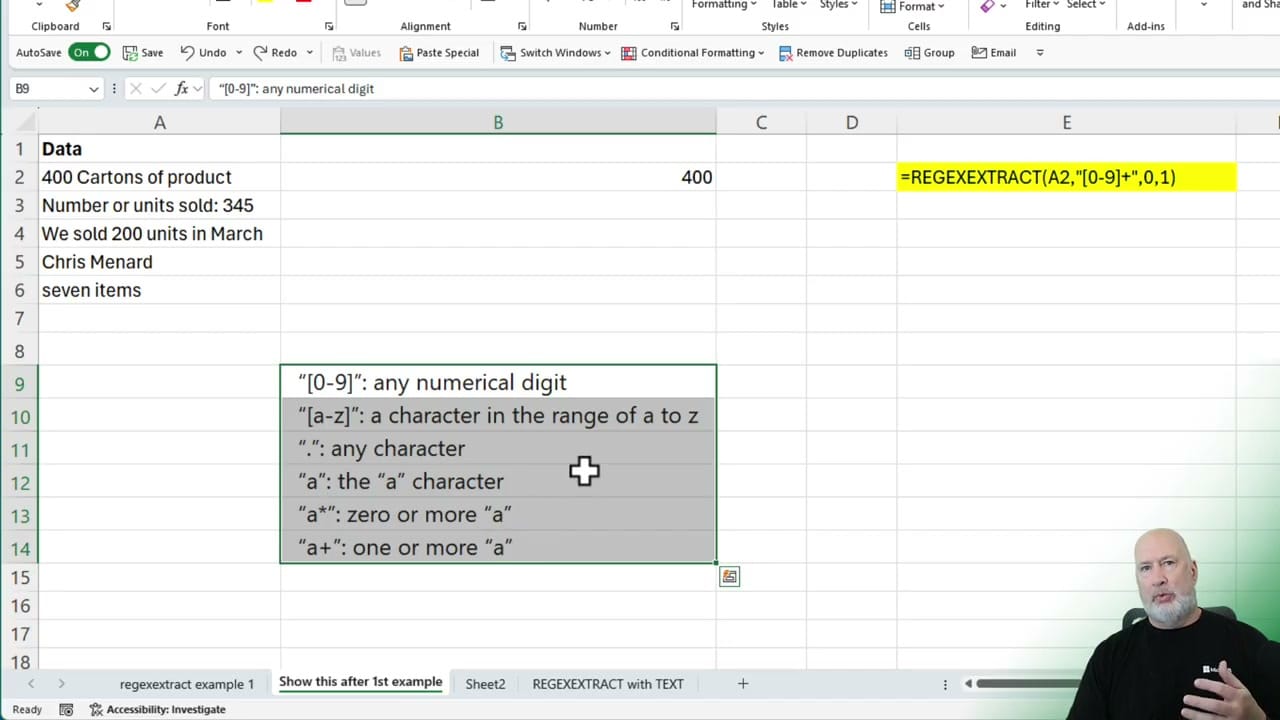
This works for "400 Cartons of product" (number at start), "Number or units sold: 345" (number at end), and "We sold 200 units in March" (number in the middle). But cells with no digits at all — like "Chris Menard" or "seven items" — will return a #N/A error.
Handling Errors with IFERROR
To handle cells with no numeric match, wrap the formula in IFERROR:
=IFERROR(REGEXEXTRACT(A2,"[0-9]+",0,1),"NO NUMBERS")Now instead of #N/A, cells without digits show "NO NUMBERS" (or any custom message you prefer — an empty string "" works too).
Quick Regex Reference
Common patterns you can use with REGEXEXTRACT:
| Pattern | Meaning |
|---|---|
[0-9] | Any single digit |
[a-z] | Any lowercase letter |
. | Any single character |
+ | One or more of the previous |
* | Zero or more of the previous |
[0-9]+ | One or more digits (most common for number extraction) |
[0-9()]+ | Digits and parentheses (phone area codes) |
Wrapping Up
REGEXEXTRACT is one of Excel's newer functions and it solves a problem that used to require complex nested MID/FIND/LEN formulas. If your data has numbers (or any pattern) buried in text at inconsistent positions, this is the function to reach for.
For more Excel tutorials, check out Chris Menard's training courses.



