How to Convert Seconds to Hours, Minutes, and Seconds in Excel


If you have a column of raw seconds in Excel — from video durations, call logs, workout times, or data exports — you need the right formula and formatting to display them as actual time values. Chris walks through the correct approach and explains why the obvious method doesn't work.
Why Dividing by 60 Gives Wrong Results
The first instinct is to divide seconds by 60 to get minutes. While mathematically correct, this gives you a decimal number — not a properly formatted time value that Excel can work with. You'll end up with something like 2.5 instead of 2:30.
The Correct Formula: Divide by 86,400
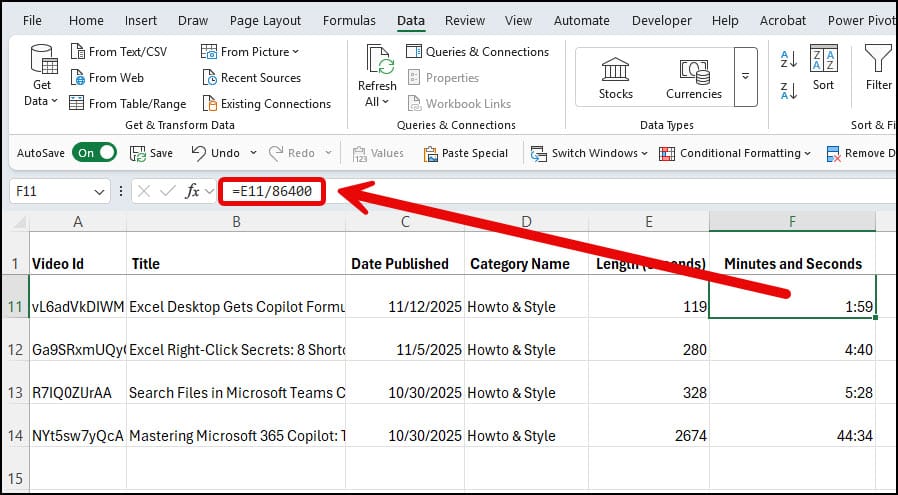
Excel stores time as a fraction of a day. Since there are 86,400 seconds in a day (60 × 60 × 24), dividing your seconds value by 86,400 converts it to Excel's internal time format.
The formula is simply: =A2/86400
Sample file to download
Custom Time Formatting
After applying the formula, format the cells with a custom number format:
MM:SS— for minutes and seconds (e.g., 02:30)H:MM:SS— for hours, minutes, and seconds (e.g., 1:02:30)
Then, auto-fill the formula down your entire dataset.
For other Excel time-related tasks, see how to separate date and time when they're combined in a single cell.
Watch the full tutorial:
Want to learn more? Visit courses.chrismenardtraining.com for online training courses.
Related Videos
 Chris Menard