Use Copilot to Translate Your PowerPoint Presentations Quickly

What this translation feature does and why it matters
Copilot in Microsoft 365 can now translate entire presentations into another language with a few clicks. I tried it in PowerPoint on the web (it also appears in the desktop app) and found the experience fast and straightforward. Instead of copying and pasting slide text into a separate translator, Copilot handles the heavy lifting, preserves slide structure, and saves the translated file to OneDrive.
YouTube Video - Translate a PowerPoint Presentation with M365 Copilot
Quick walkthrough: translate a presentation step by step
Here’s the simple flow I used. It takes just a minute or two, depending on the presentation size.
- Open the presentation you want to translate. I had a five-slide deck for testing.
- Launch Copilot by clicking the Copilot shortcut icon in the PowerPoint toolbar. M365 Copilot license required.
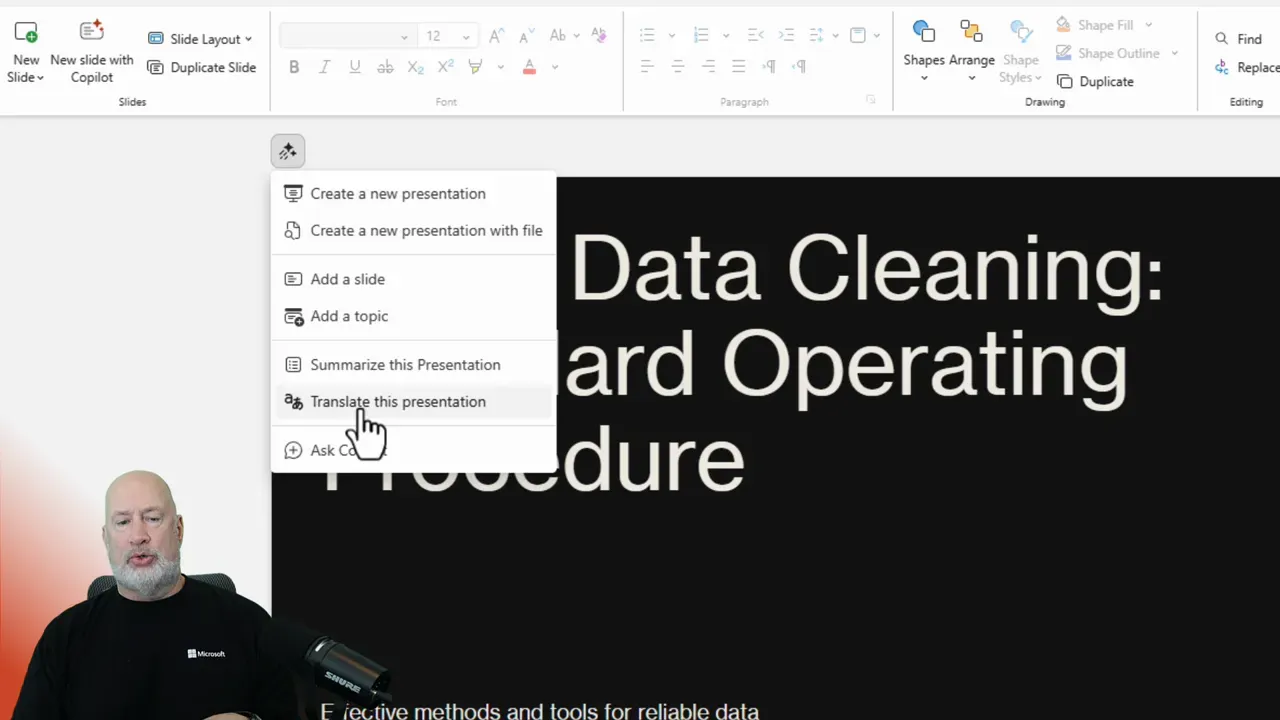
- Choose Translate this presentation from the Copilot options to open a small task pane on the right.
- Select your target language from the dropdown. I translated my deck to French first.
- Start the translation. Copilot creates a translated copy and stores it in your OneDrive, ready to open and review.
The entire process is visible in the Copilot task pane, and the translated file appears in the same format as the original, making it easy to spot-check and edit content or layout after translation.
What the interface looks like
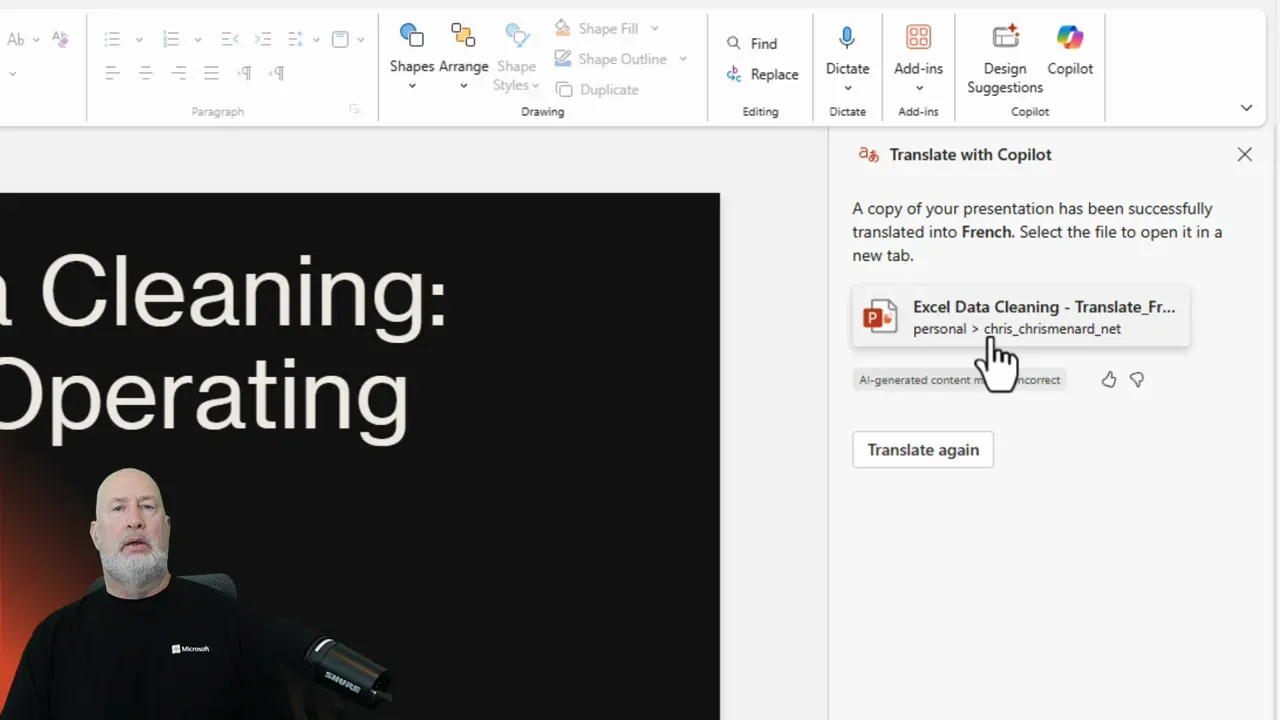
When you click Copilot, a task pane opens on the right, prompting you to select the language to translate into. This UI is intuitive—pick a language, click Translate, and wait a few moments for the new file to be created.
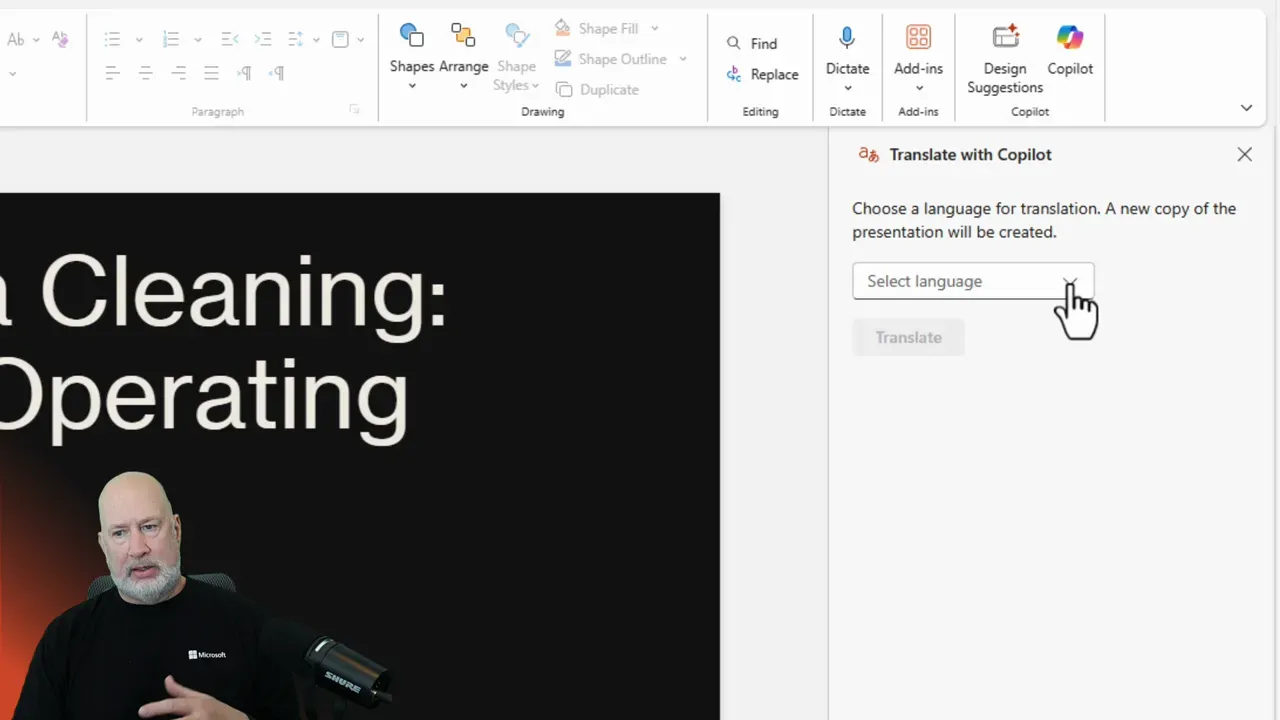
After the translation completes, Copilot confirms the job and deposits the translated file into your OneDrive. The copy maintains slide order, text boxes, and most basic formatting so you can quickly review and finalize.
Testing the translation and quality control
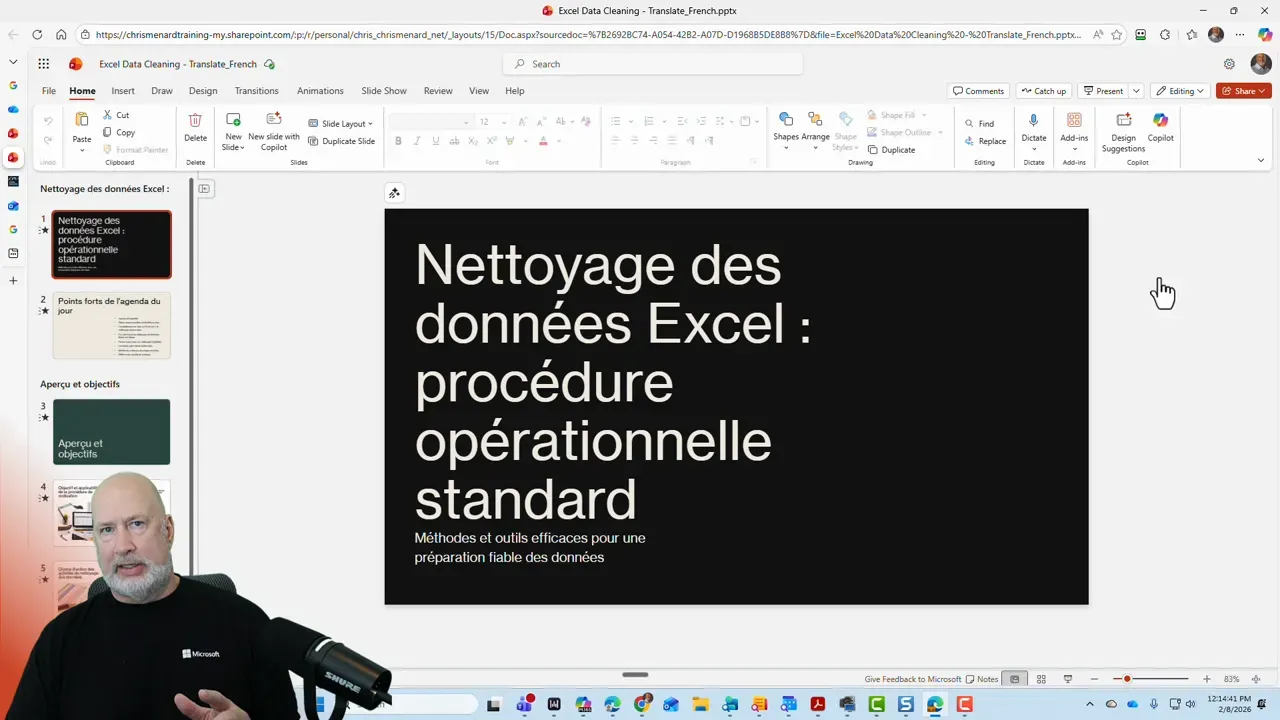
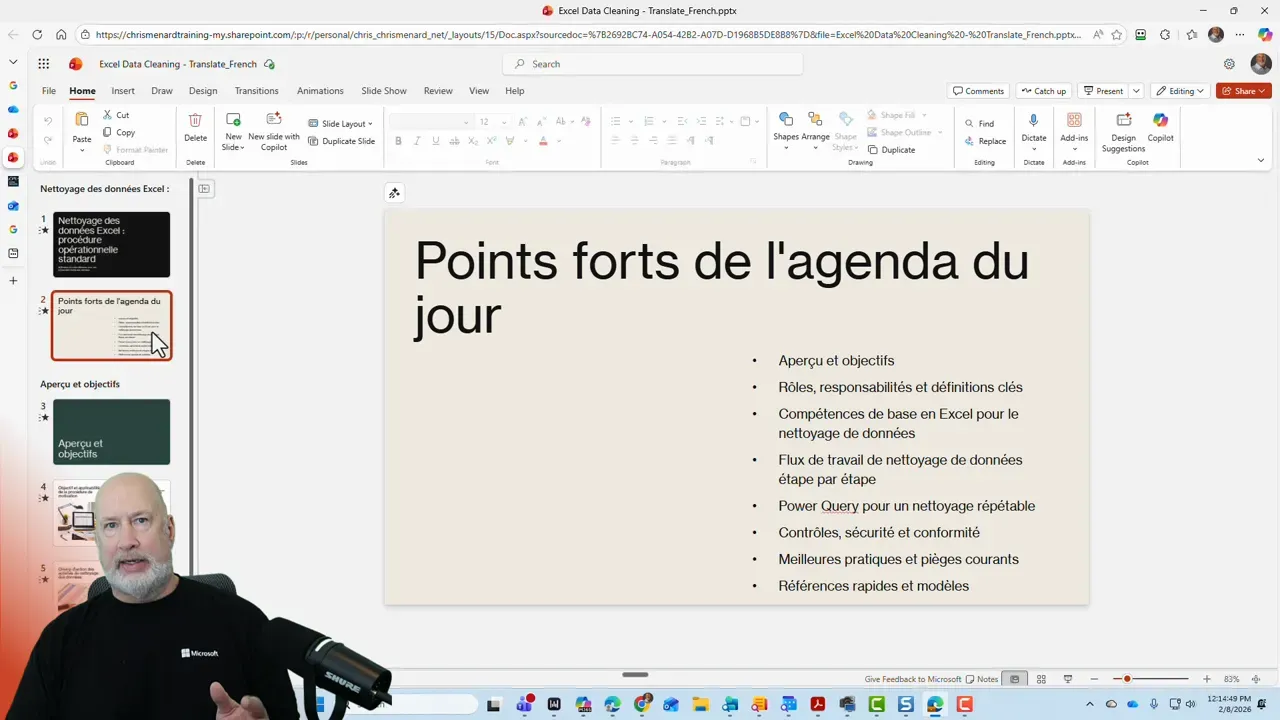
Automated translation is fast, but certain areas still need careful review. I don’t speak French, so I had a colleague check the translated slides for accuracy. I also recommend reviewing these parts of your translated presentation:
- Technical terms and brand names — machine translation can misinterpret industry jargon or product names.
- Speaker notes — confirm that notes and any embedded text outside the main slide area are translated.
- Layout and text overflow — translated text can be longer or shorter; adjust font sizes and spacing as needed.
- Images with embedded text — text within images is often not translated automatically and may require manual editing.
Supported platforms and file handling
I used the web version of PowerPoint, and the workflow was smooth. The feature is also present in the desktop version, so you can use whichever environment fits your daily workflow. The translated file is saved to OneDrive, making sharing and collaboration straightforward.
When to rely on Copilot translation and when to involve people
Copilot translation is ideal for quick localization, internal updates, or prepping materials for regional teams. Use it when you need:
- Fast turnaround for multilingual drafts
- Consistency across decks when translating similar content repeatedly
- Baseline translations for non-critical communications
Bring in human translators for final client-facing presentations, legal documents, or any content where nuance and tone are critical. Combining automated translation with human review strikes the best balance between speed and accuracy.
Common questions
Which versions of PowerPoint support this Copilot translation feature?
The feature is available in both the web and desktop versions of PowerPoint. Copilot lives in Microsoft 365, so the experience may vary slightly depending on your update channel and license. A licensed version of M365 Copilot is required for translation.
Where is the translated file saved?
Copilot saves a translated copy to your OneDrive. That keeps the original intact and places the translated file alongside other versions for easy sharing and collaboration.
Does Copilot translate everything on a slide, including images and charts?
Copilot translates textual elements like titles, bullets, and speaker notes. Text embedded within images or charts may not always be translated automatically. Expect to manually edit image text or recreate charts if labels need localization.
How accurate are the translations?
Accuracy is high for common phrases and general content, but technical terms, idioms, and brand-specific language can need adjustment. I recommend a quick human review, ideally by a native speaker or subject matter expert.
Is there a Microsoft Support Article?
Yes. It is located at https://support.microsoft.com/en-us/topic/translate-your-presentation-with-copilot-2c622fca-daaf-457c-bc74-f3496cf44a85
Final thoughts
Translating presentations used to be a tedious manual copy-and-paste process. Copilot simplifies that by translating entire decks, preserving formatting, and saving the results to OneDrive. It speeds up localization and makes it easy to produce multilingual materials.
I tested the feature by translating a short deck into French and asked a colleague to confirm the result. The process was fast, and the translated copy was ready for review almost immediately. For routine translations, this is a real time saver; for polished, final deliverables, pair it with a human review to ensure accuracy and tone.
Try it with a small deck first, check the results, and you will quickly see how it fits into your workflow.
Frequently asked questions about Copilot in PowerPoint
 Chris Menard
 Chris Menard
 Chris Menard
 Chris Menard