Smart Reply Suggestions in Outlook with Microsoft Copilot

If you have a Microsoft 365 Copilot license, there is a small Outlook feature that cuts the time I spend replying to email by a huge margin. I use it every day at my full-time job, and it genuinely saves me minutes—sometimes hours—every week.
YouTube Video - Outlook on the web replies
What the Copilot reply suggestions do
When you hit reply or reply to all in an email (Outlook on the web), Copilot scans the thread and offers contextual reply suggestions at the bottom of the compose window. These are not generic canned responses. Copilot reads the conversation and drafts a short reply that fits the thread's topic and tone.
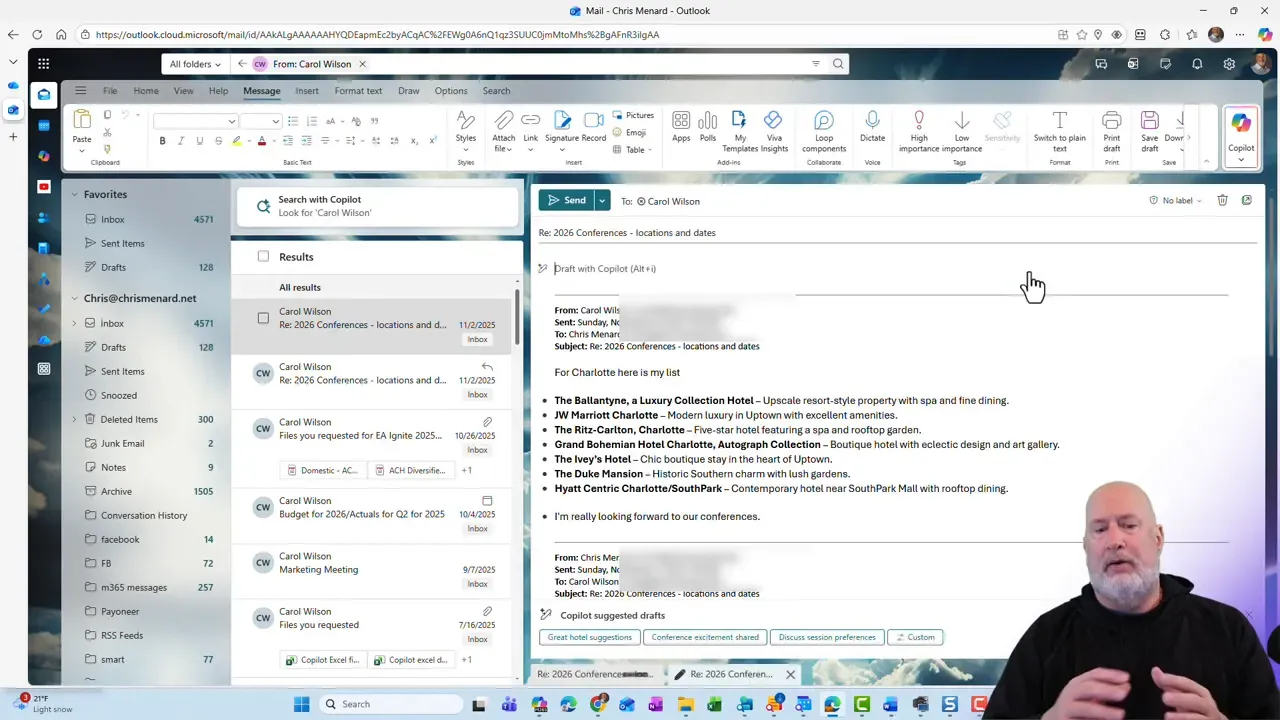
In my example, I received an update from a colleague named Carol. Instead of typing a response from scratch, I hit reply and looked at the suggestions Copilot presented.
Where to find the suggestions in Outlook
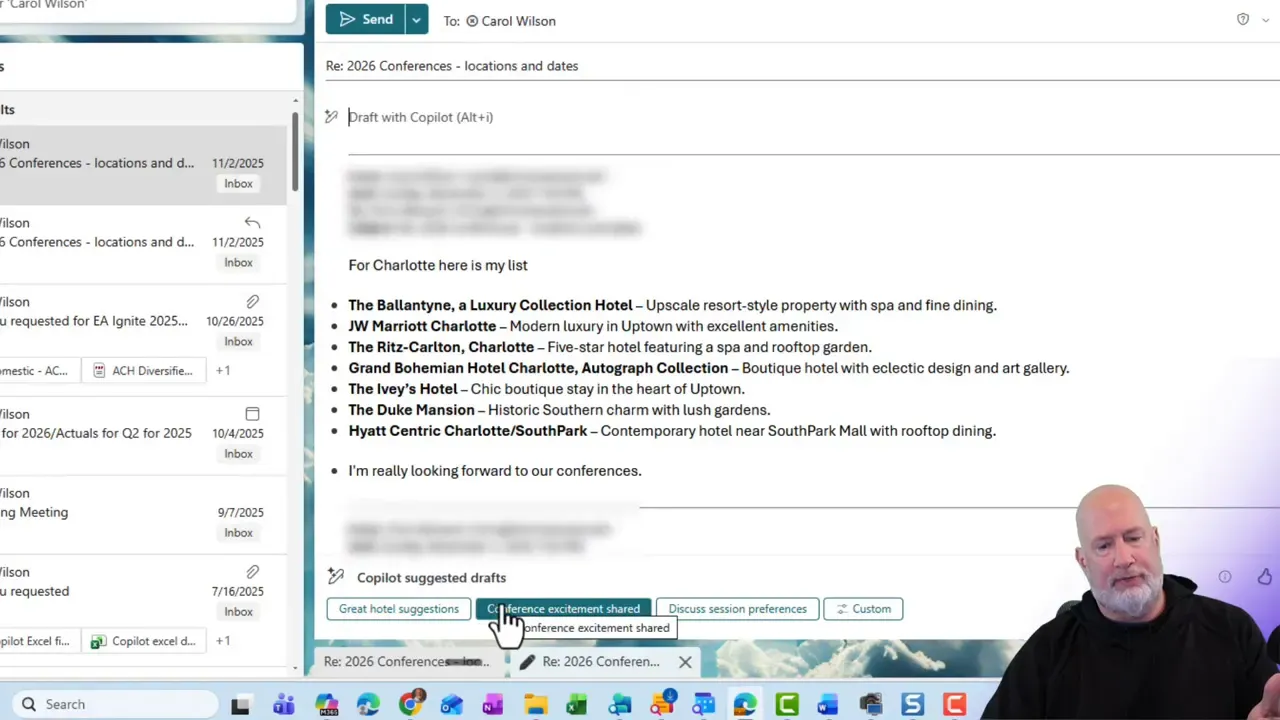
After you click Reply (or Reply All), look at the bottom of the message compose area. You will normally see three small reply suggestions. These can range from a single word like "Thanks" to a short paragraph that summarizes next steps or offers specific input.
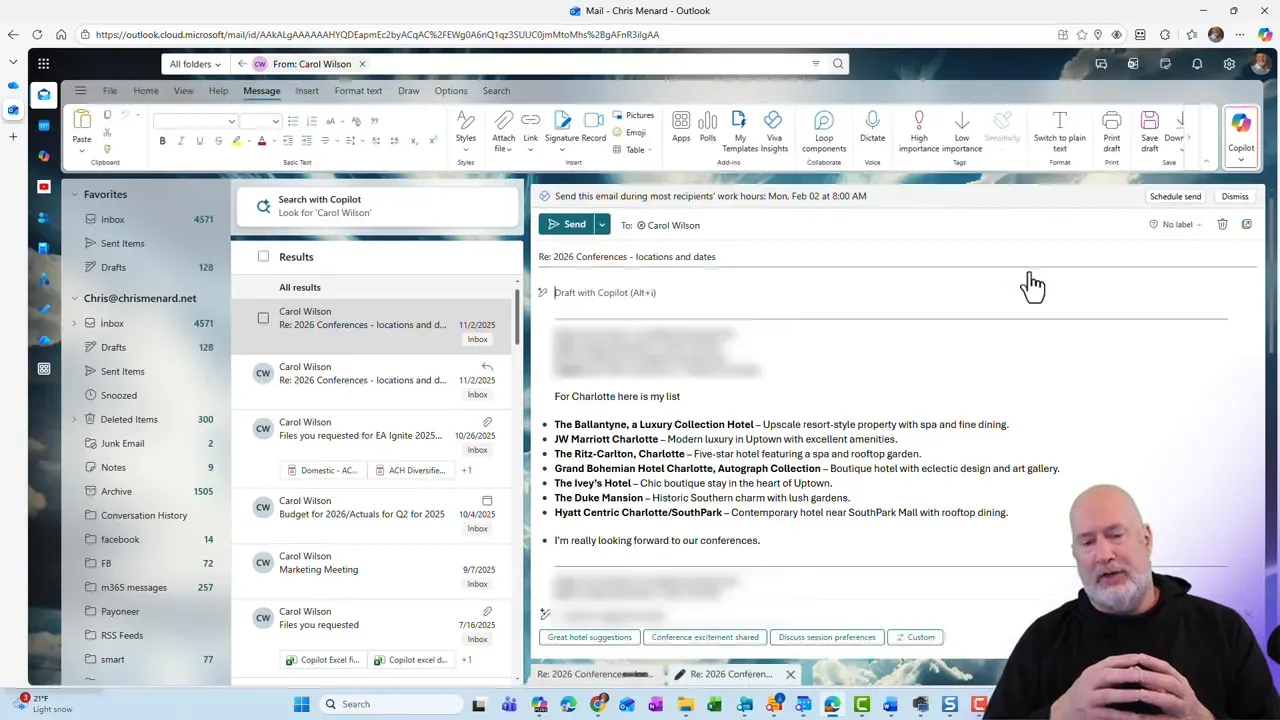
Hover over any suggestion to see a short description of what Copilot intends. In this example, the suggestions included things like "great hotel suggestions" and "conference excitement."
How to use the suggestions effectively
Use Copilot suggestions as a starting point. Here is a simple workflow I use:
- Click Reply on the message you want to respond to.
- Scan the suggested replies at the bottom of the compose window.
- Hover or click a suggestion to preview the text Copilot will insert.
- Choose Keep It to accept the draft, or select editing options to expand or shorten the reply.
- Tweak as needed and send.
The suggestions are often already exactly what I would write. More often than not they are at least a solid first draft that needs only minor tweaks.
Make it longer, shorter, or customize
One of my favorite buttons is Make it longer. If the suggested reply is too concise, Copilot will expand it into a more complete response that includes context and next steps. Conversely, you can shorten or choose a custom option to tailor tone and length.
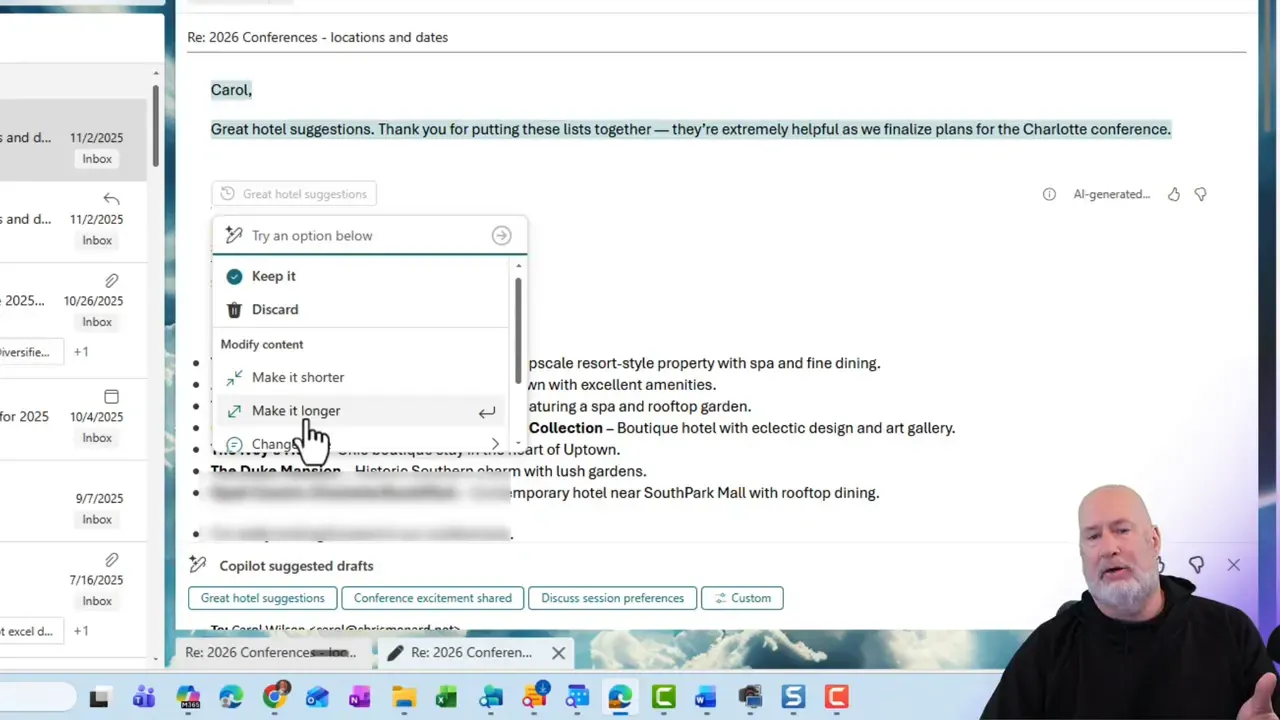
After expanding the draft, I almost always read it once and then either hit Keep It or edit a sentence or two. That small read-edit step takes far less time than composing from scratch.
Why this is a real time saver
A few reasons this becomes indispensable:
- Context-aware replies reduce the back-and-forth needed to clarify meeting details, logistics, or simple confirmations.
- Consistent tone helps when you're replying to many stakeholders and need to keep things professional and clear.
- Quick edits mean you rarely need to type entire paragraphs—usually just tweak and send.
Practical example
Say someone sends a message asking for hotel recommendations and preferences for a shared conference session. Instead of composing a reply that acknowledges the request and lists options, choose the suggestion labeled "great hotel suggestions." Click Make it longer to get a polished paragraph that acknowledges the request, suggests hotels, and asks any follow-up questions you need.
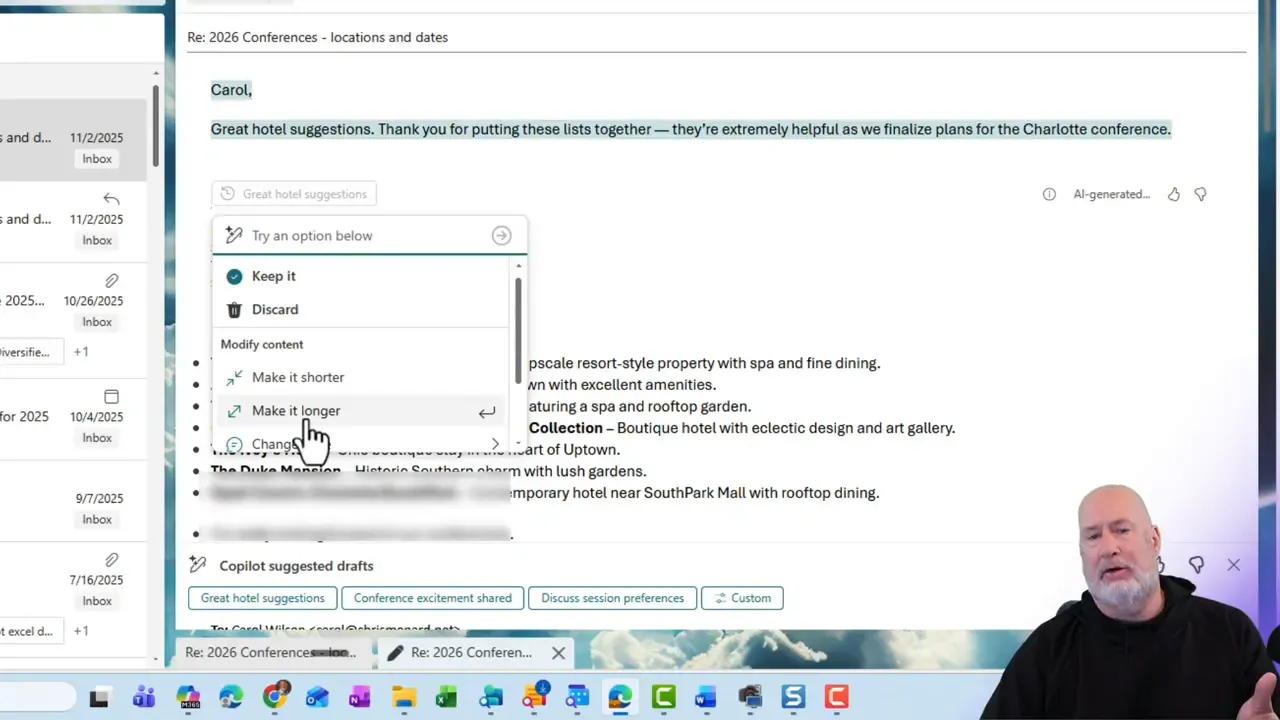
From there, you can either Keep It and send or edit to add specific hotels, dates, or budget constraints. That short interaction saves time compared to writing the whole reply sentence by sentence.
Tips and best practices
- Always read before sending. Copilot's drafts are very good but still require a quick check for accuracy and appropriate tone.
- Use the custom option when you need a particular phrasing or to include sensitive details that Copilot might omit.
- Keep recipients in mind. If the thread includes external partners, edit for clarity and professionalism.
- Use it for routine replies. Meeting confirmations, logistics, and quick acknowledgements are perfect candidates.
Limits and privacy considerations
This feature requires a Microsoft 365 Copilot license. Copilot reads the thread to generate suggestions, so be mindful of confidential or regulated information. Check your organization's guidance on data use with AI features and avoid feeding sensitive compliance data through drafts you didn’t explicitly write.
When not to use Copilot replies
There are times when manual writing is better:
- When the message requires a very personal tone.
- When legal or highly sensitive wording is needed.
- When precision and exact phrasing matter more than speed.
Quick checklist before sending Copilot drafts
- Read the draft to confirm facts and dates.
- Ensure the tone matches your intended audience.
- Add any details Copilot missed, like names or links.
- Remove or reword anything that touches on sensitive information.
FAQ
Do I need a Microsoft 365 Copilot license to use these replies?
Yes. Contextual reply suggestions are part of the Microsoft 365 Copilot experience and require a Copilot license to appear in Outlook.
Where do the suggestions show up in Outlook?
After you click Reply or Reply All, the suggestions appear at the bottom of the message compose pane. You can hover over or click them to preview and insert the draft.
Can I edit Copilot's reply before sending?
Absolutely. Select Keep It to insert the draft into your message, then edit any part before sending. You can also use the Make It Longer or Shorter options before keeping the draft.
Are suggestions the same across desktop and web Outlook?
Behavior can vary slightly between Outlook clients and updates. Generally, the web and latest desktop clients support Copilot reply suggestions, but make sure you are running an updated version of Outlook and that your account has the Copilot license.
Using Copilot in Outlook is one of those productivity wins that compounds. A 30-second read-and-edit replaces five minutes of composing, and that adds up fast over a week. Try using the suggestions for routine replies, test the "Make it longer" option, and keep the quick checklist handy. You will likely find that it becomes part of your normal email routine.
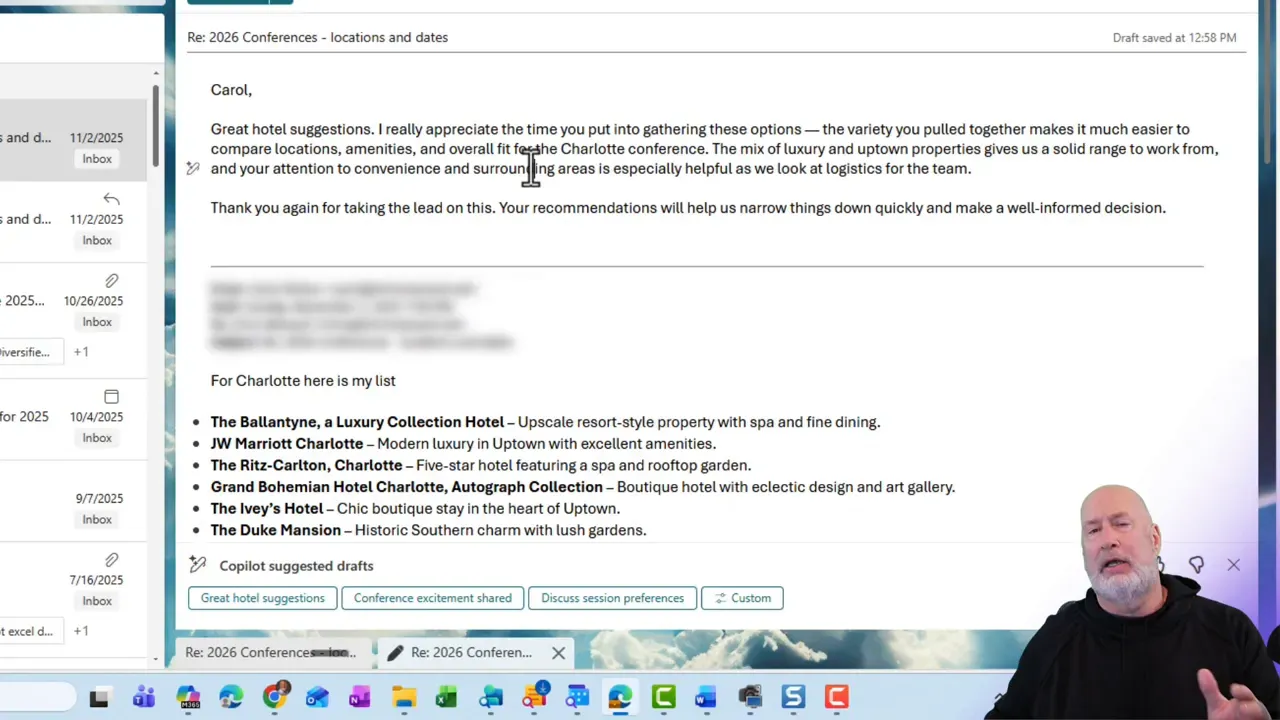
If you have access to Microsoft 365 Copilot, give the reply suggestions a try on your next meeting logistics or confirmation email. It may become the small, daily time saver you didn't know you needed.
 Chris Menard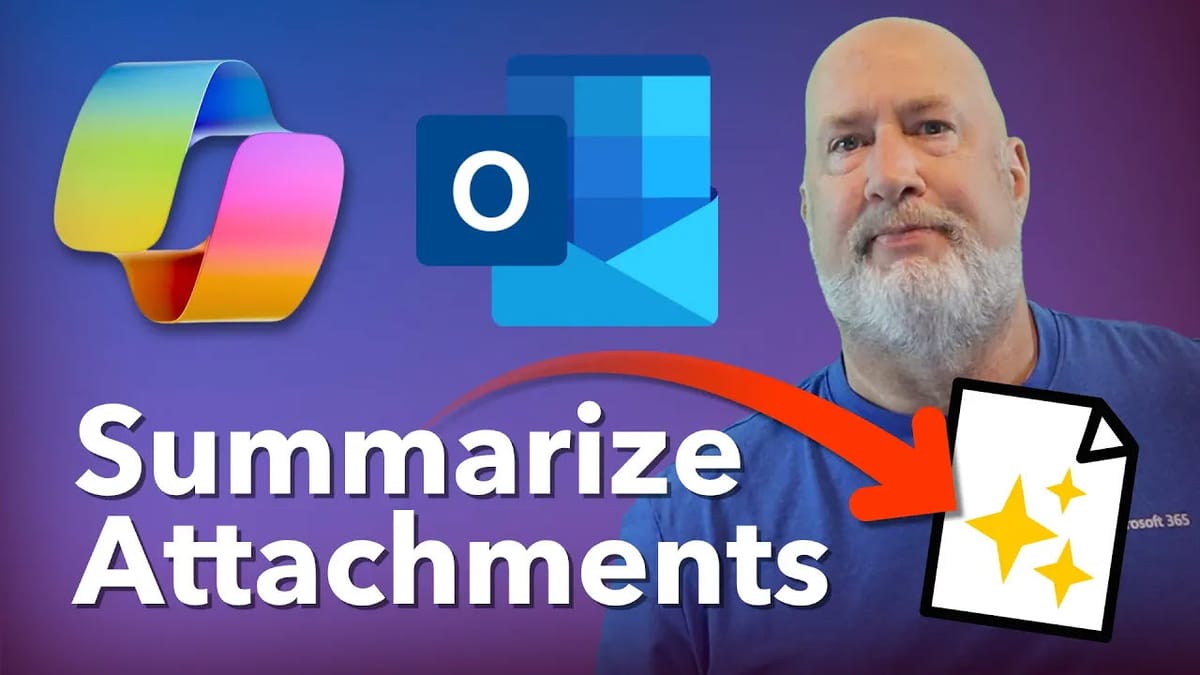
 Chris Menard