
Excel FORMULA Completion vs COPILOT(): When to Use Each Feature

I use both Formula Completion and the Copilot function in Excel every week. They require a paid Microsoft 365 Copilot license. They solve different problems, and when you combine them, you can move from repetitive calculations to higher-level text analysis and data cleanup in minutes. Below, I explain what each tool is best suited to, provide practical examples, and share a few tips to save time and reduce errors.
At a glance: which tool for which job
- Formula Completion is perfect for numeric calculations and common Excel formulas. Type = and a clear header, and Excel will often suggest the exact formula you need.
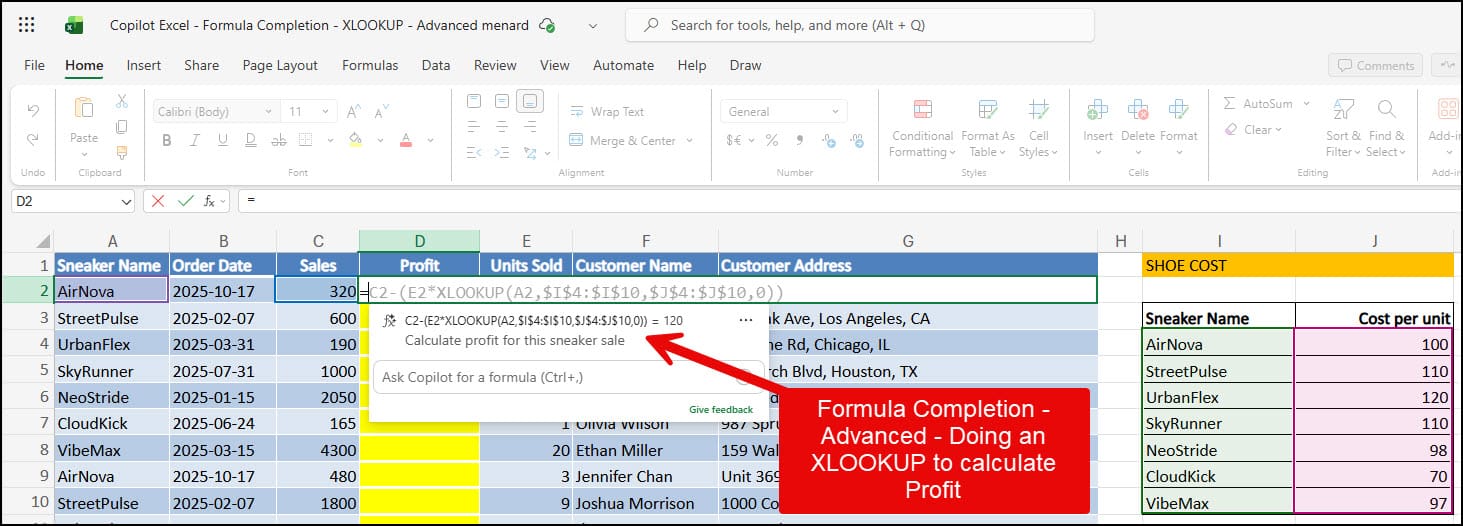
- Copilot() is best for natural-language tasks, text classification, sentiment analysis, and complex data transformations you would normally script or manually edit. It uses a prompt plus cell ranges.
Copilot function vs Formula Completion Table
The Excel file used in the video below
Formula Completion: quick calculations with minimal typing
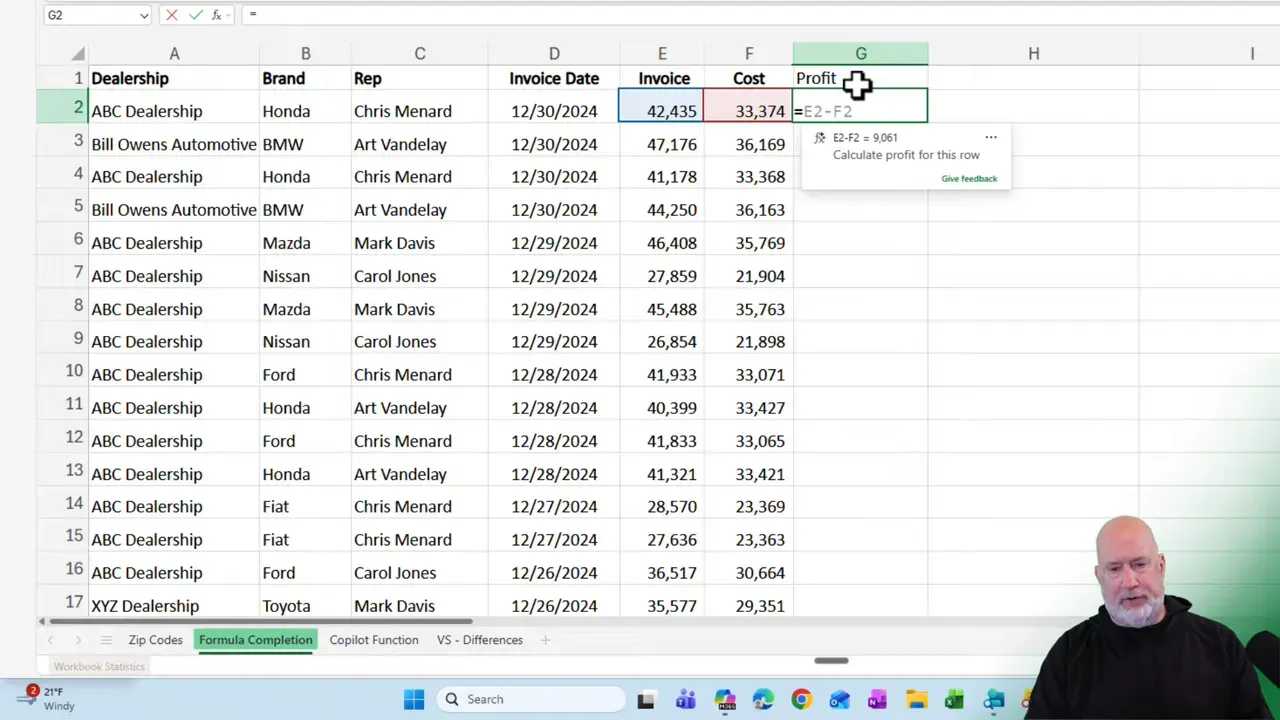
Formula Completion is designed to read your headers and surrounding cells and create the right formula for you. For example, if you have columns for Invoice and Cost, typing a descriptive header like Profit and then entering = in the row beneath usually produces a formula such as Invoice - Cost. Excel guesses what you want and fills it in.
Two practical uses I rely on:
- Profit calculation. Put a header named Profit, click the cell under it, type =, and let Excel suggest the subtraction formula (Invoice - Cost). Autofill down the column.
- Percent margin. Add a header like "Percentage" and let Formula Completion generate something like "=Profit/Invoice". Format the column as a percent.
Tips for formula completion
- Use clear, descriptive headers. The feature reads headers to suggest formulas.
- Keep consistent column layout. Formula Completion is strongest when your sheet is well-structured.
- Use autofill to apply the generated formula to the rest of the column.
 Chris Menard
Copilot(): natural language for spreadsheets
Copilot is a function you call with =COPILOT("your prompt", range, ...). It handles tasks that are awkward to do with formulas alone, like sentiment analysis, categorization, or fixing messy text fields. As of February 8, 2026, the COPILOT function is available only in the desktop version of Excel.
Examples I use often
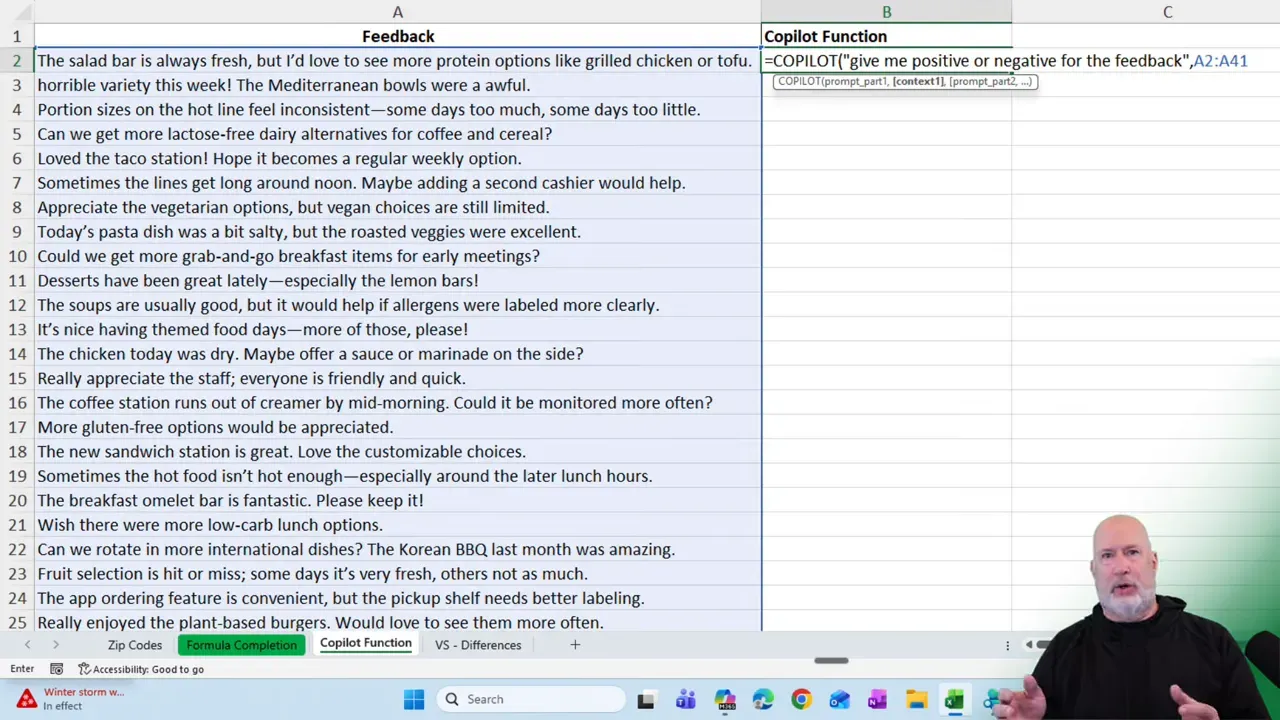
- Sentiment analysis. Give Copilot a prompt like "Give me positive or negative for the feedback," and pass the feedback column range. It returns a column of "Positive" or "Negative" values.
- Categorization. Ask Copilot to generate categories from a range of comments, or provide a predefined list of categories and have it map each comment to one of them.
- Data cleanup. Ask Copilot to normalize addresses, extract structured address components, or reformat inconsistent text fields.
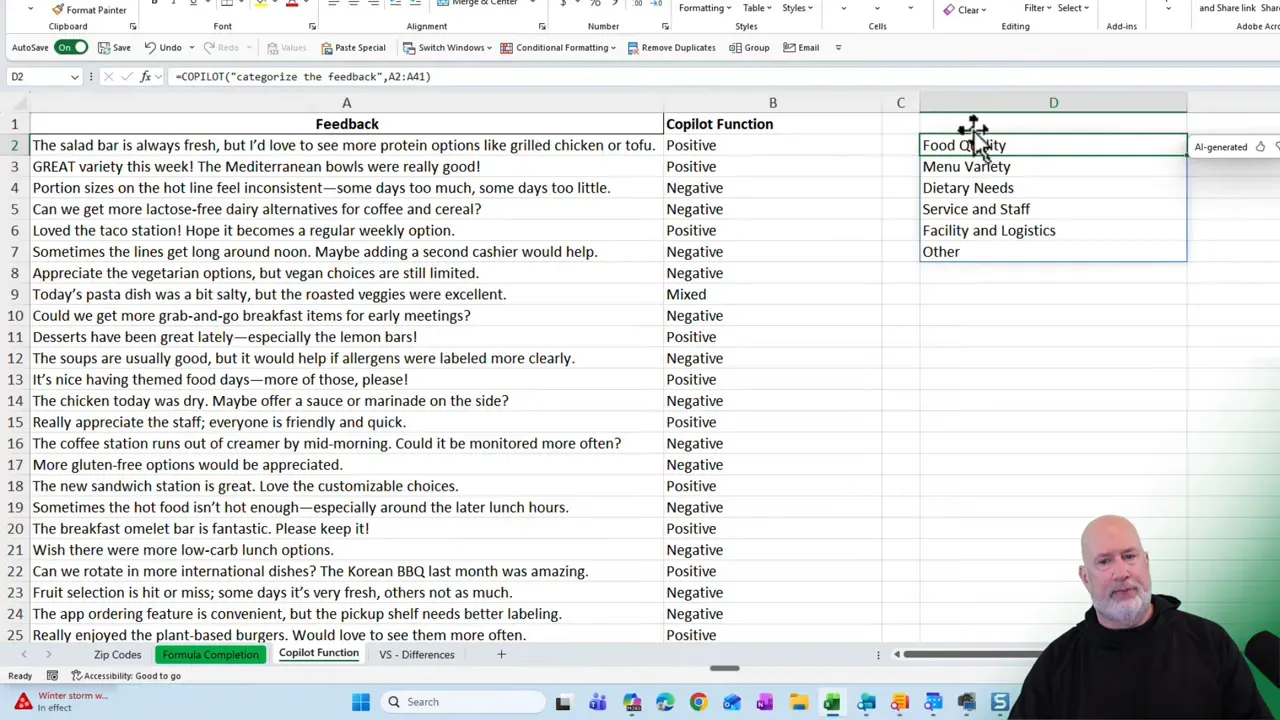
Using multiple arguments with Copilot
Copilot can accept multiple arguments beyond the prompt and the input range. For example, you can provide a list of categories in another range and ask Copilot to map each comment to one of those categories. The call might look like:
=COPILOT("Give me the category for this feedback", A2:A41, "categories", E2:E7)This approach lets you control the taxonomy while still leveraging Copilot's natural language understanding to match comments to categories.
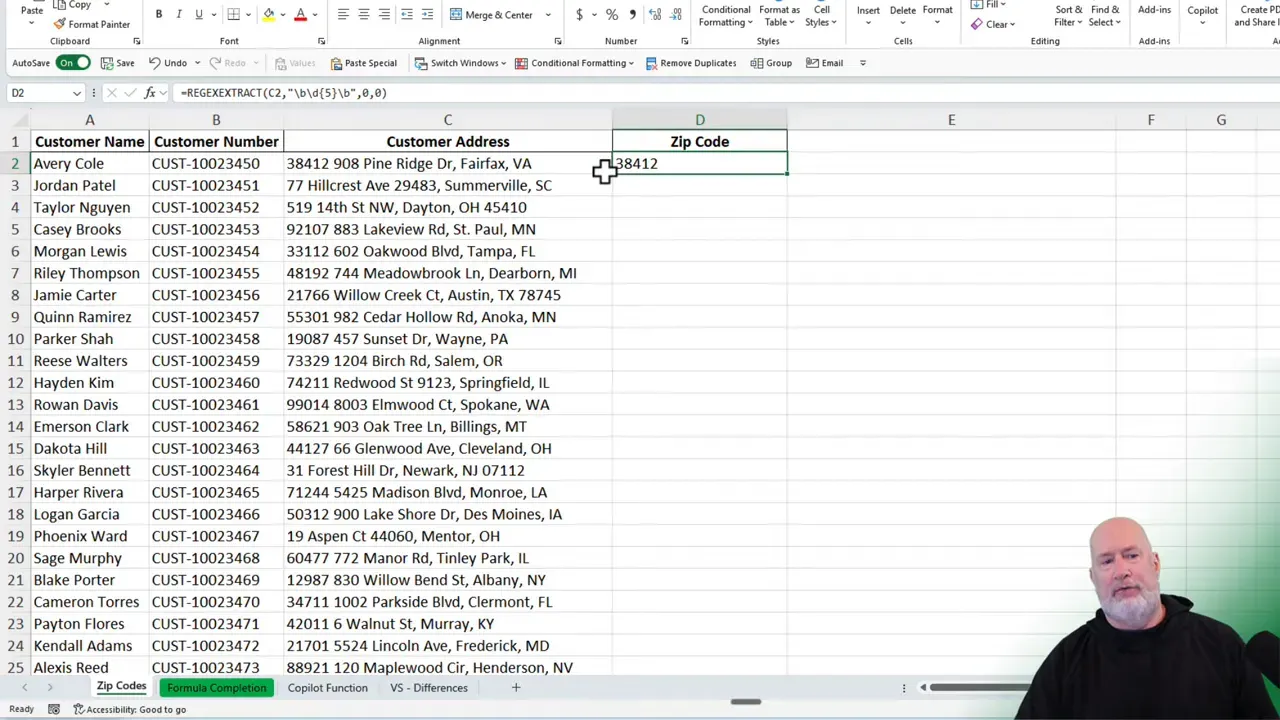
Combining both: best of both worlds
Sometimes the fastest workflow is to use both tools in the same worksheet. I often extract structured elements from messy text using a formula, then use Copilot for higher-level cleaning.
Example workflow I used recently:
- Use a formula (for example, REGEXEXTRACT) to pull zip codes into a dedicated column. Formula Completion helps me quickly insert and autofill the REGEXEXTRACT formula.
- Use Copilot to normalize customer address lines. I prompt Copilot to return the correct street number, street name, city, state, and ZIP code, passing the messy address range as input.
- Scan Copilot results for any mismatches and correct the few that are wrong. It is much faster than manual retyping.
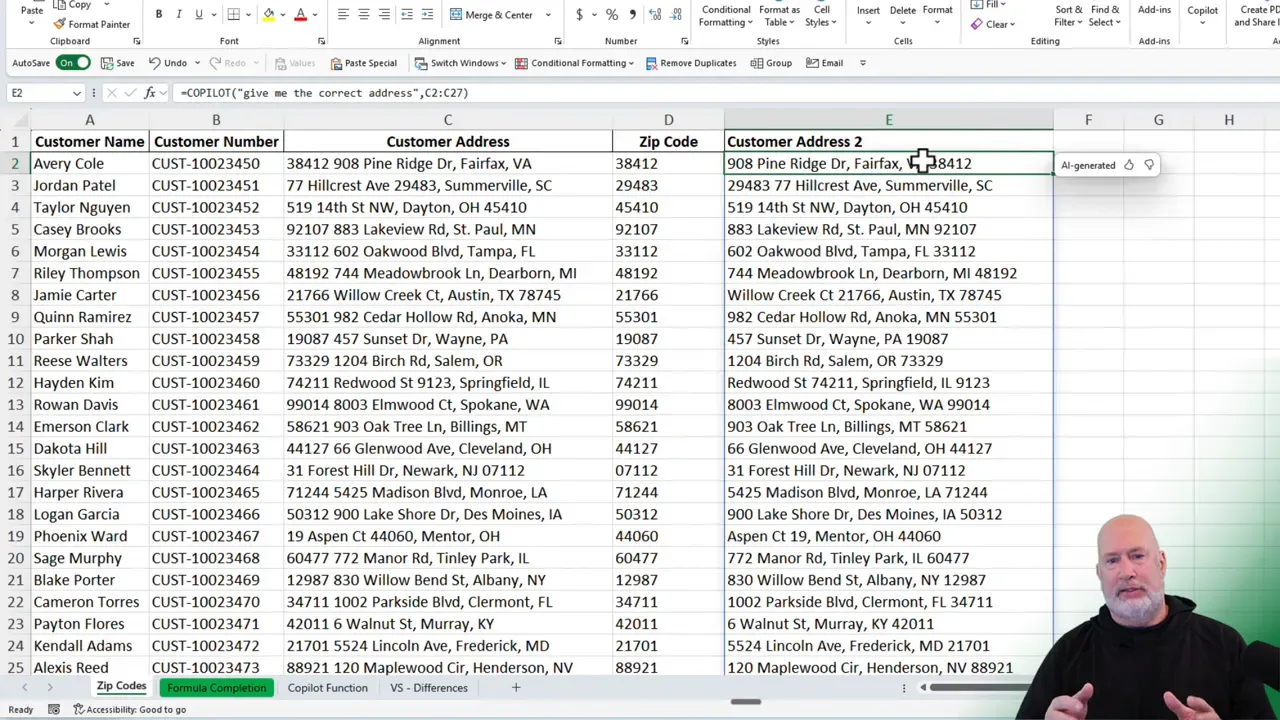
Why this combination works
- Formulas are deterministic and well-suited for extracting predictable patterns, such as numbers, dates, or specific substrings.
- Copilot understands context and nuance in text and can infer structure across messy entries.
- Using formulas for the predictable parts and Copilot for the fuzzy parts dramatically reduces manual cleanup.
Practical tips and guardrails
- License requirement: You need an M365 Copilot license for the Copilot function to work, and for Formula Completion to work.
- Provide clear prompts. Tell Copilot exactly what output you want. If you need "street number, street, city, state, zip," specify it in the prompt.
- Reference ranges carefully. When passing ranges, ensure they cover only the rows you want processed. Copilot can operate on the entire range you provide.
- Verify results. Always spot-check Copilot outputs. It’s fast and often accurate, but not infallible. Correct any mismatches manually rather than redoing everything.
Work in either web or desktop, Copilot works in both Excel web and desktop. I switch between them without changing prompts or ranges. As of February 8, 2026, Copilot's Formula Completion works on the Web version and sometimes works on the desktop version. The COPILOT function only appears in the desktop version for me.
Step-by-step example: sentiment + category + zip extraction
- Add descriptive headers: Feedback, Sentiment, Category, Zip Code, Clean Address.
- Use Formula Completion to generate Profit, Percentage, or REGEXEXTRACT formulas where applicable. Autofill down the columns.
- Insert Copilot for sentiment:
=COPILOT("Give me the positive or negative for the feedback", A2:A41). Review the Sentiment column. - Ask Copilot to produce categories from the same range or map to your predefined list:
=COPILOT("Categorize the feedback", A2:A41)or include your categories as an argument. - Use Copilot to clean addresses:
=COPILOT("Construct a correct address in the format street, city, state, zip", C2:C27). Review and fix any errors.
YouTube Video - Copilot Function VS Formula Completion
FAQ
Do I need a special license to use the Copilot function or Formula Completion?
Yes. Copilot in Excel requires a paid M365 Copilot license.
When should I prefer Formula Completion over Copilot?
Use Formula Completion for predictable numeric calculations, standard Excel functions, and tasks where a deterministic formula is faster and more precise. It is ideal for margins, sums, lookups, and regex extraction of consistent patterns.
When is Copilot the better choice?
Choose Copilot for sentiment analysis, free-text categorization, normalization of messy text fields, or when you want Excel to infer structure from inconsistent inputs. It excels at tasks that are hard to express with a single formula.
Can Copilot and Formula Completion work together?
Absolutely. Use formulas to extract predictable fields, such as ZIP codes, and use Copilot to clean or categorize the remaining text. This hybrid approach reduces manual edits and speeds up verification.
How reliable is Copilot?
Copilot is often accurate but not perfect. Always verify important results. Use spot checks or conditional formatting to flag unexpected outputs for manual review.
 Chris Menard
Final thoughts
Formula Completion and Copilot function do different things, and using them together gets the best results. Let formulas handle repetitive, predictable tasks, and use the Copilot function for messy text and higher-level classification. With clear prompts, well-structured ranges, and a quick verification pass, you can clean and enrich datasets far faster than by manual editing alone.
If you experiment with both, you’ll quickly see patterns where one tool outperforms the other. Build a small checklist for each workflow and use that to streamline future projects.



